Emergency alerts — people nearby
iPhone
Step by step
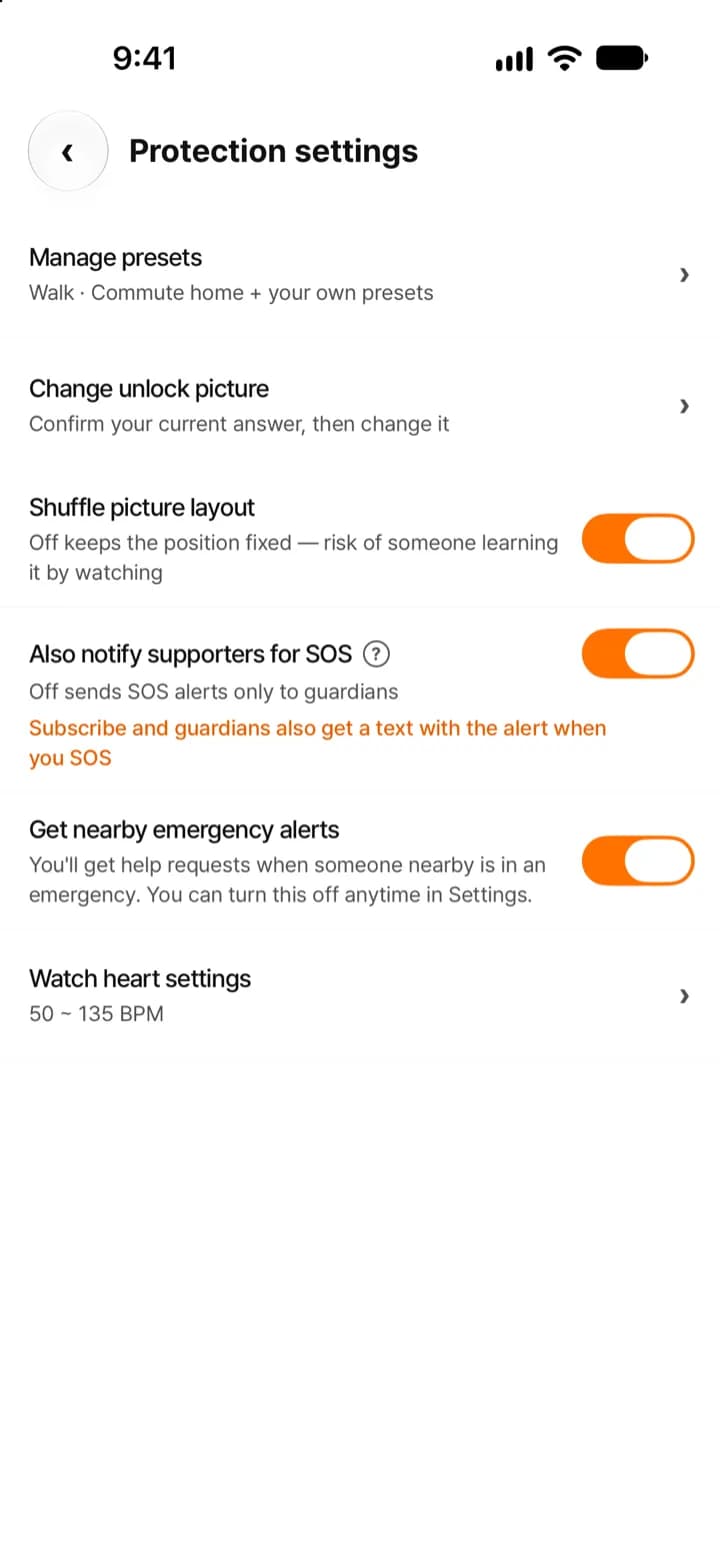
Step 1
Turning it on or off Tap the gear at the top right of the Protection mode tab → "Protection settings" → "Get nearby emergency alerts".
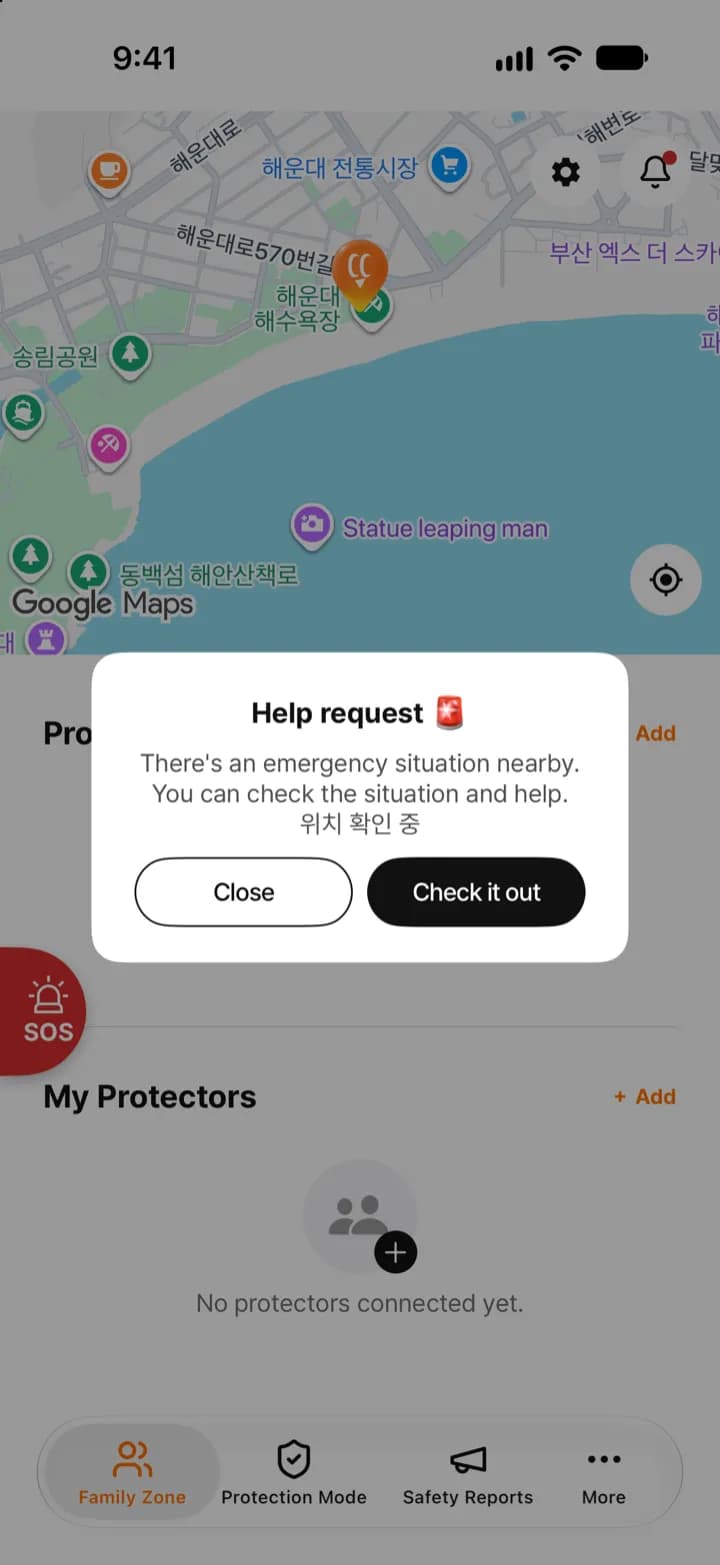
Step 2
When you receive a help request When "Help request — There's an emergency situation nearby." appears, tap [Review]. If you missed it, open "Help requests" in More.

Step 3
Help requests received
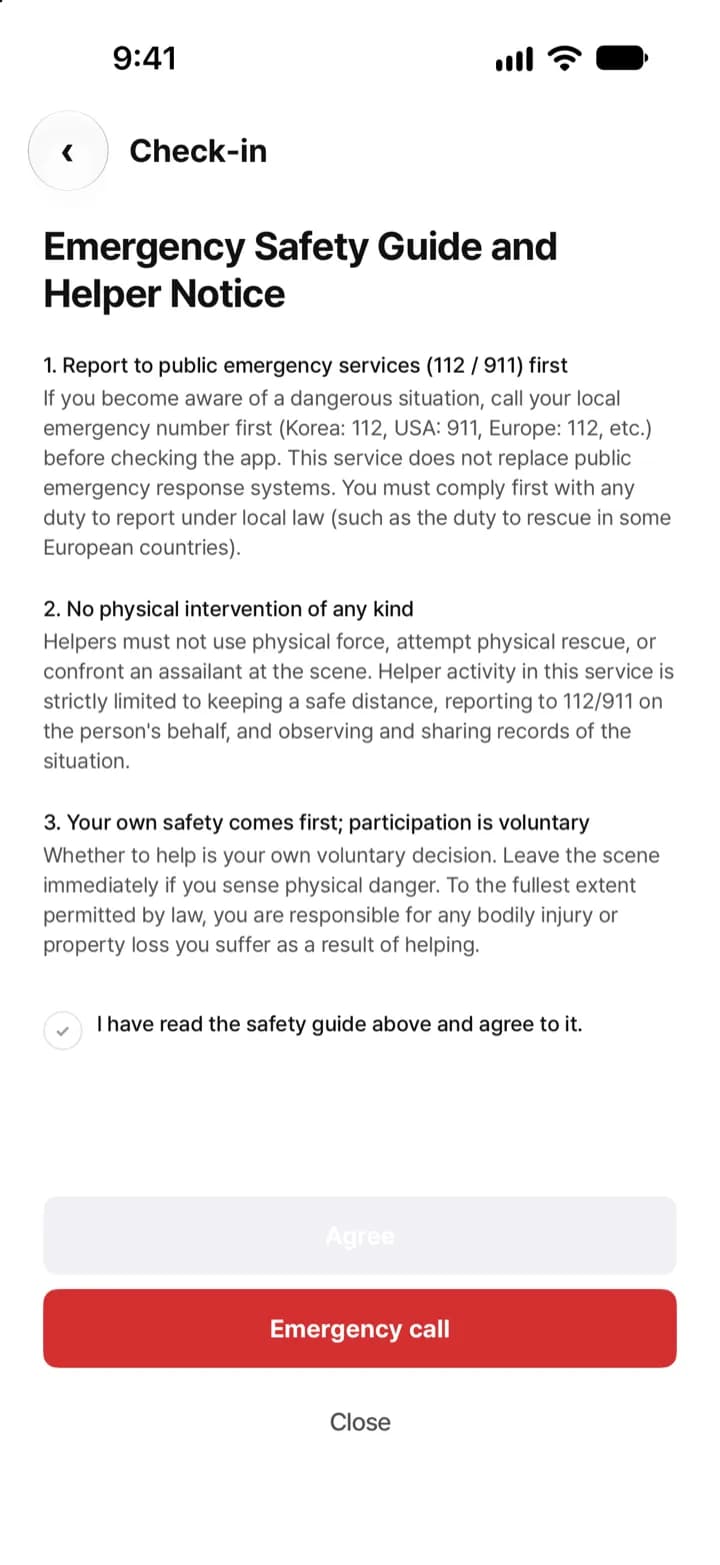
Step 4
First read and agree to the "Emergency Safety Guide and Helper Notice". You'll confirm this each time you open a request.
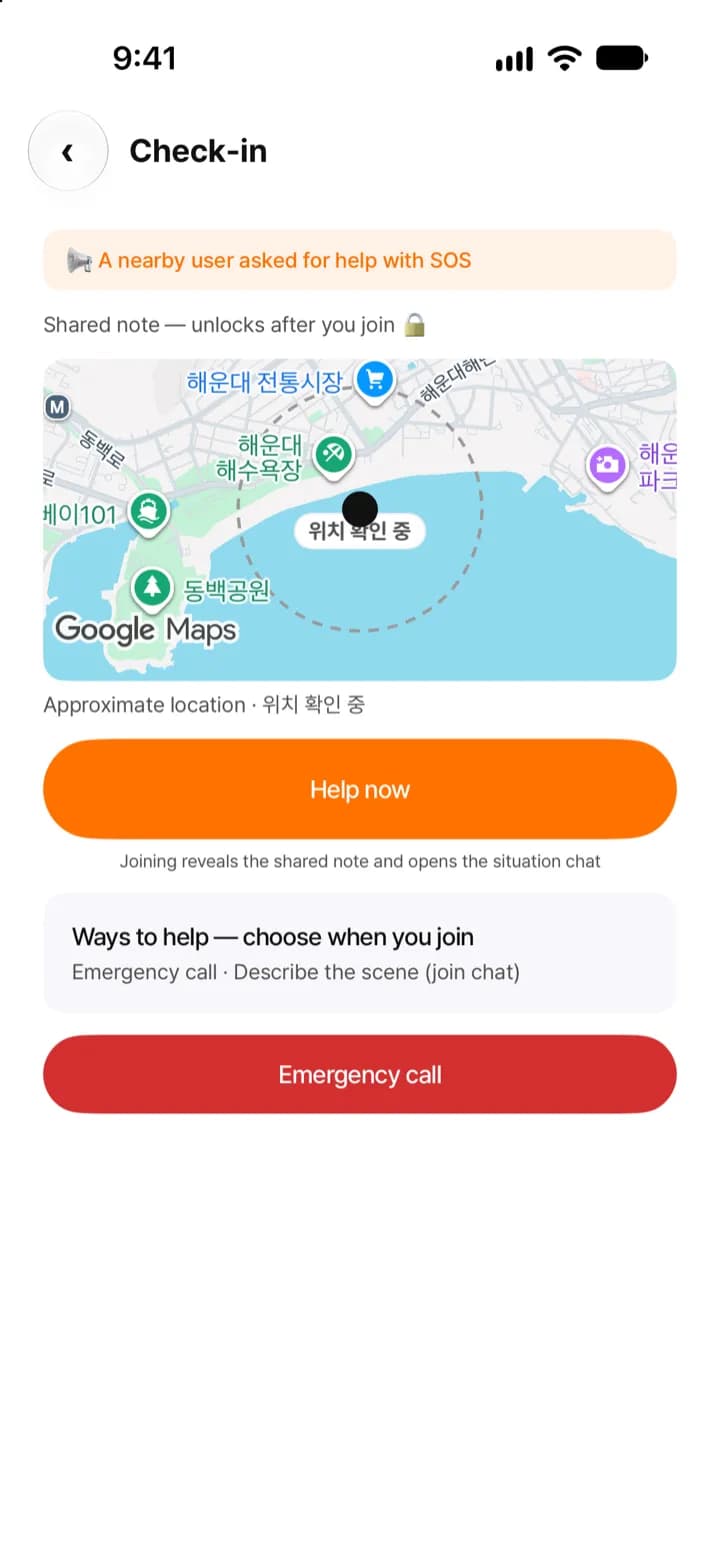
Step 5
Check the approximate location and situation, and tap [Help now] if you're able to help.
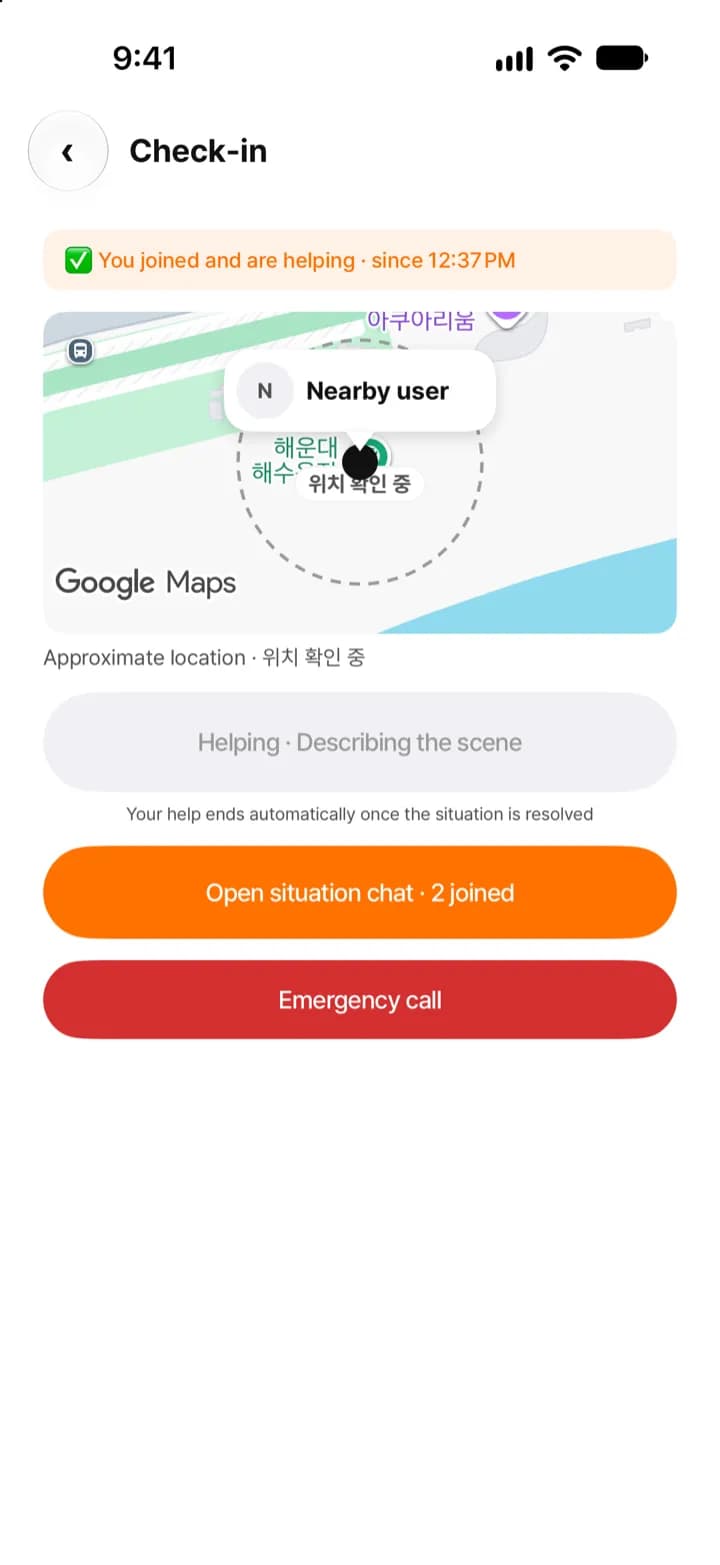
Step 6
After joining, you can talk with the guardians in the situation chat and tap [Emergency call] to report right away.
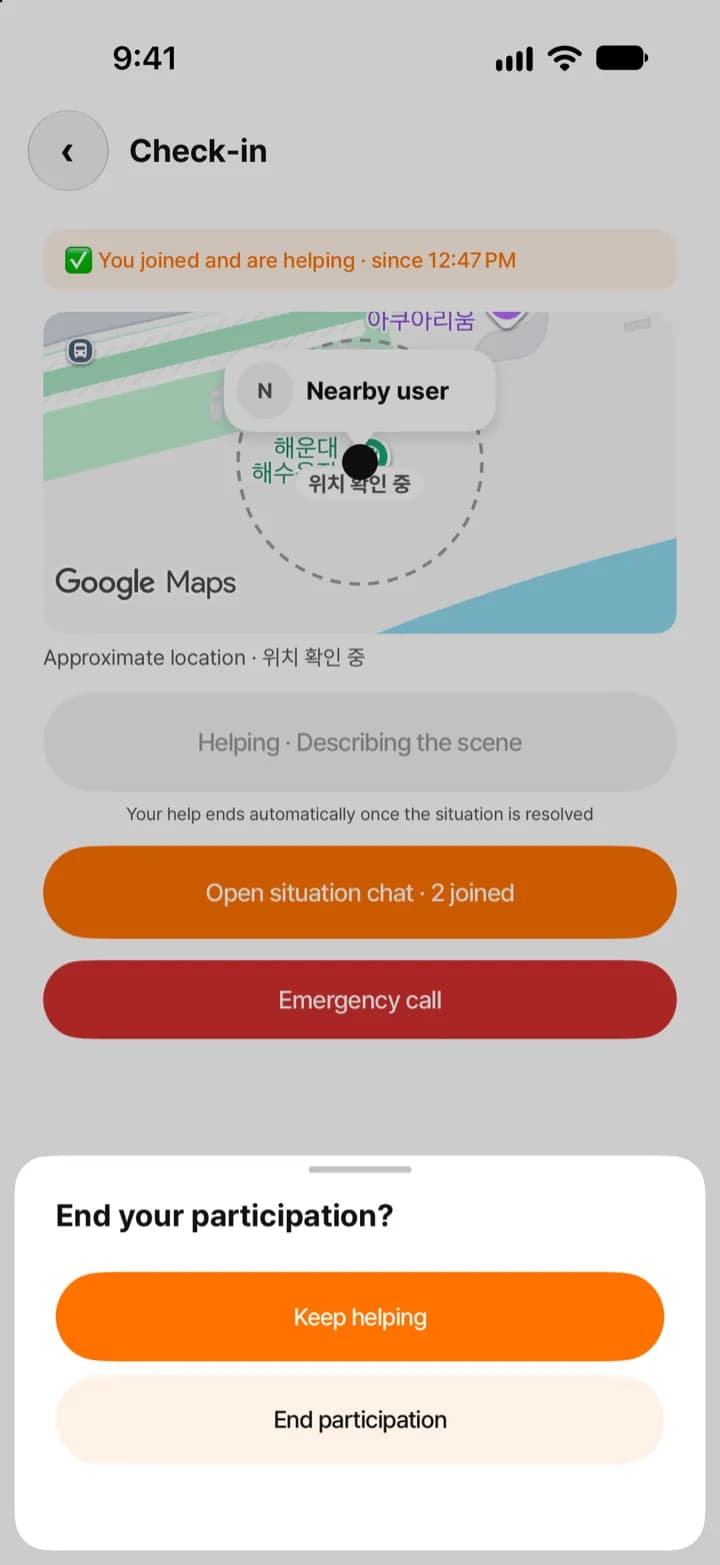
Step 7
If you can no longer help, leave and choose [End participation].
Step 8
Please remember Report to public emergency services first.
Step 9
Do not physically intervene.
Step 10
Your own safety comes first. Helping is voluntary, and you can stop at any time.