Family Zone, safe zones & location history
iPhone
Step by step
Step 1
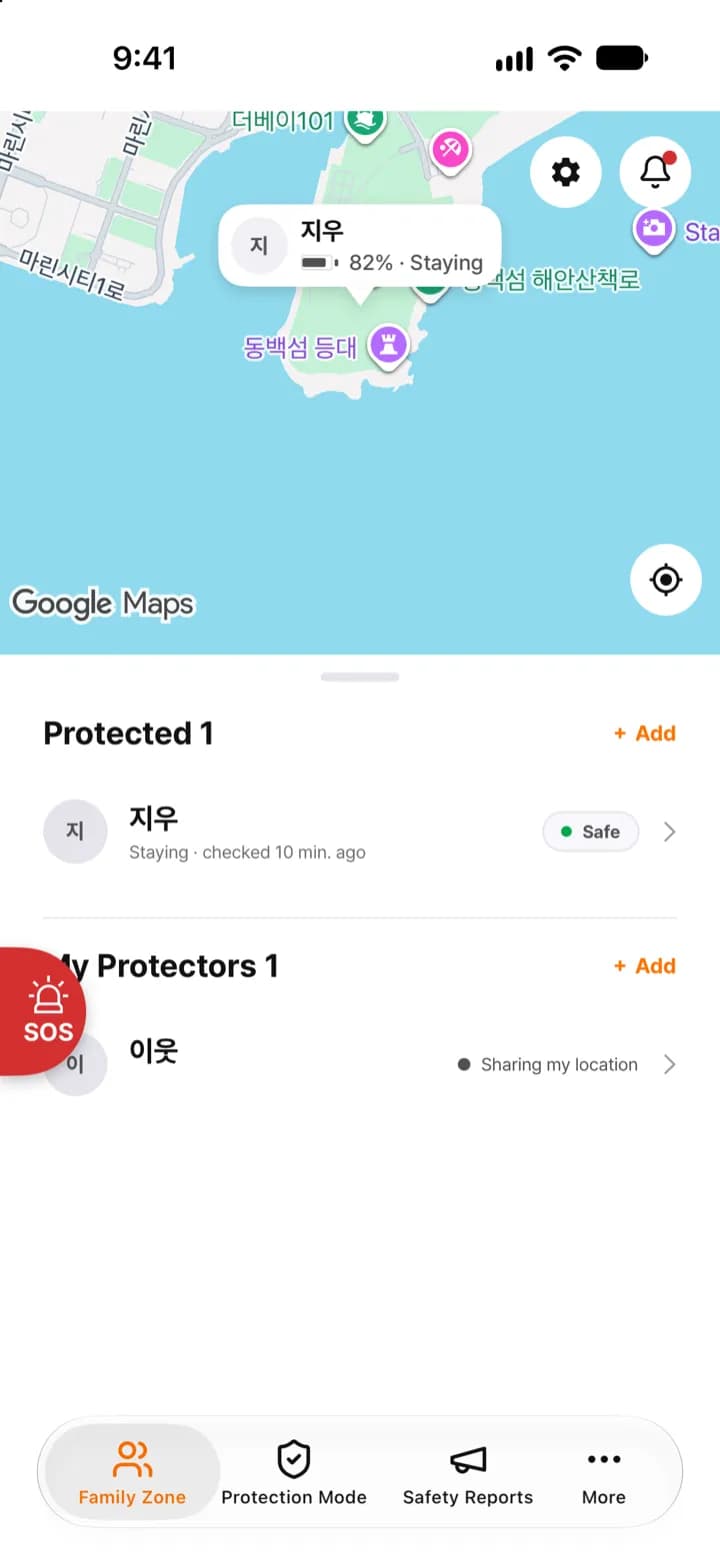
Family Zone home
Step 2
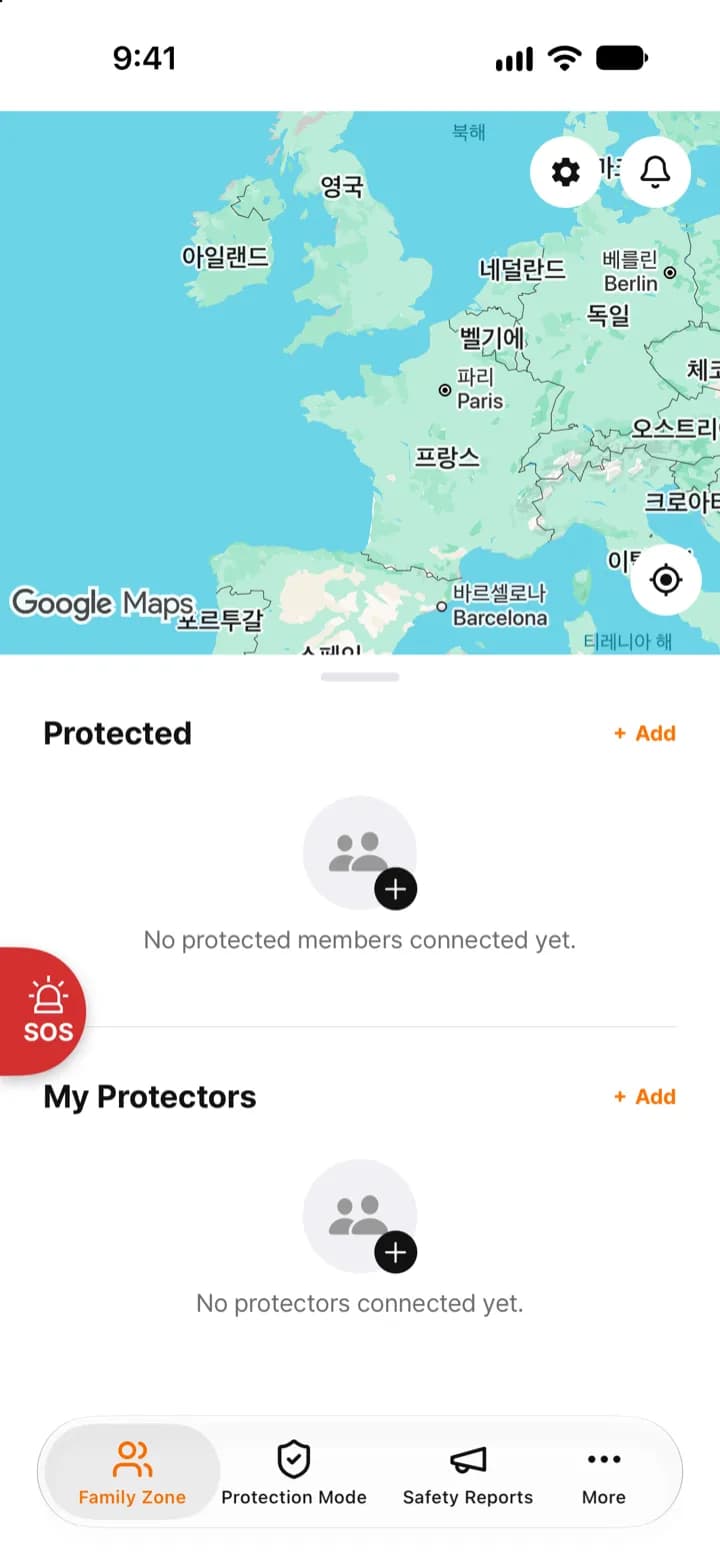
Connecting with family Tap [+ Add] in Family Zone. If no one is connected yet, you'll start from an empty screen.
Step 3
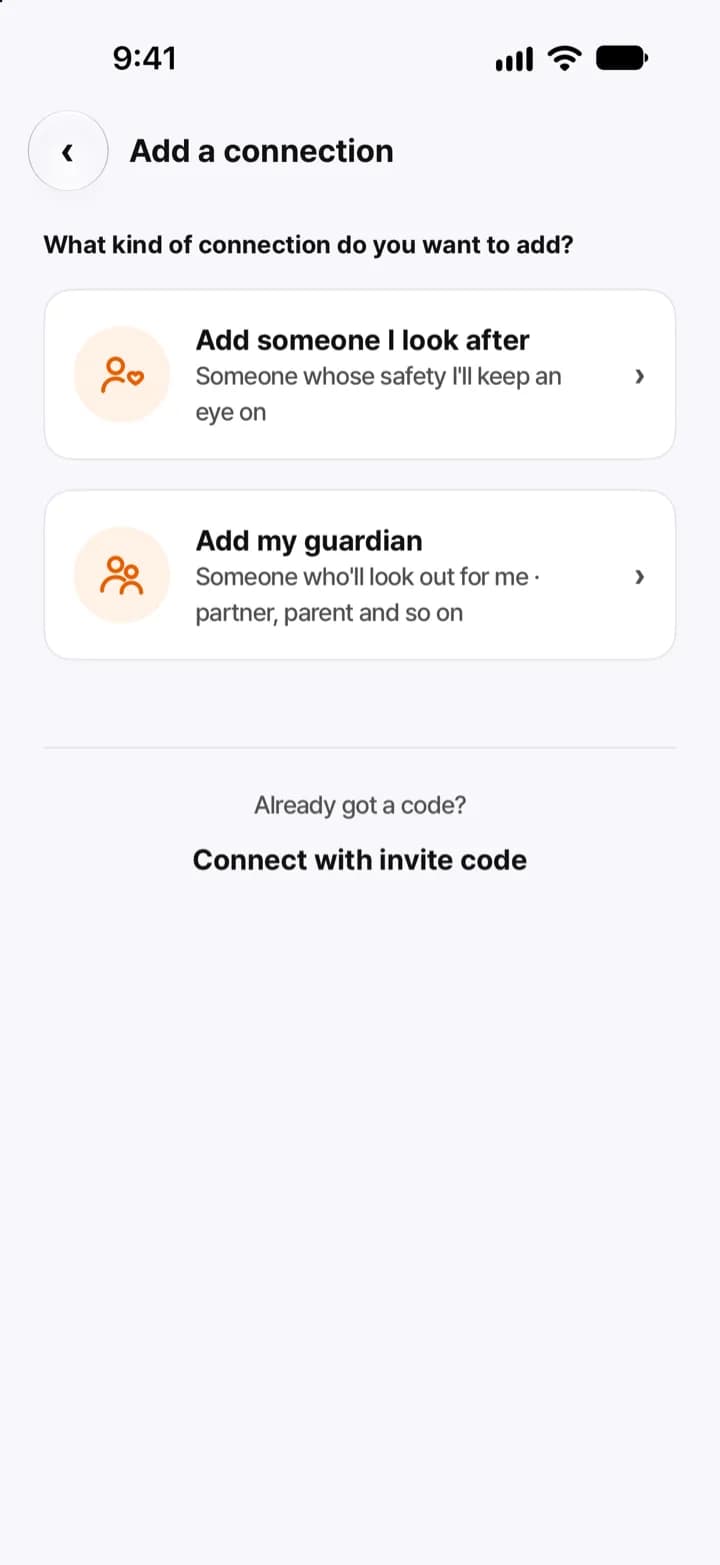
Choose [Add someone I look after] or [Add my guardian]. If you received a code, tap [Connect with invite code].
Step 4
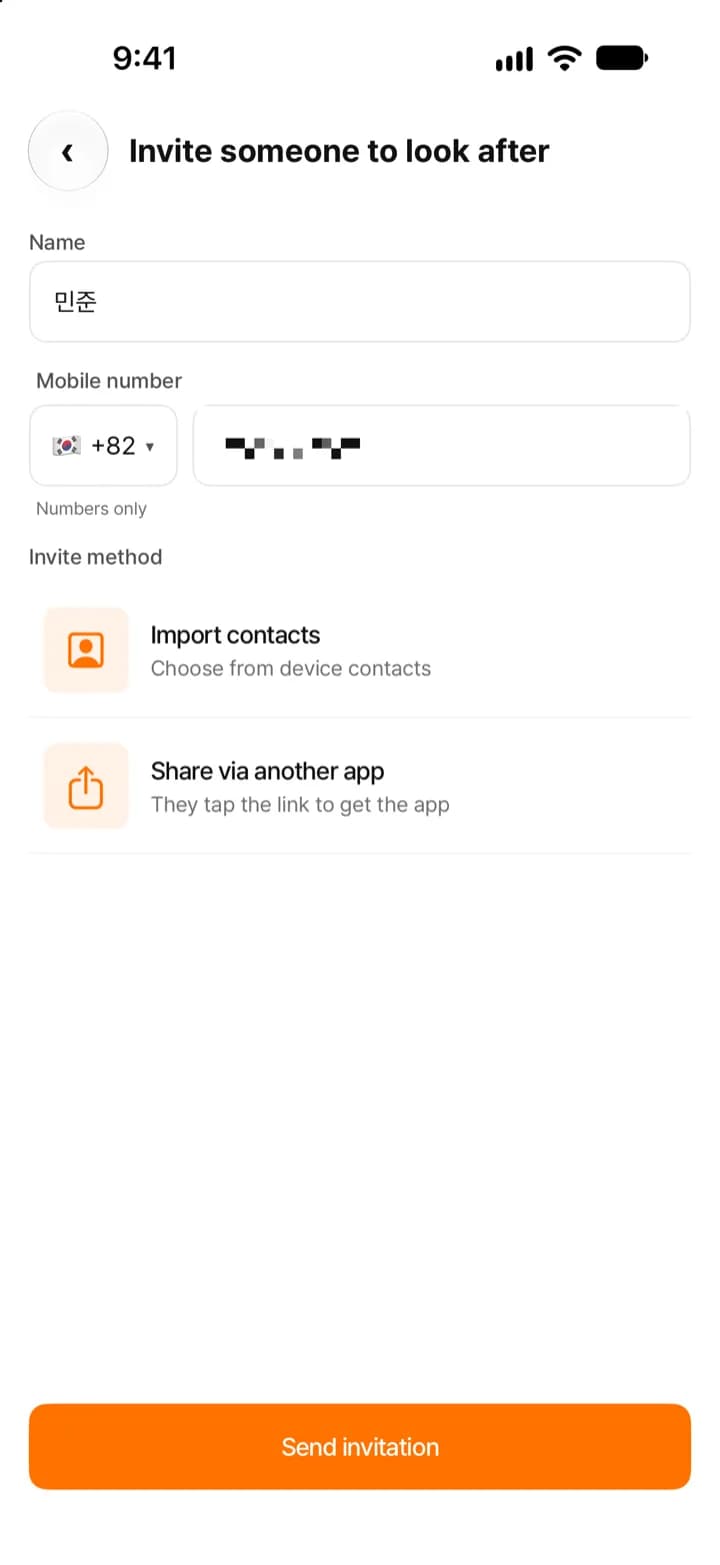
Enter a name, choose from your contacts or share through another app, then tap [Send invite].
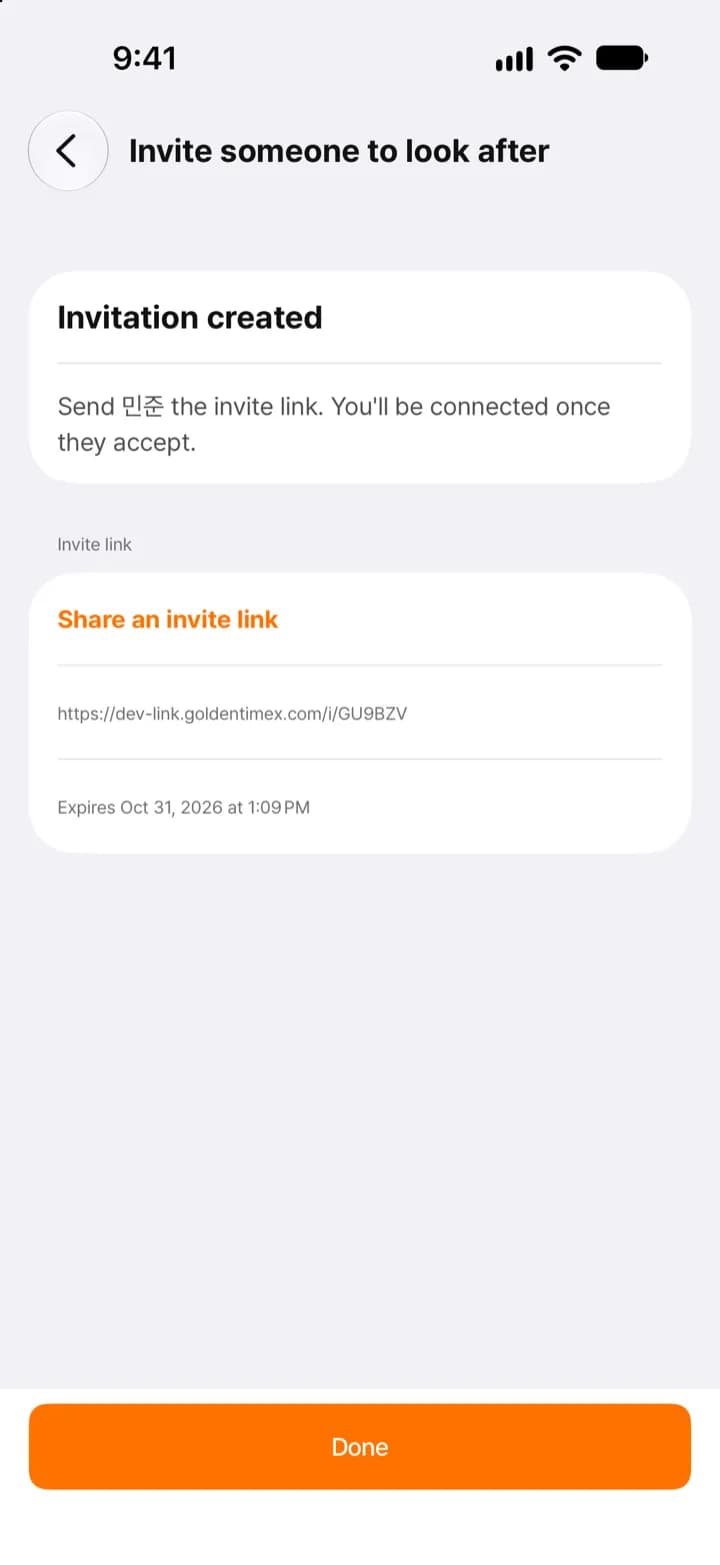
Step 5
Send the invite link to the other person.
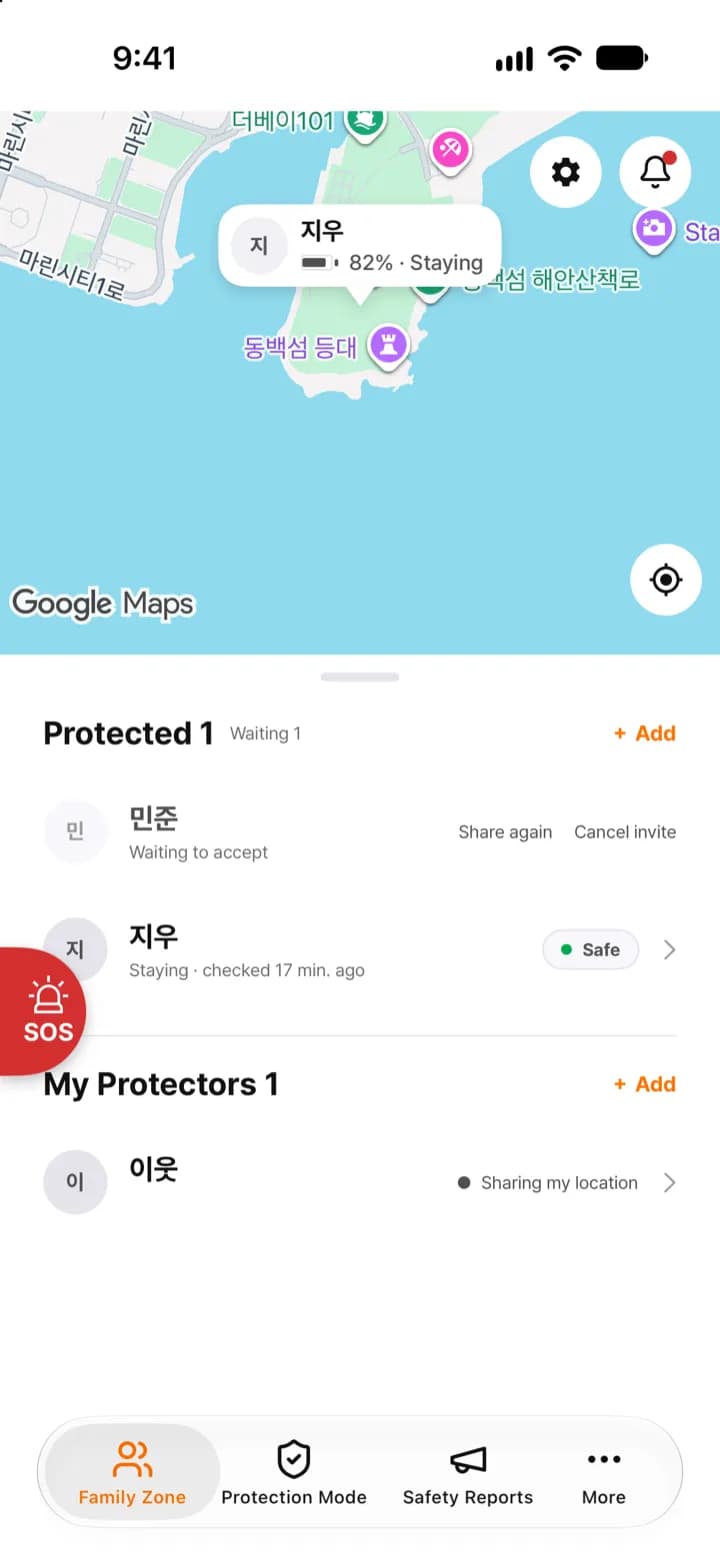
Step 6
Until they accept, it shows as "Waiting to accept". You can [Send again] or [Cancel invite].
Step 7
To connect a child (a minor), see Sign-up & invites for minors.
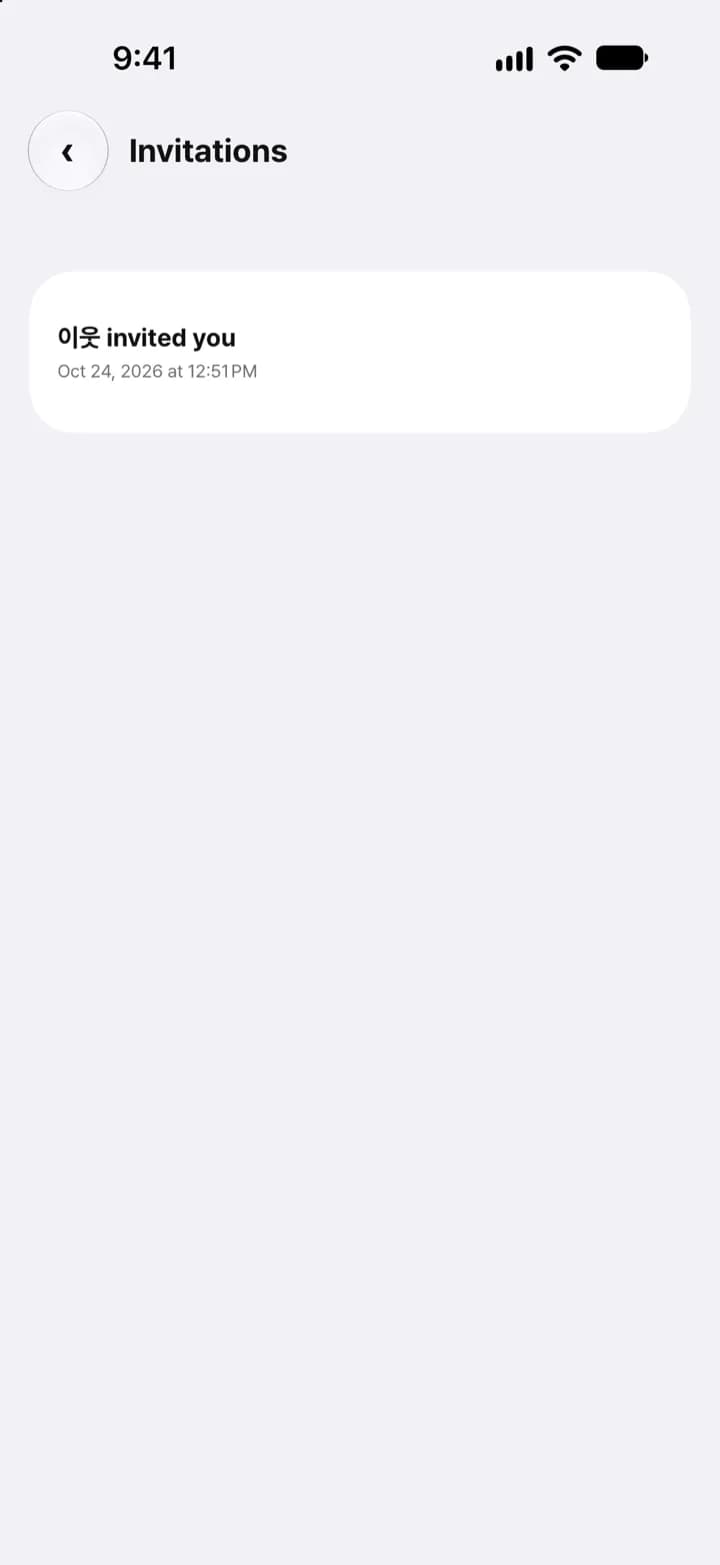
Step 8
When you receive an invite Tap the invite link, or open "Invitations" in More. On Android, tap the invite to show [Accept] and [Decline], then tap [Accept].
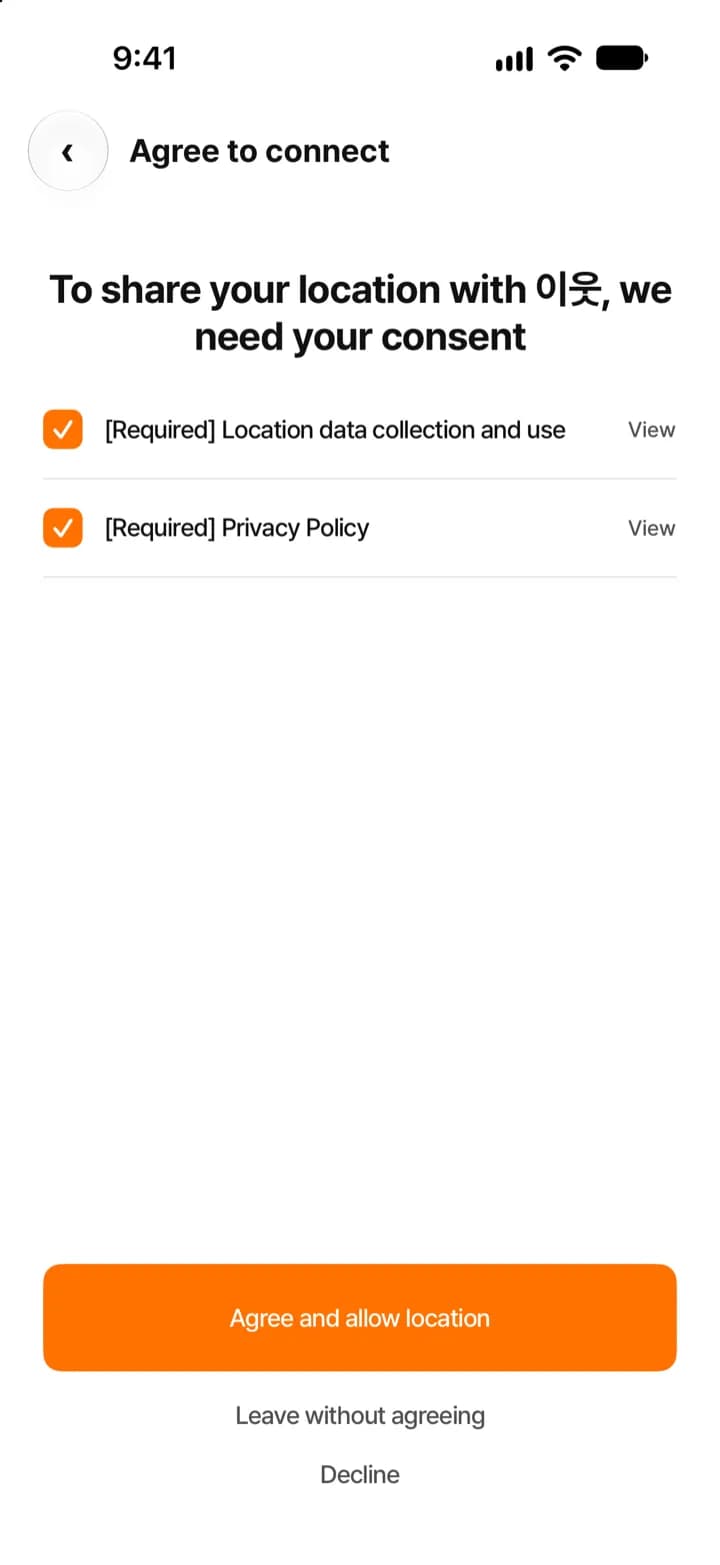
Step 9
Review the two required items (Location data collection and use, Privacy Policy), then tap [Agree and allow location]. If you don't want to connect, tap [Decline]. To leave without deciding, tap [Leave without agreeing].
Step 10
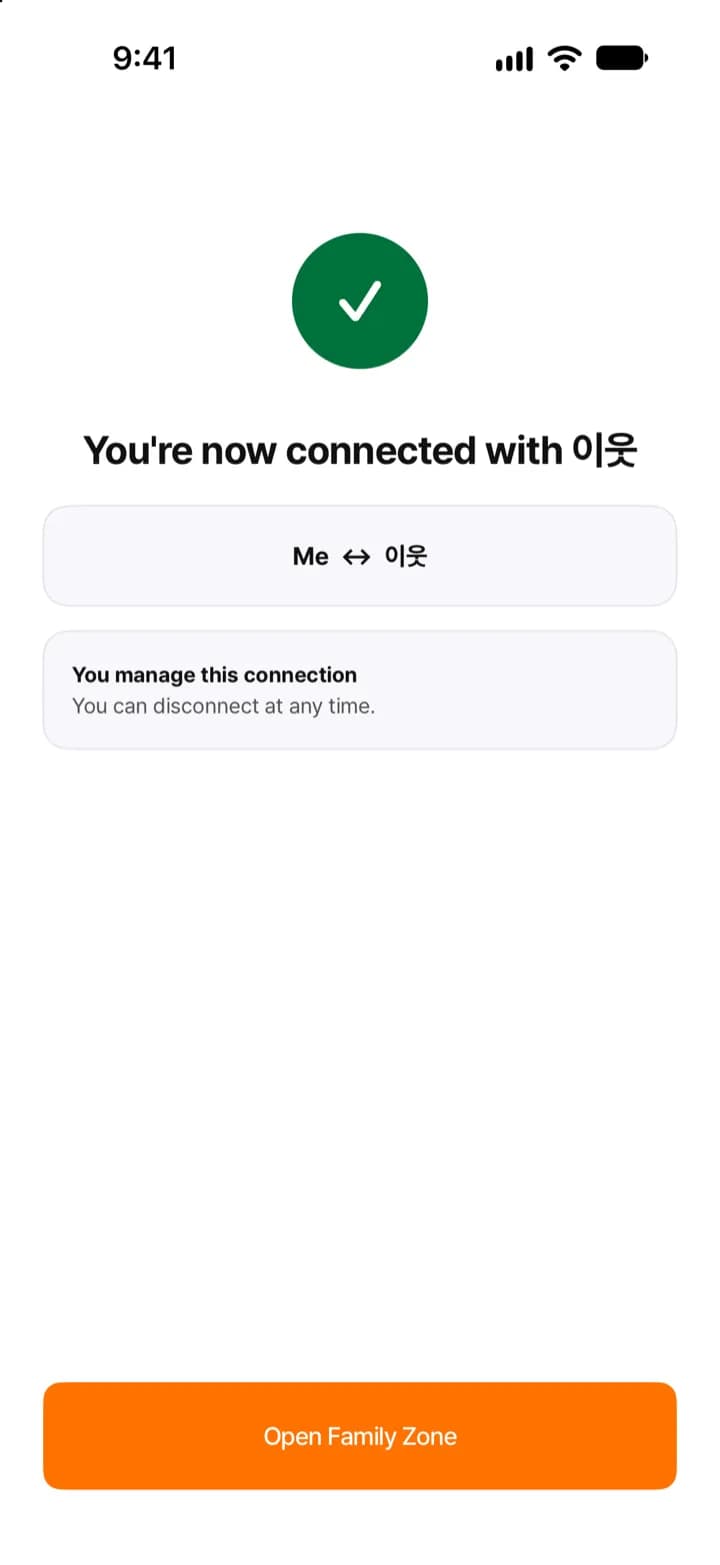
Once connected, tap [Open Family Zone].
Step 11
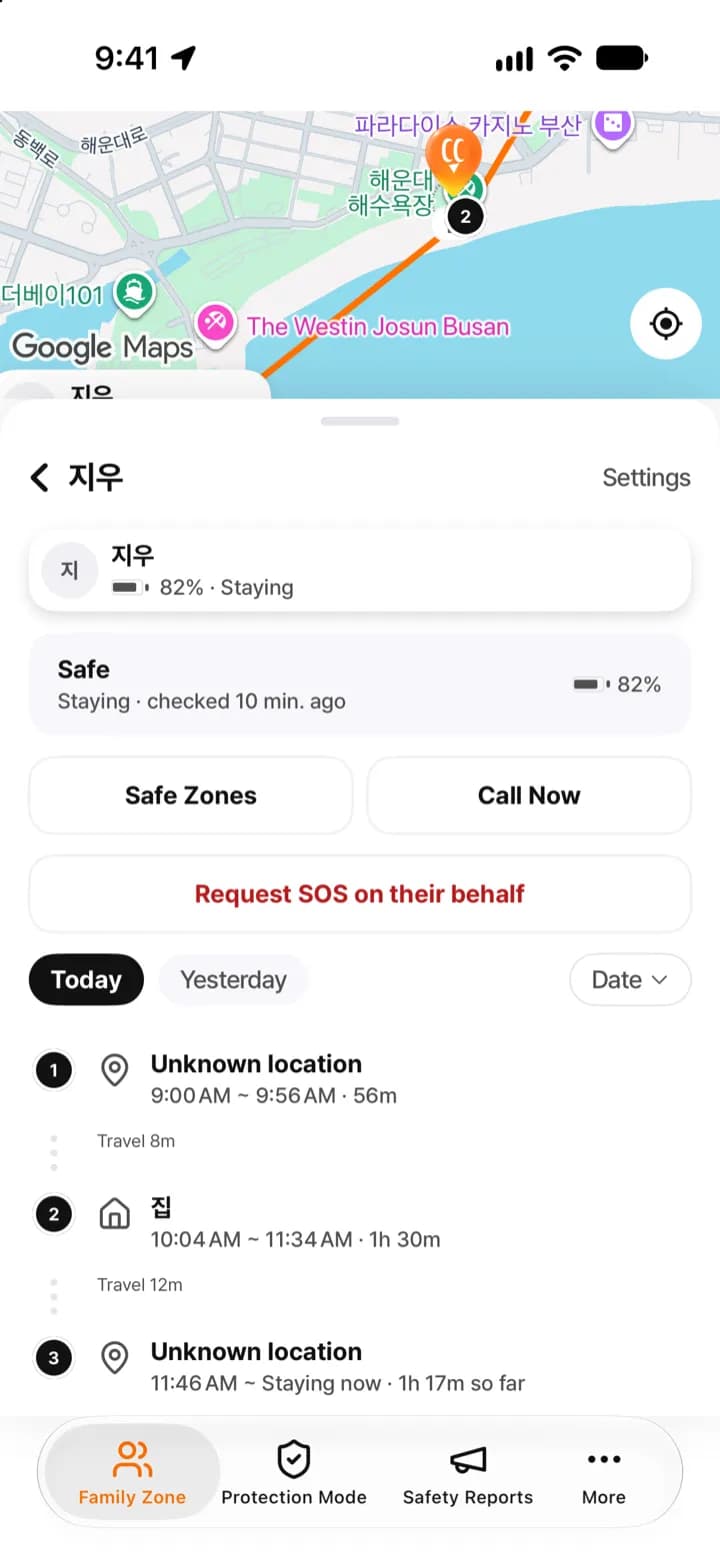
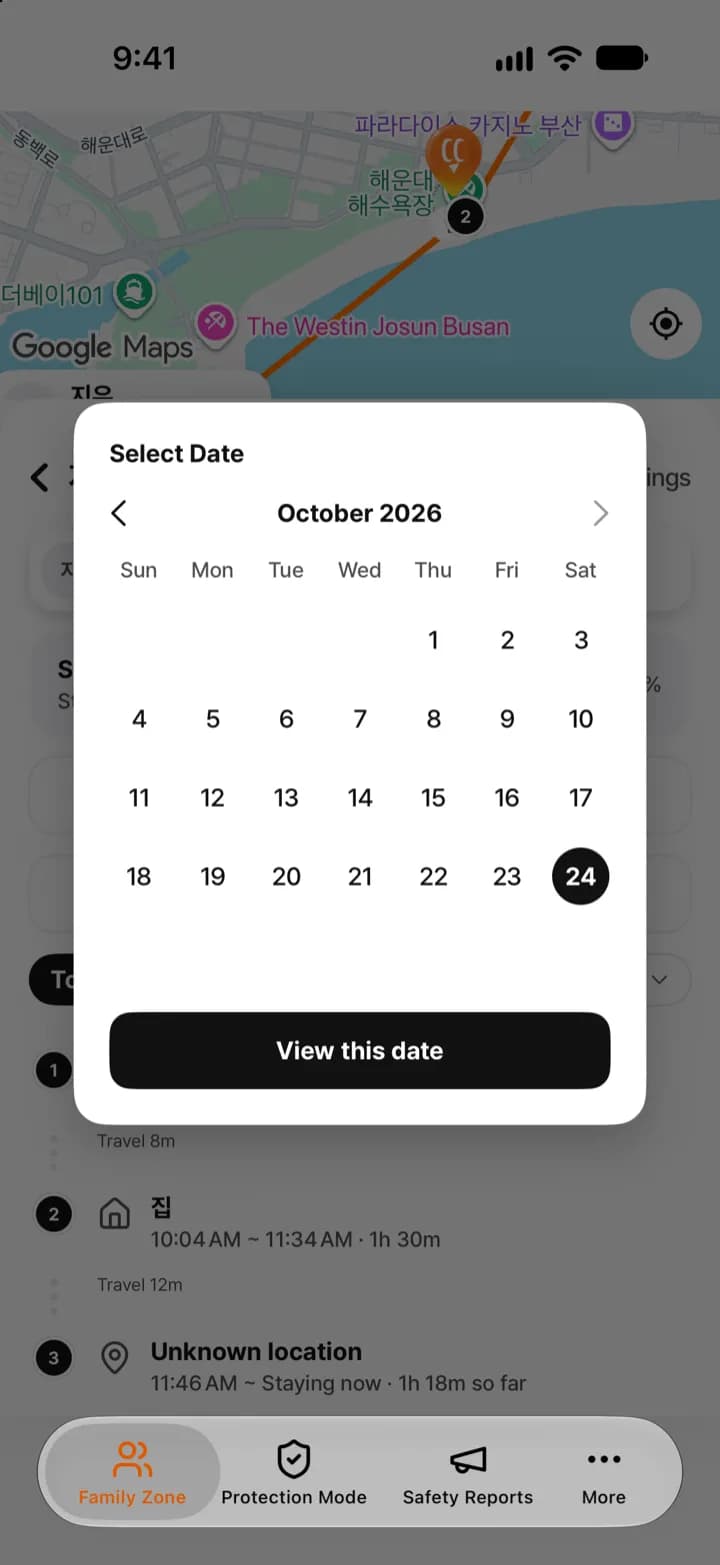
Seeing location and history Tap someone you look after to see the map and that day's movements (arrivals, departures and stays). Use [Today] [Yesterday] [Date] to view other days.
Step 12
Choosing a date
Step 13
The badge next to a name shows their status — "Safe", "Needs check", "Danger", "Location lost", "Low battery", "Sharing paused", "Tracking paused".
Step 14
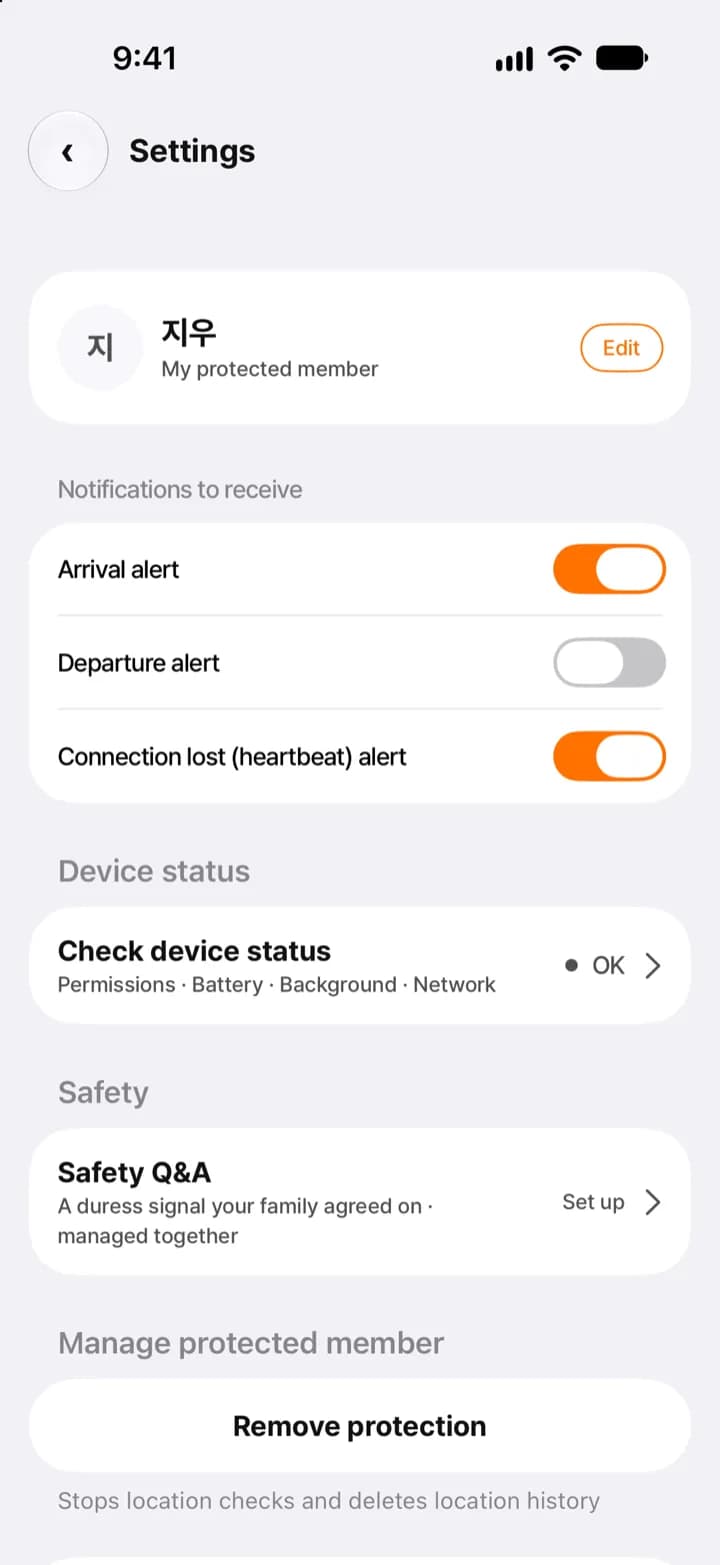
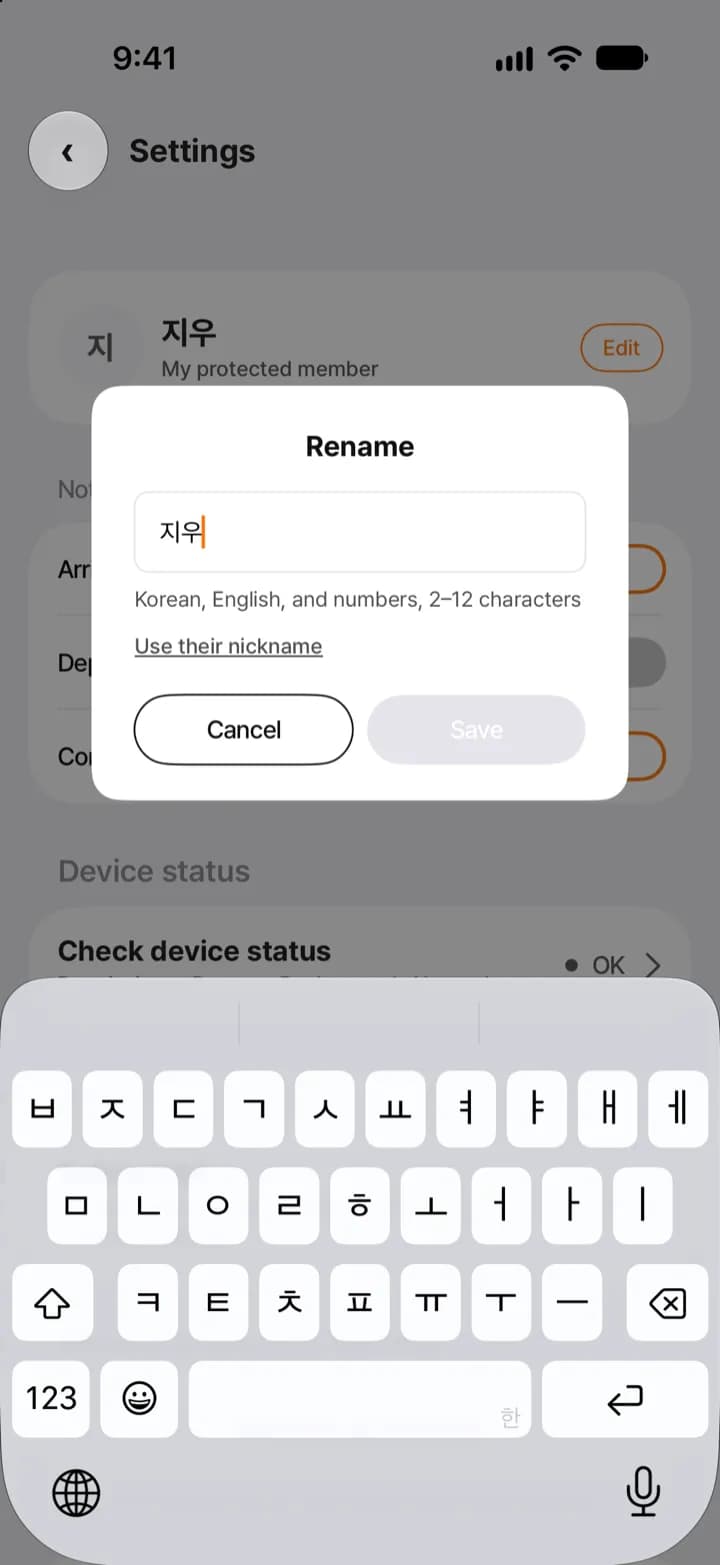
Settings for each person In [Settings] on their screen, choose which notifications to receive (arrival, departure, connection lost), check their device status, and change the name shown on your screen.
Step 15
Rename
Step 16
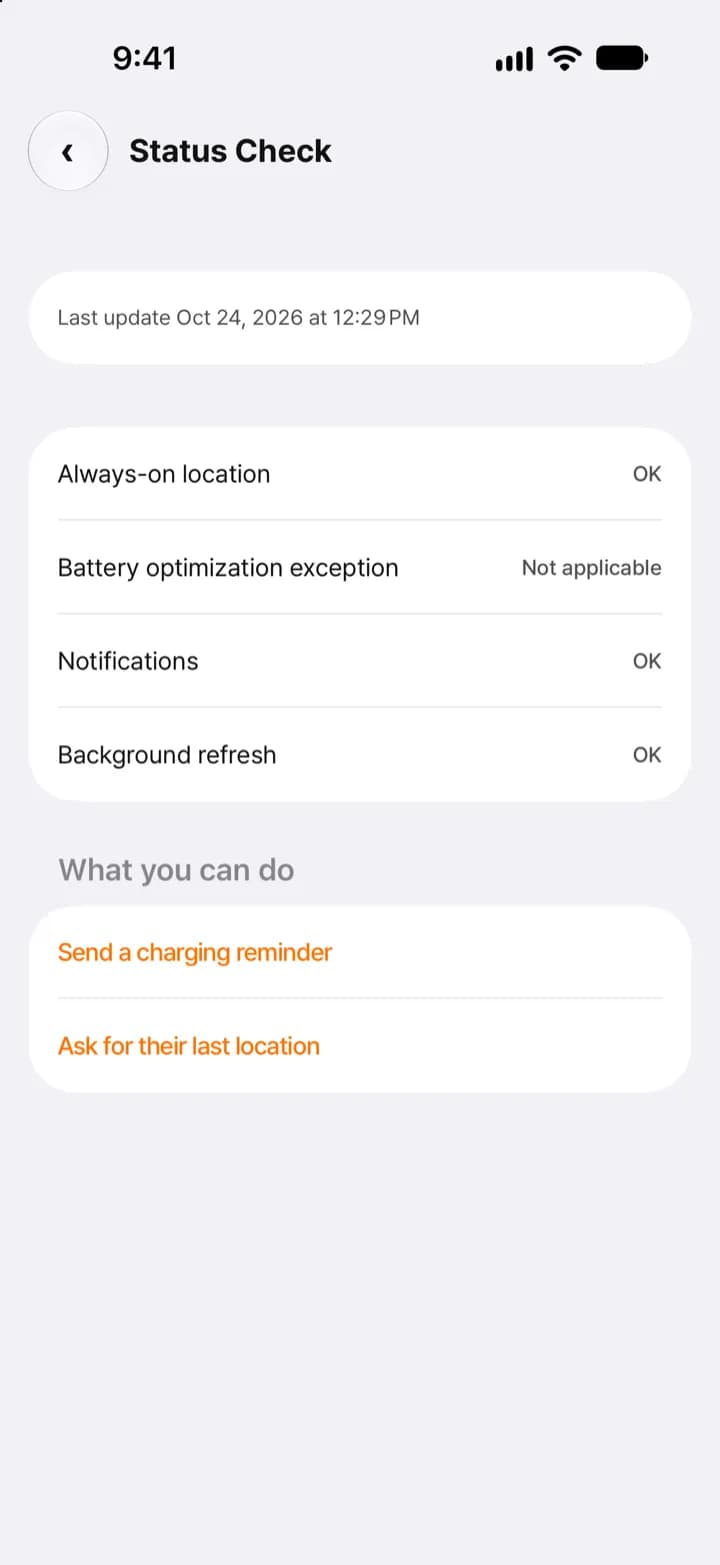
"Status Check" shows their phone's location permission and notification status, and lets you [Send a charging reminder] or [Ask for their last location].
Step 17
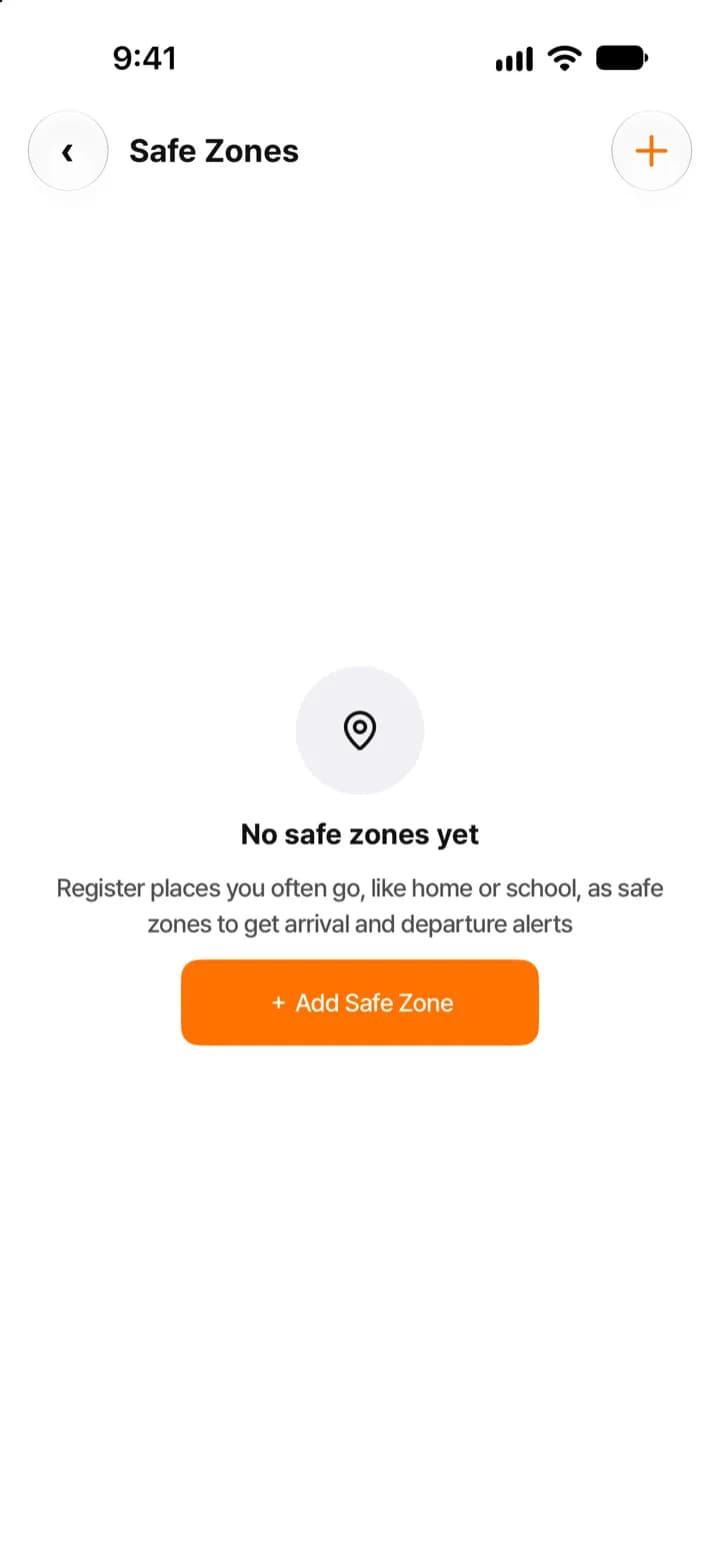
Creating a safe zone Register places like home, school or an academy as safe zones to be alerted on arrival or departure.
Step 18
Tap [Safe Zones] on their screen, then [+ Add Safe Zone].
Step 19
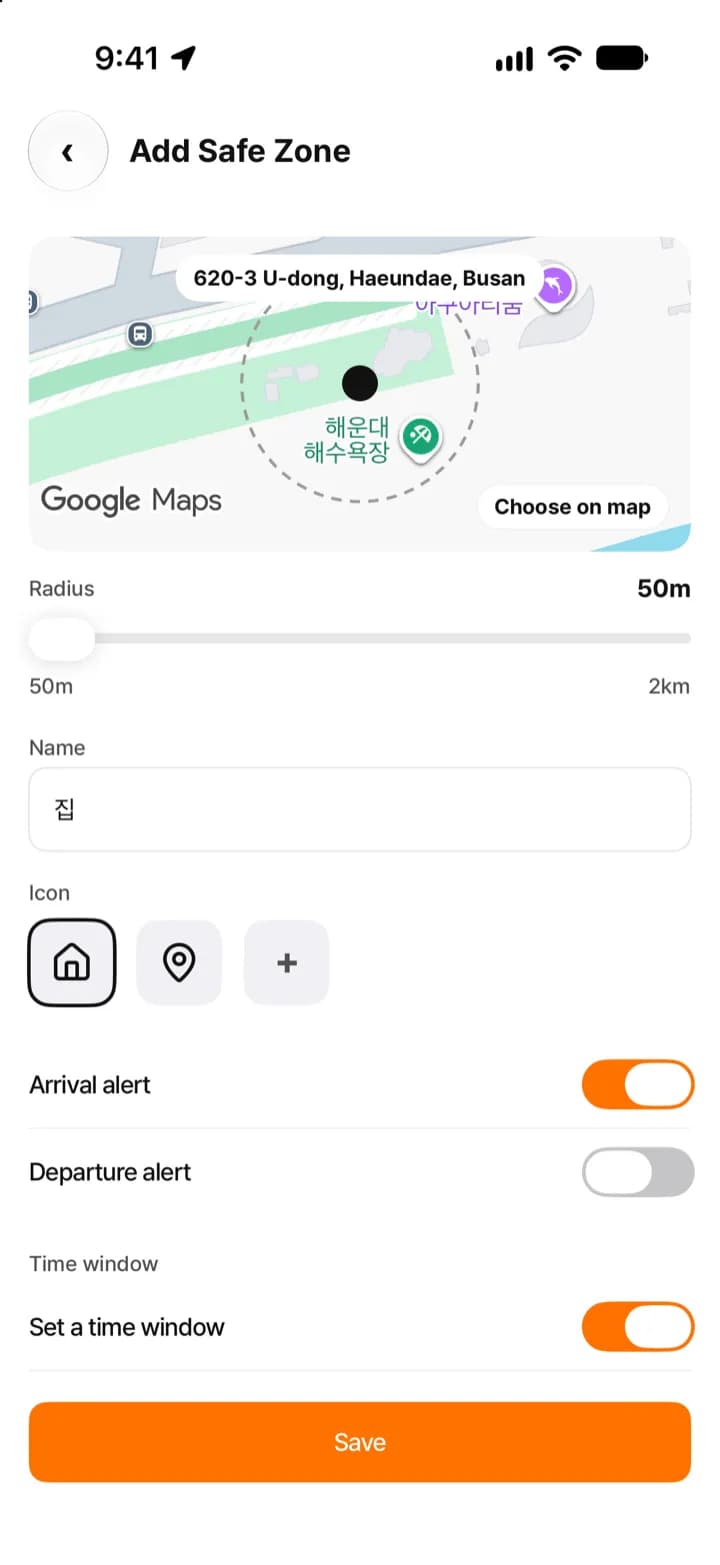
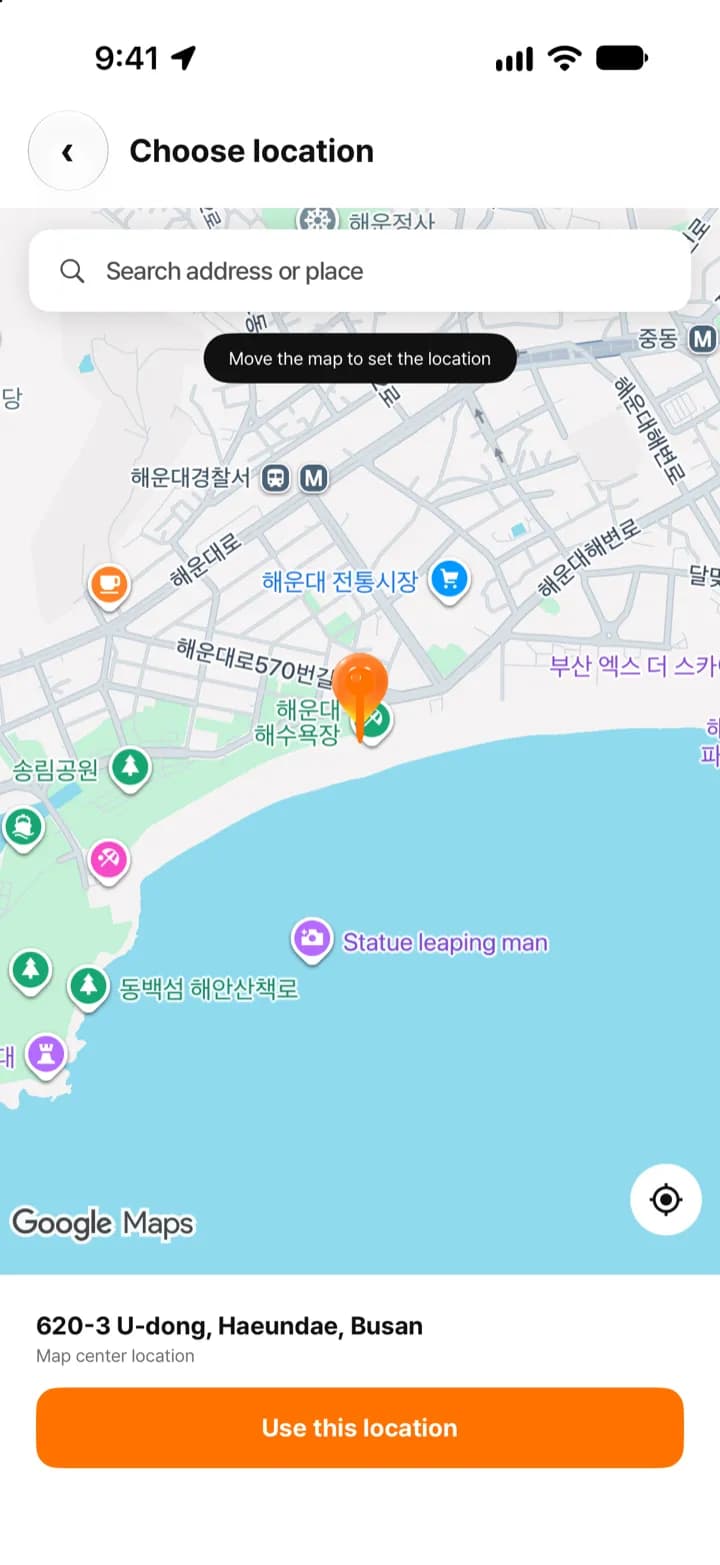
Set a name and icon, tap [Choose on map] to set the location, then choose the radius.
Step 20
Choosing the location
Step 21
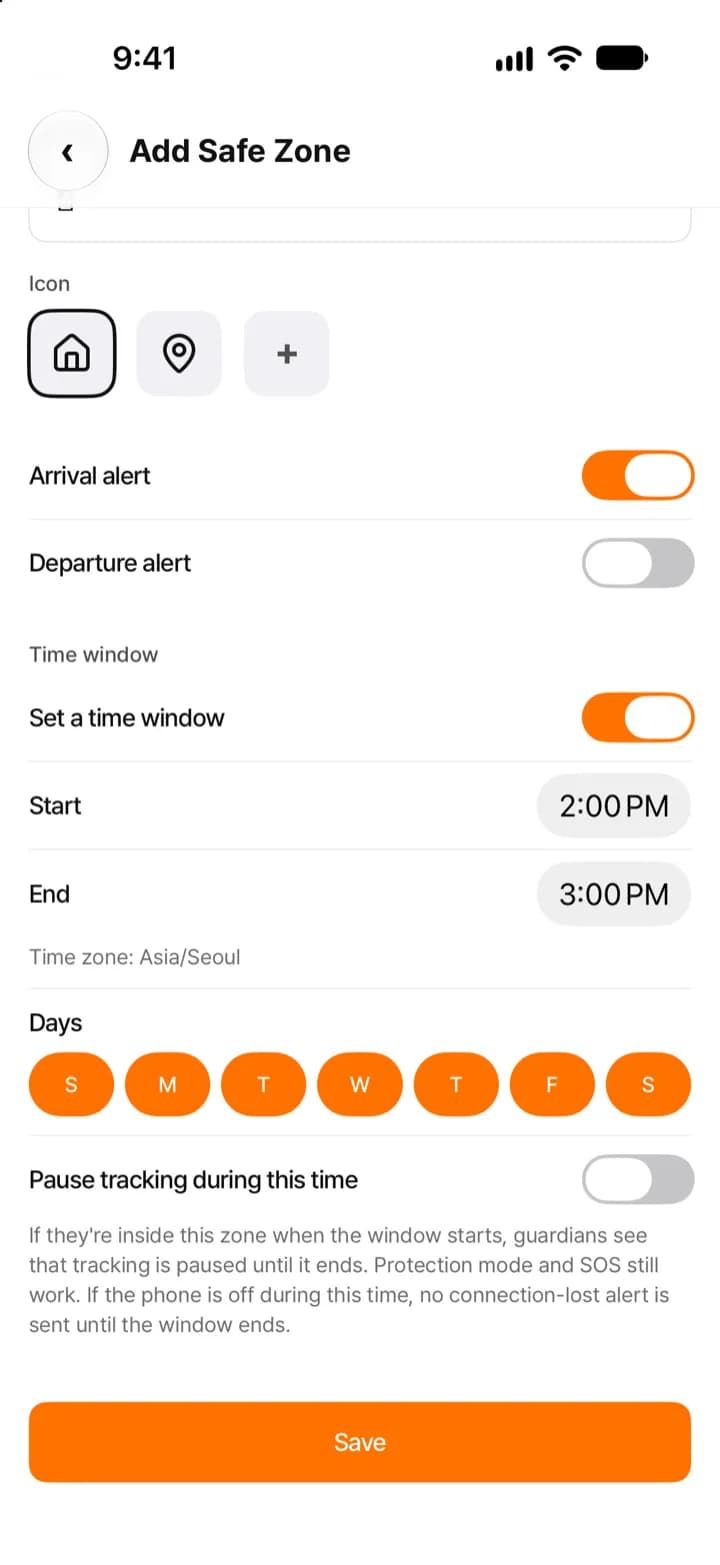
Turn on arrival and departure alerts, and set a time window (start, end and days) if needed.
Step 22
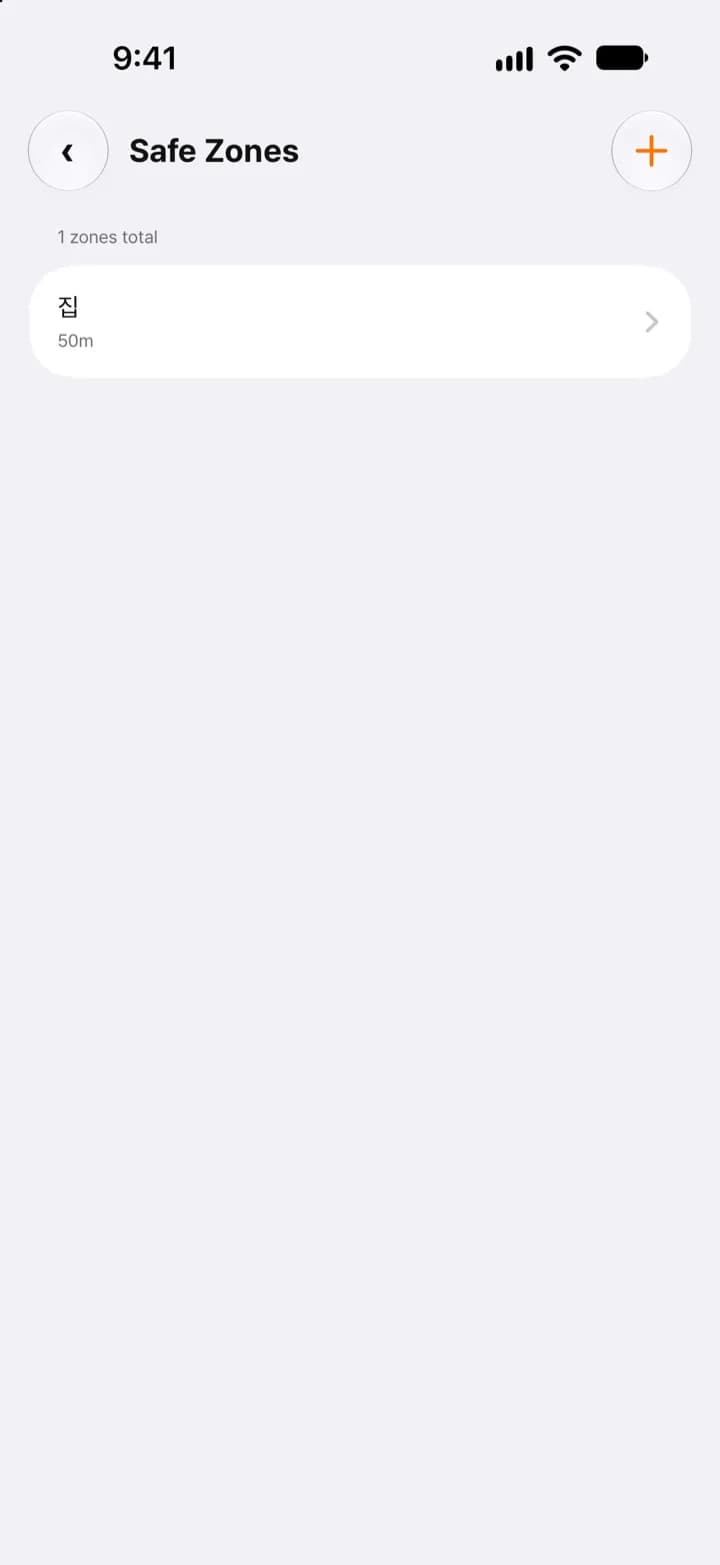
A registered safe zone
Step 23
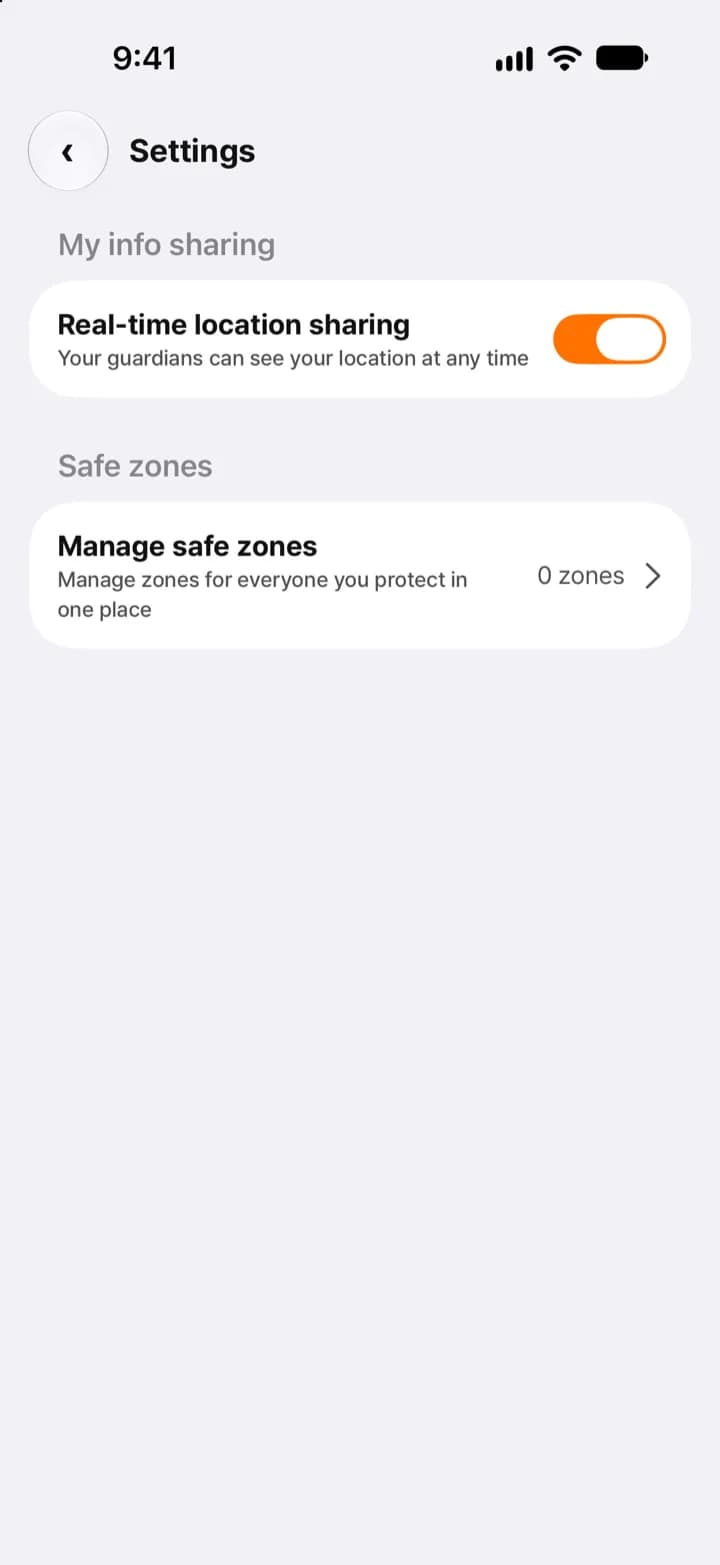
Sharing your location and managing guardians Tap the gear at the top right of Family Zone → "Settings" to turn "Real-time location sharing" on or off. When on, your guardians can see your location at any time; when off, it's shared only in emergencies.
Step 24
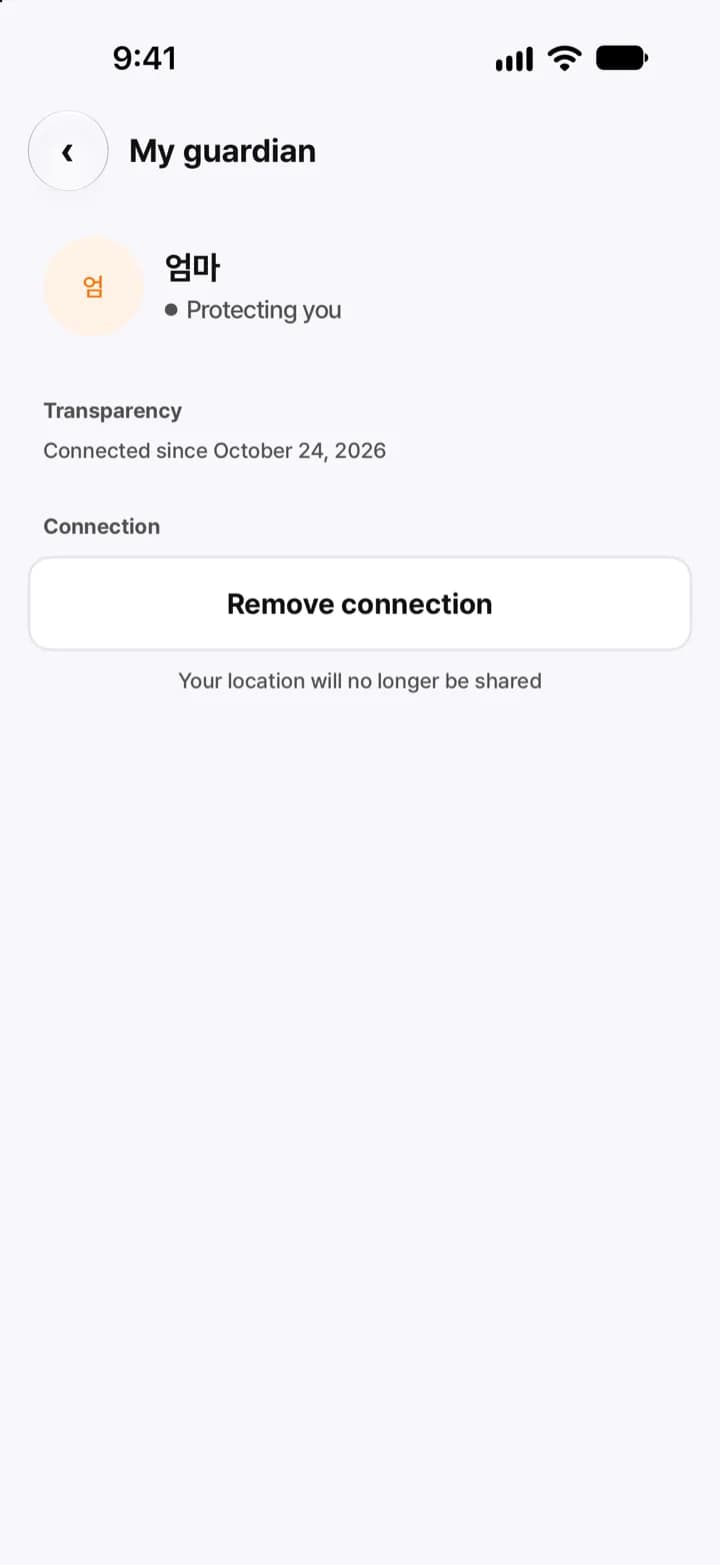
Tap someone under "My guardians" to see the date you were connected, or to [Remove connection].
Step 25
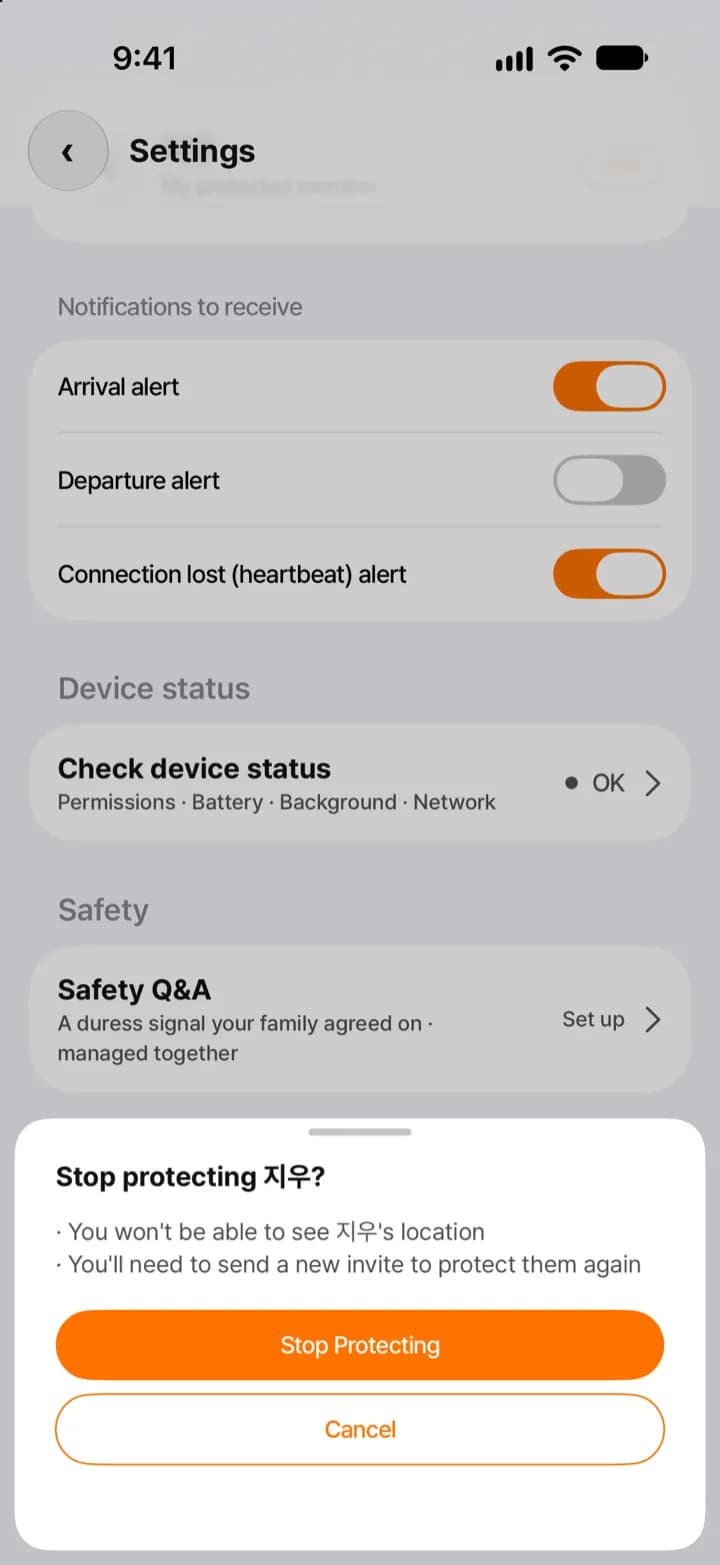
Removing protection Under "Manage protected member" in their settings, tap [Remove protection]. If they're using protection mode, removal is scheduled for when it ends.