Sign up & setup (Android)
Android
Step by step
Step 1
1. Install the app Search for "Vazoom" (봐줌) in the Play Store and install it. The app appears as 봐줌 on your home screen.
Step 2
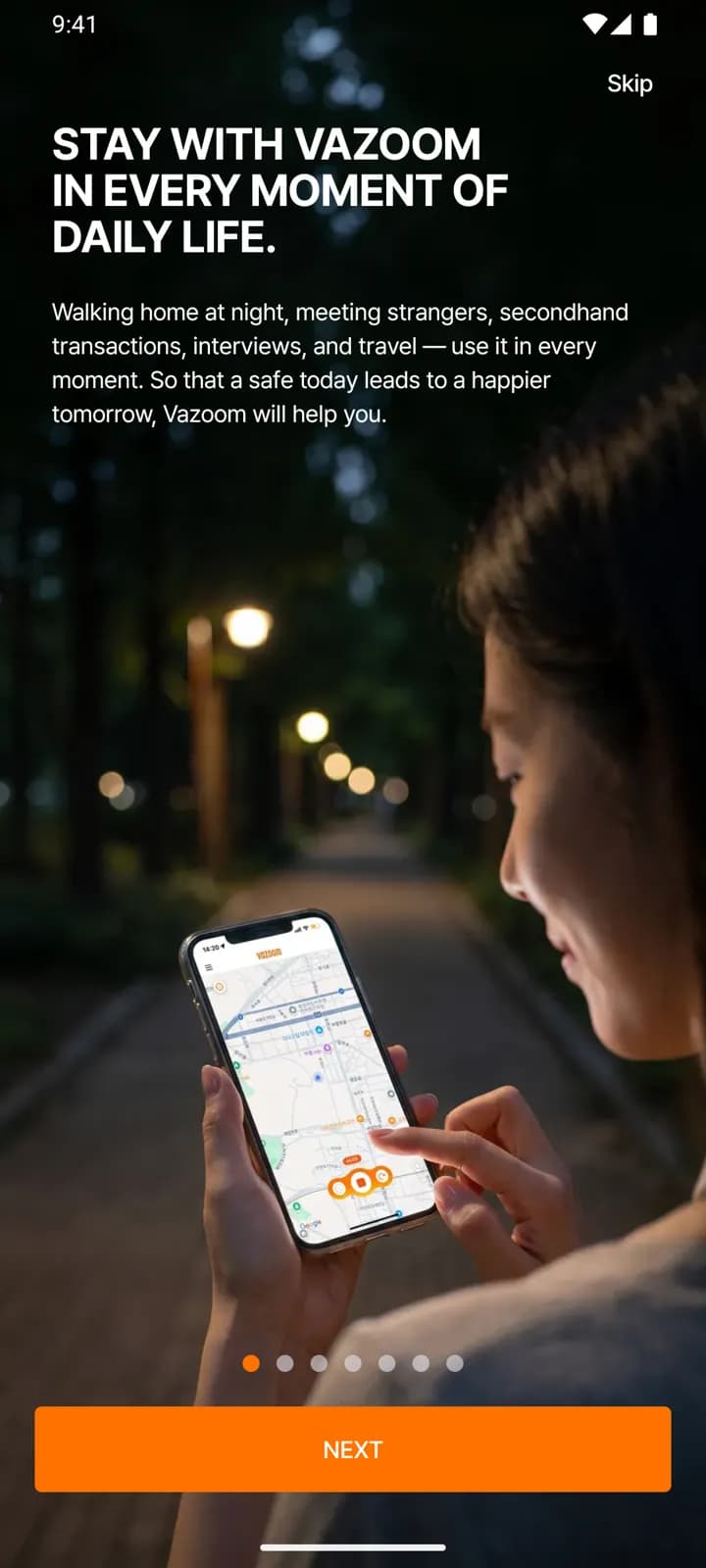
Open the app to see a short introduction. Tap [Next] to continue or [Skip].
Step 3
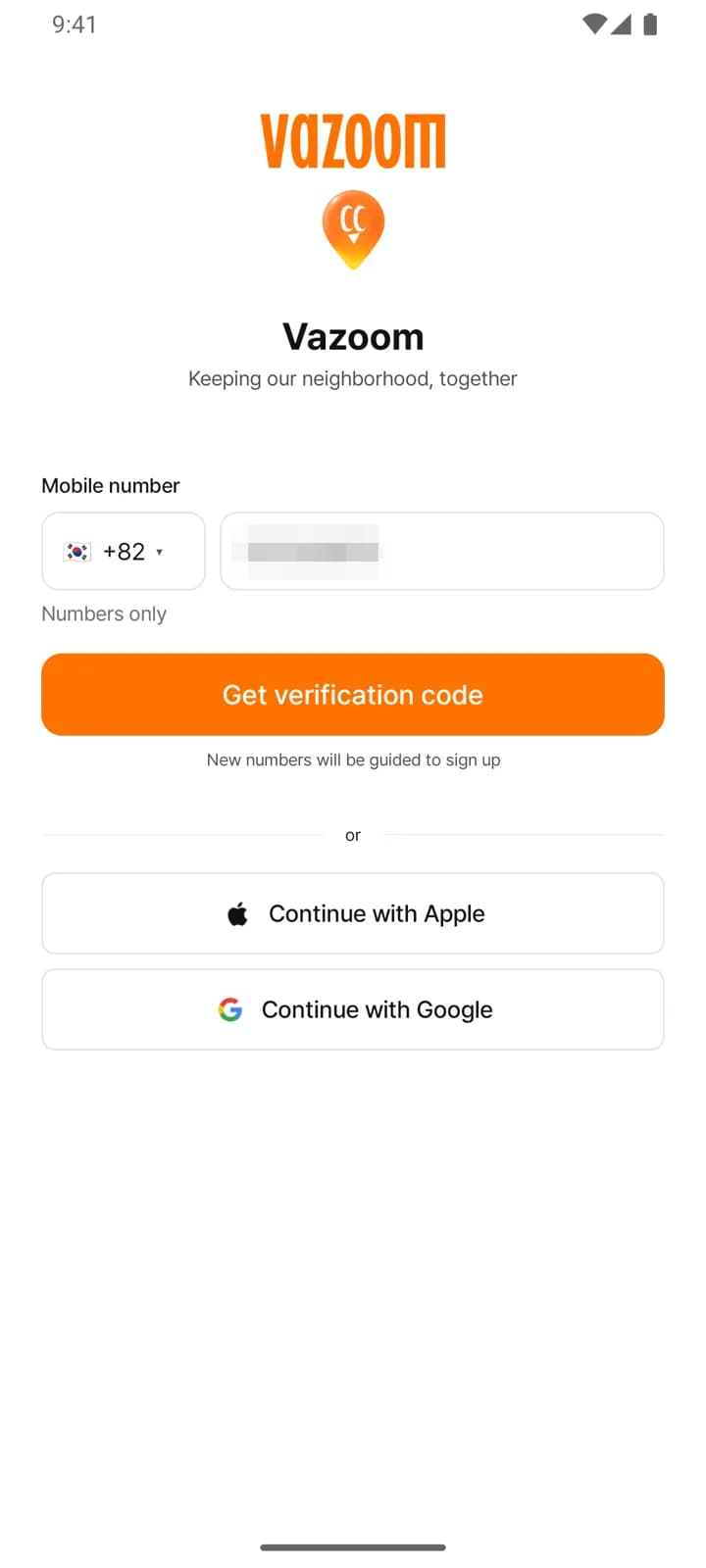
2. Sign up Enter your mobile number and tap [Get verification code]. You can also start with [Continue with Google]. If the number isn't registered yet, you'll continue to sign-up.
Step 4
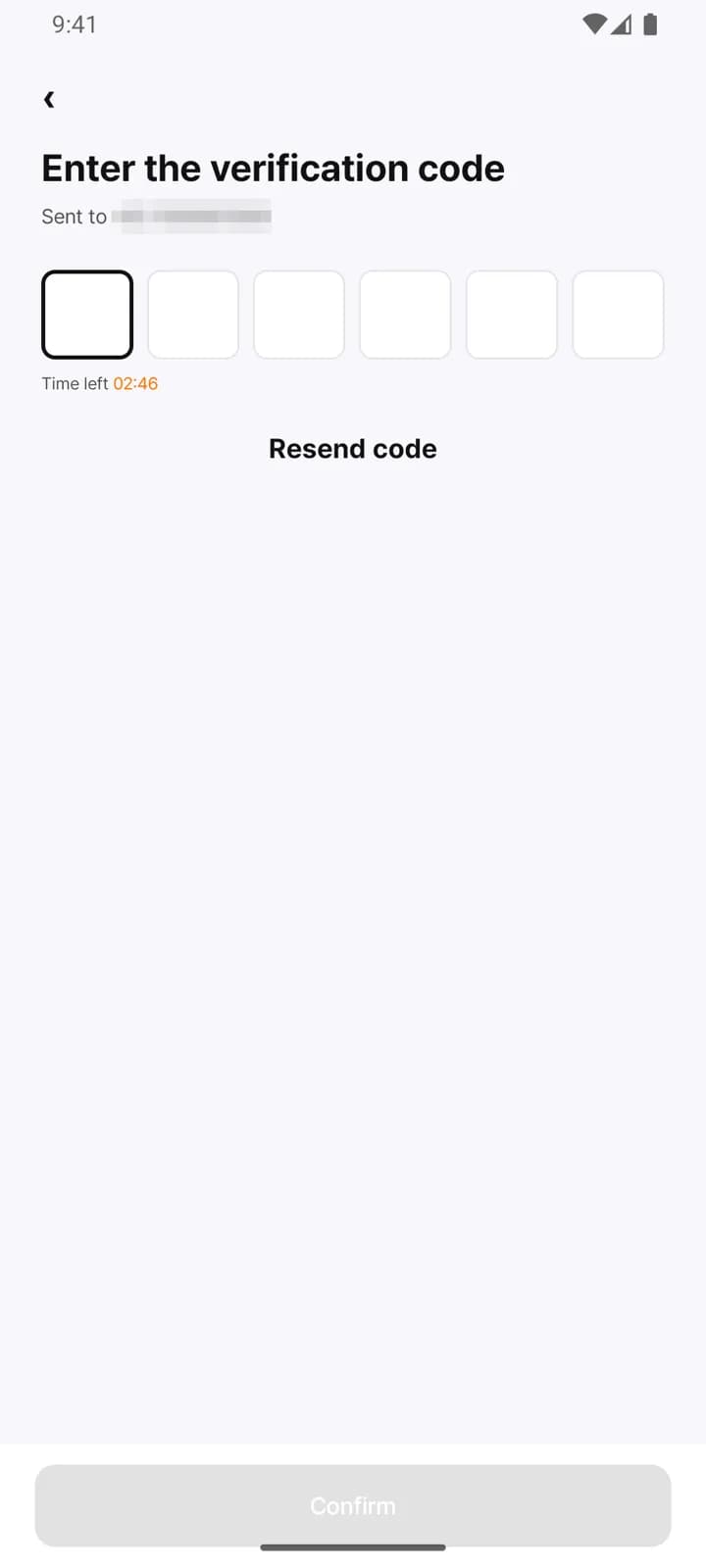
Enter the 6-digit code sent by text. If it doesn't arrive, tap [Resend code].
Step 5
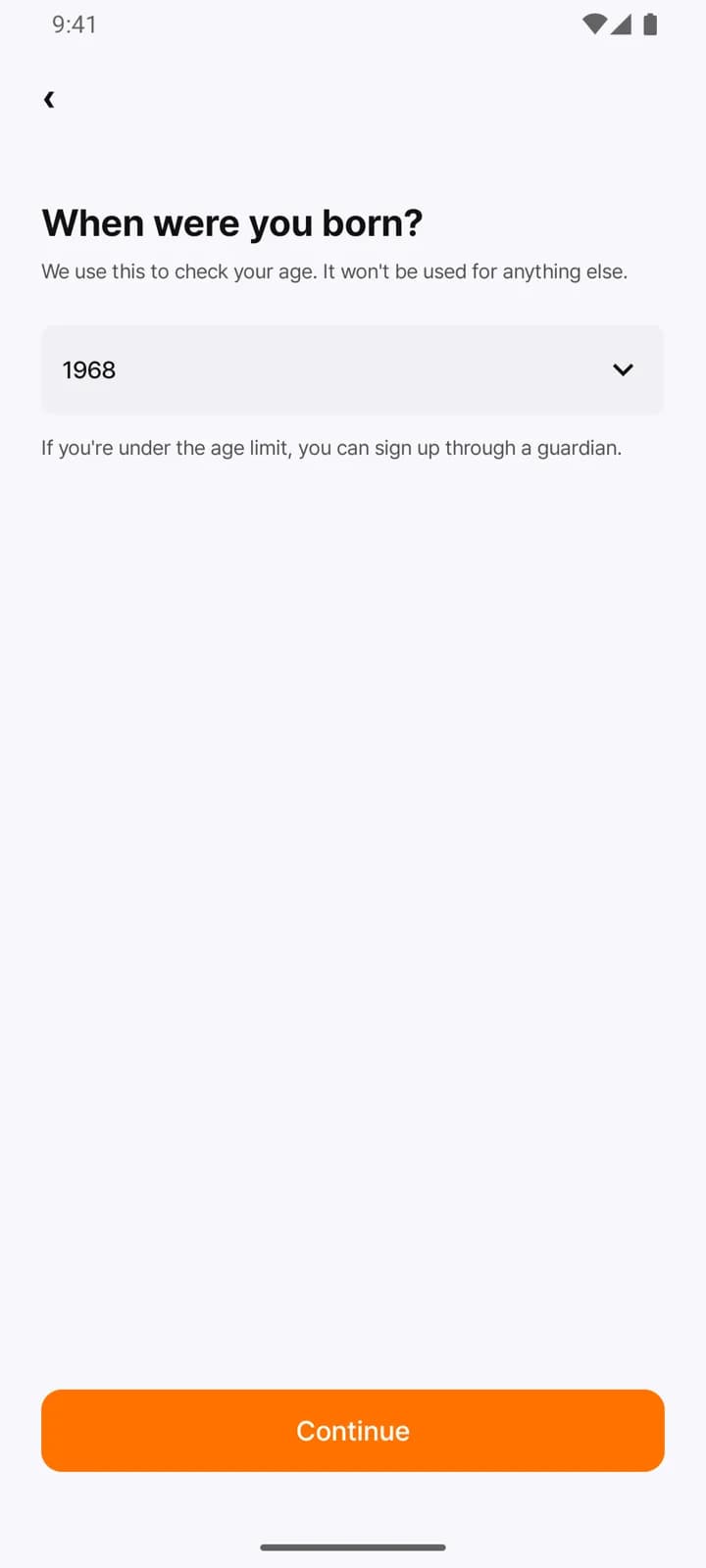
Choose your birth year and tap [Continue].
Step 6
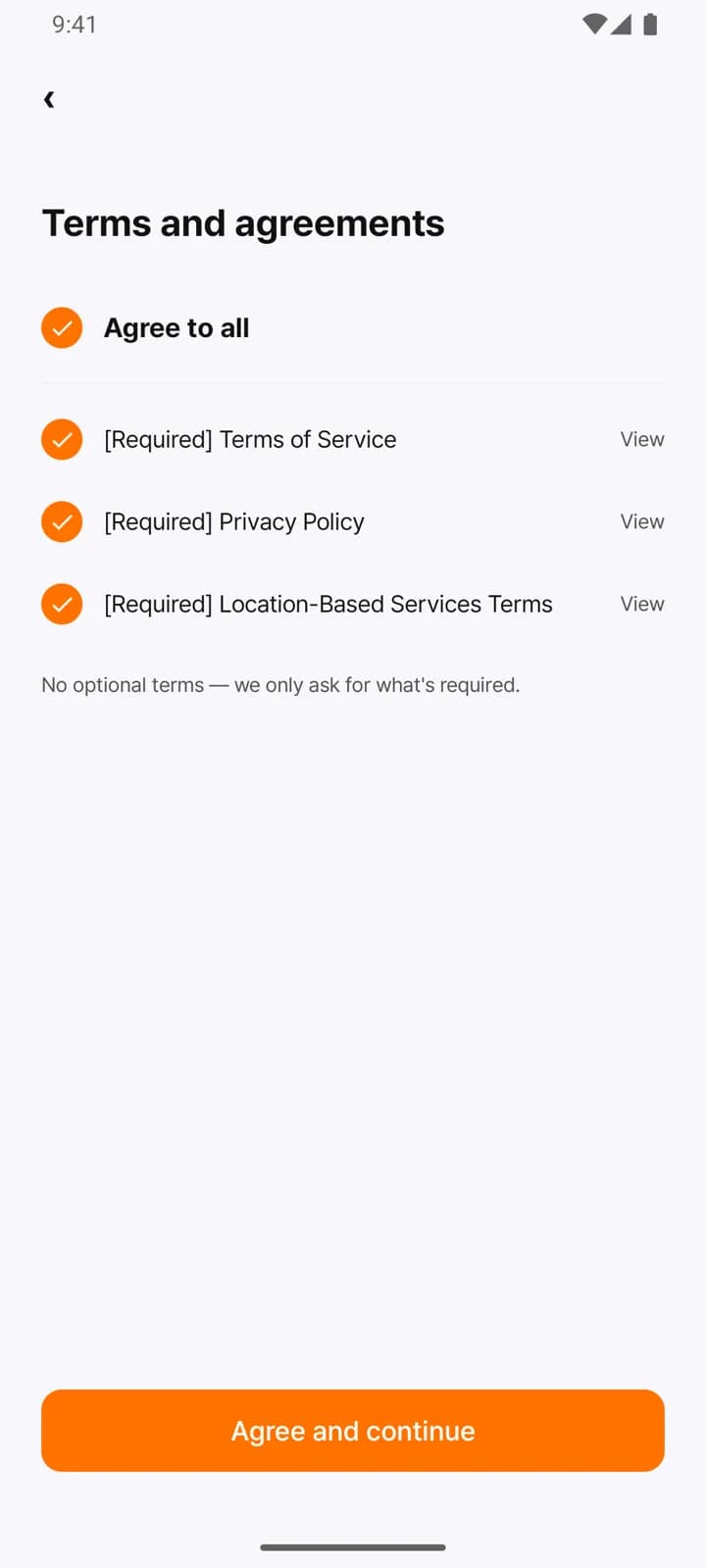
Review the terms and tap [Agree and continue]. Vazoom only asks for what's required.
Step 7
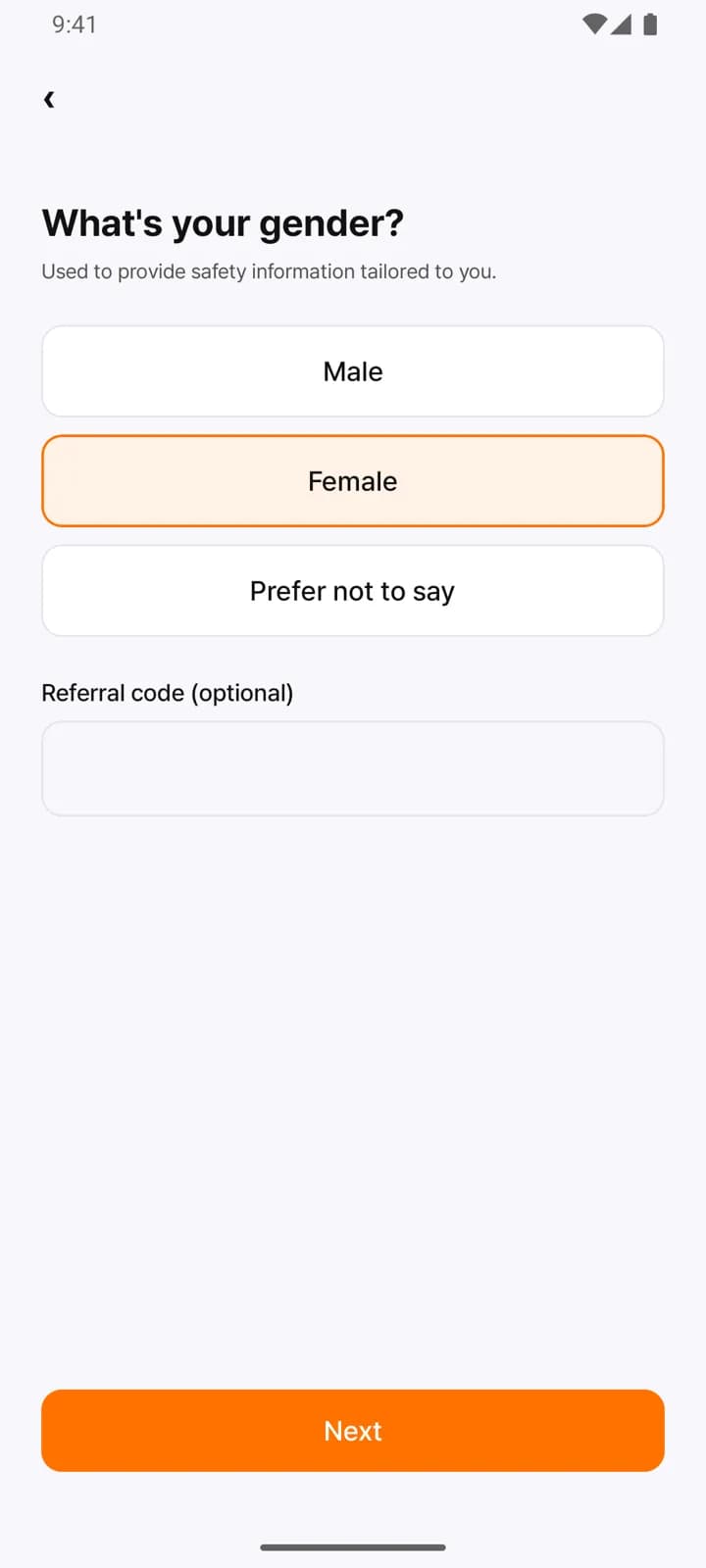
Choose your gender and tap [Next]. [Prefer not to say] is fine too.
Step 8
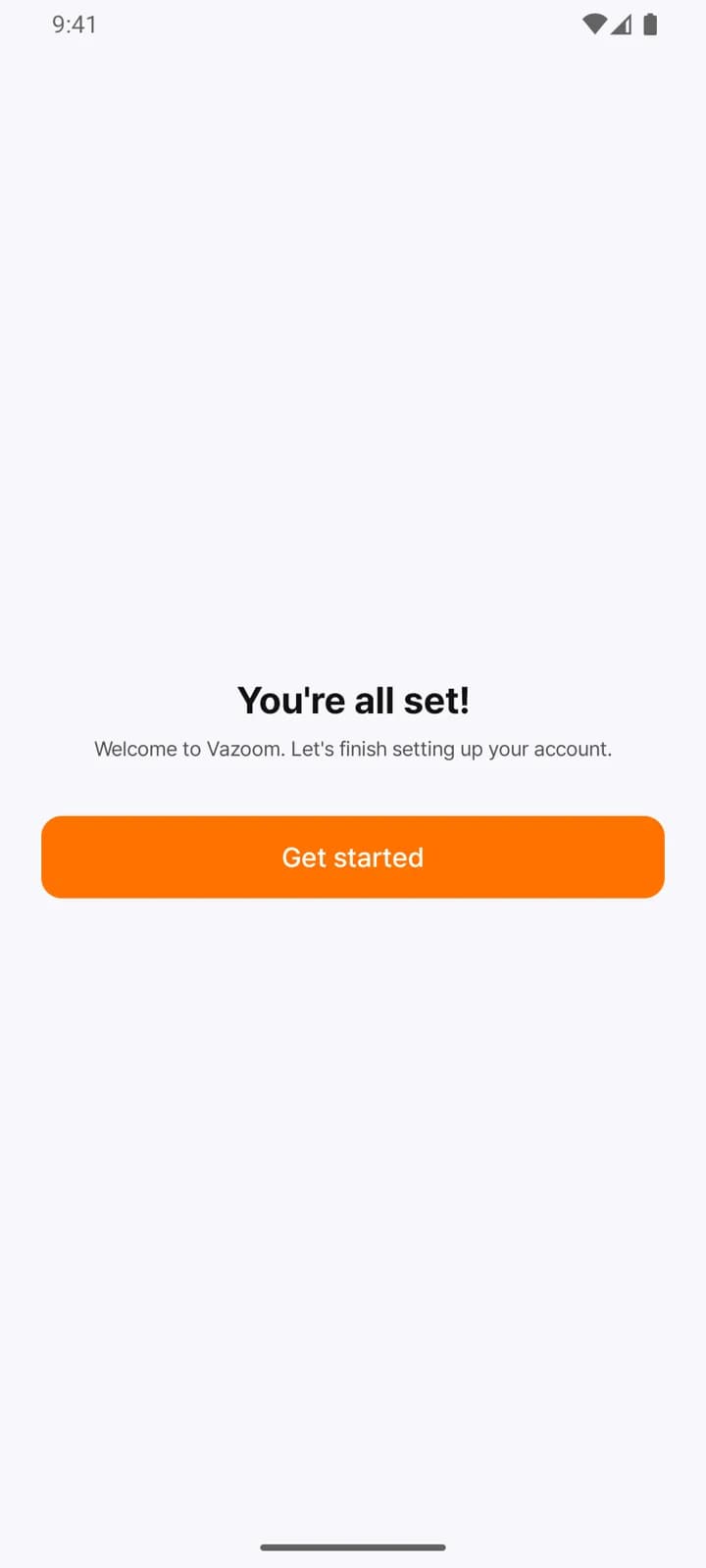
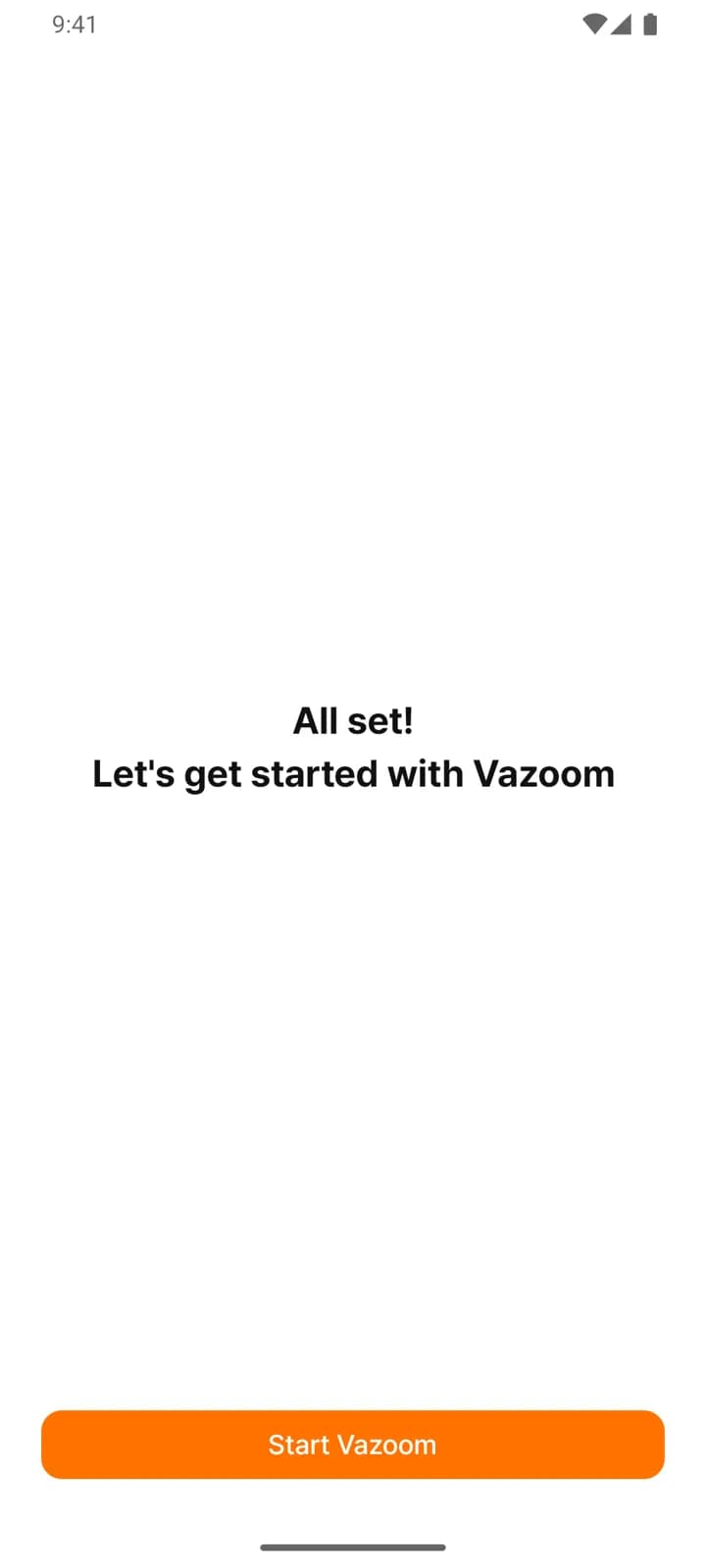
When you see "You're all set!", tap [Start Vazoom].
Step 9
If your birth year makes you a minor, you'll need a guardian's consent. See Sign-up & invites for minors.
Step 10
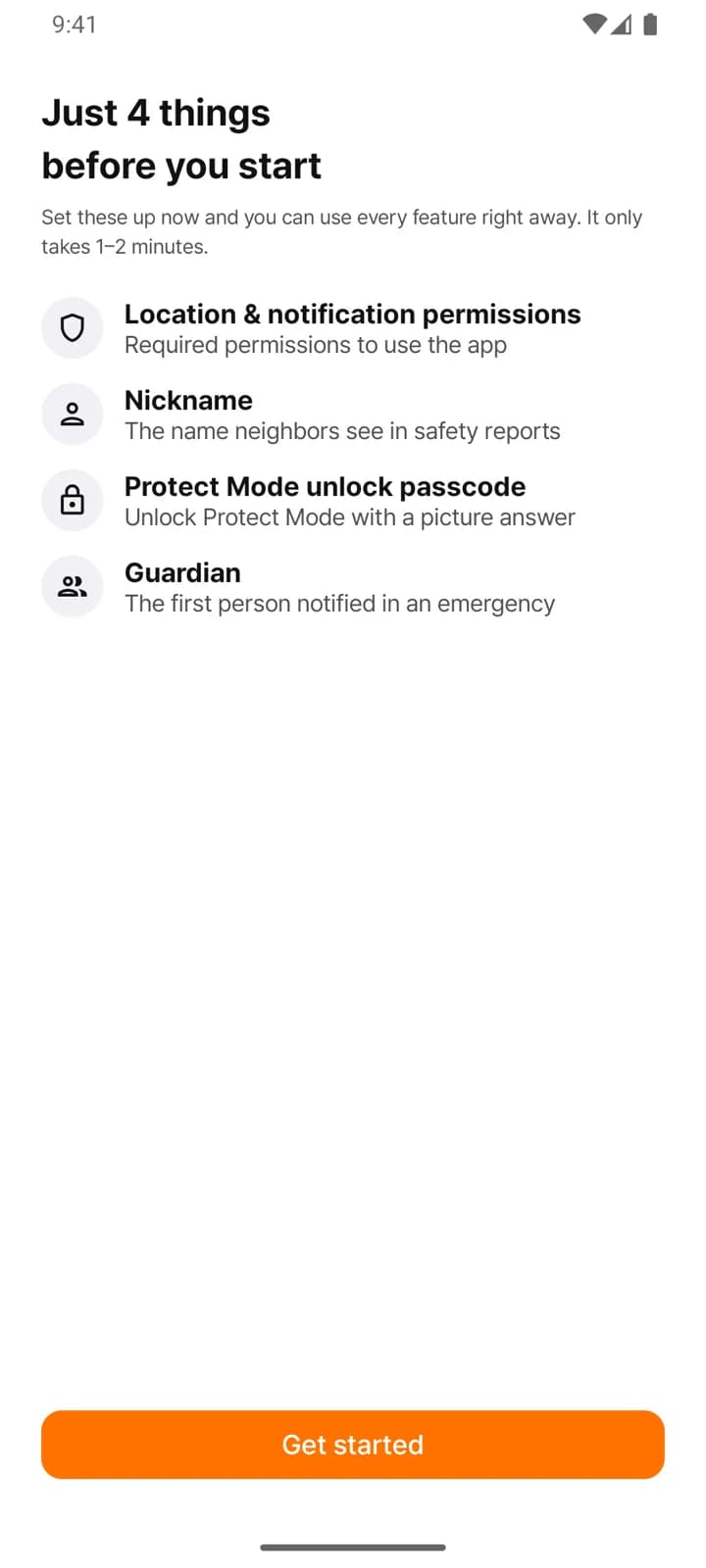
3. Setup — just 4 things Just 4 things before you start
Step 11
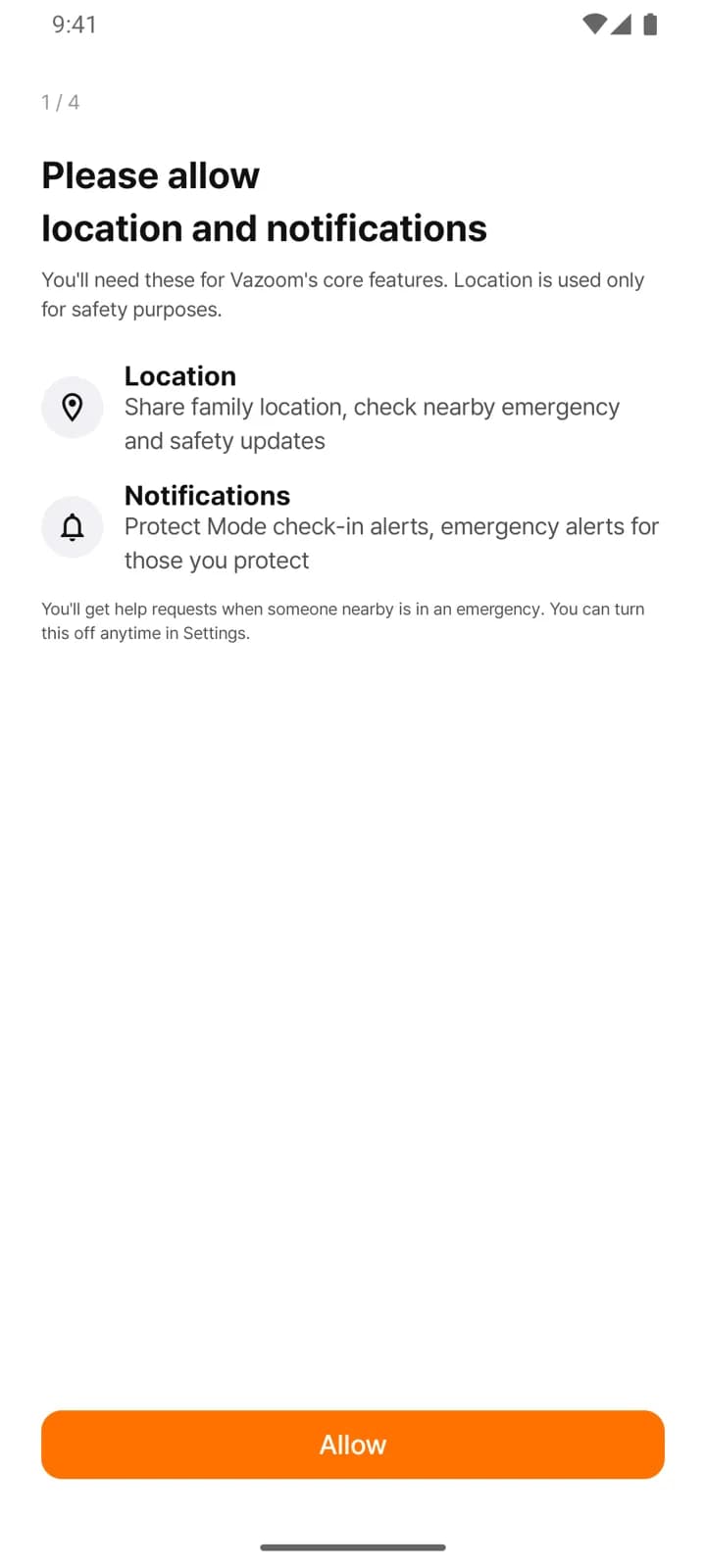
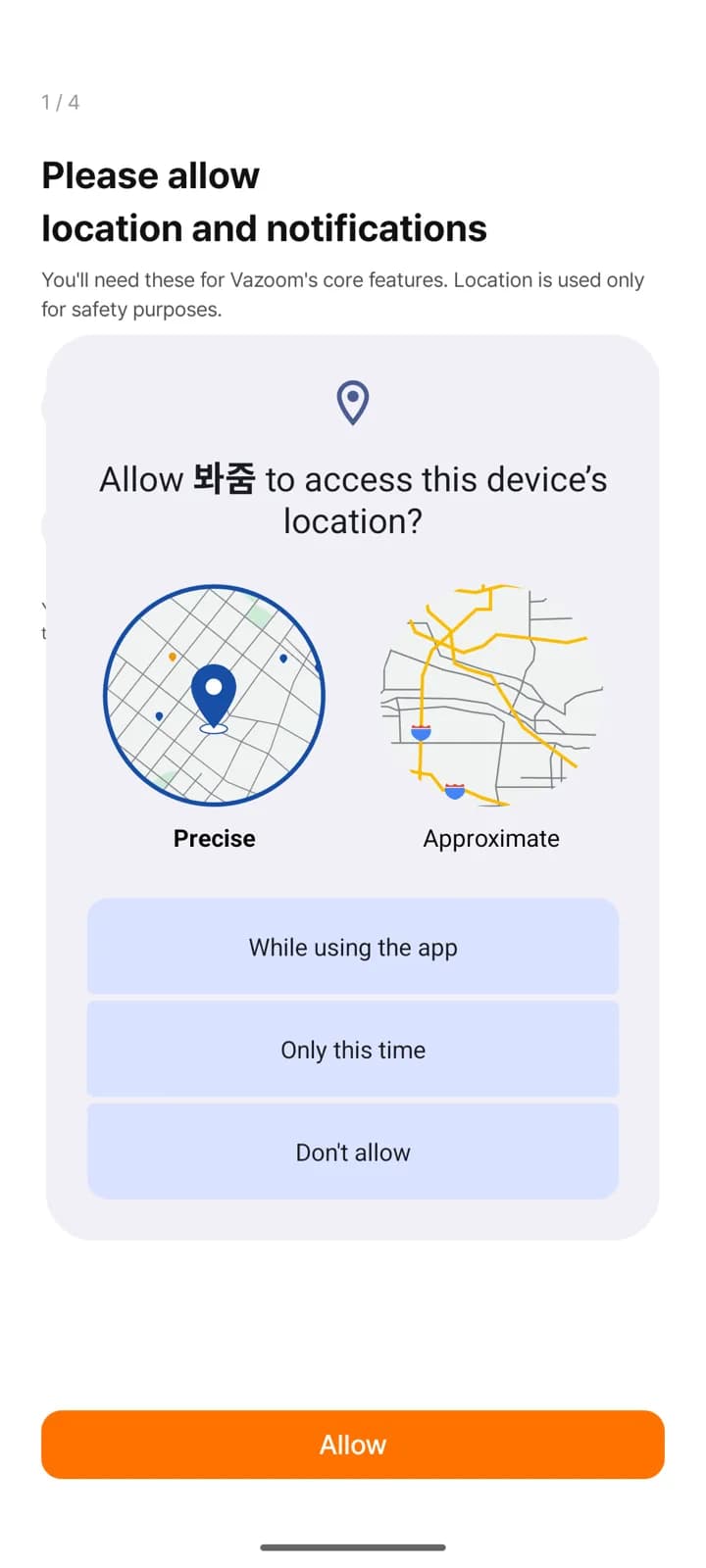
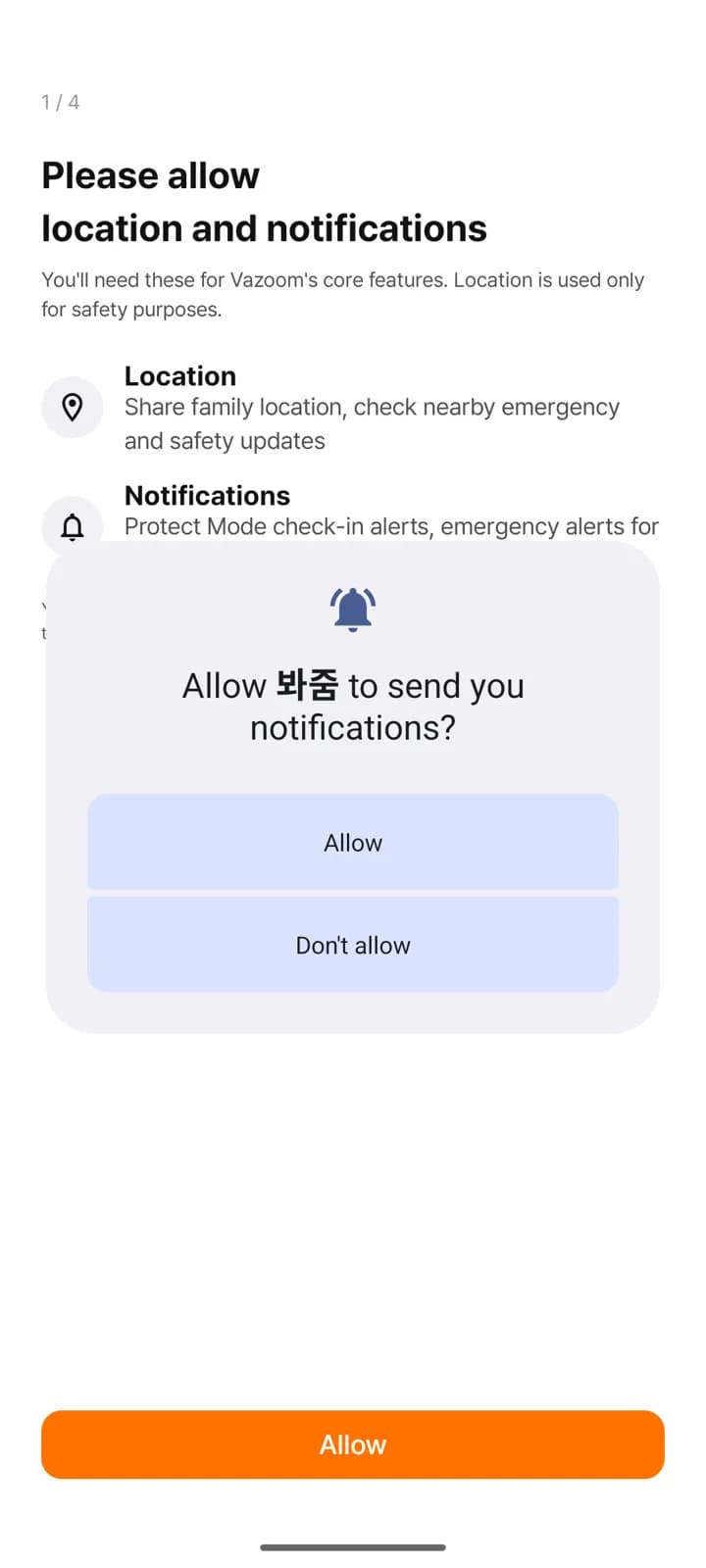
Allow location and notifications Tap [Allow]. You'll be asked for location access, then notifications. Please allow both.
Step 12
Location permission
Step 13
Notification permission
Step 14
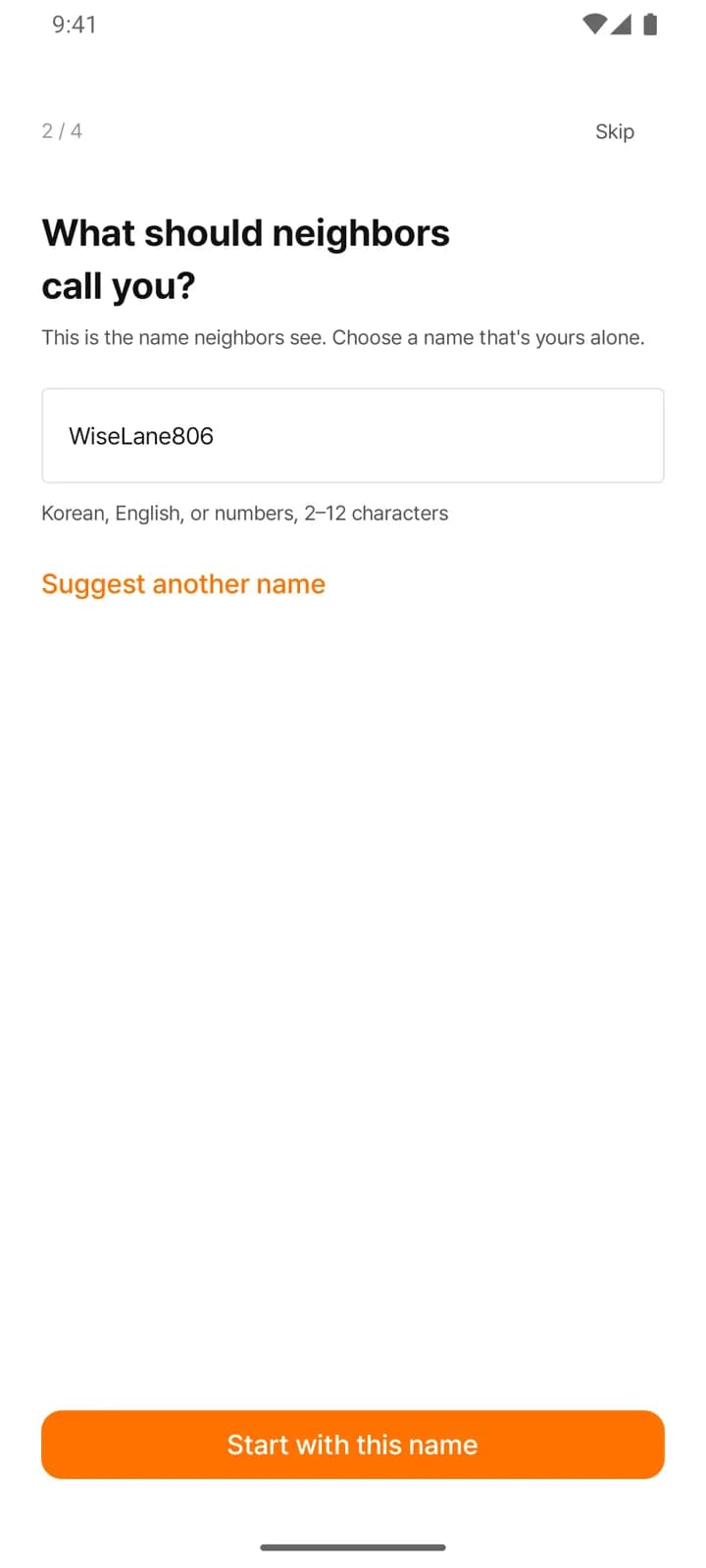
Nickname This is the name shown in Safety reports. Tap [Suggest another name] if you'd like a different one, then [Start with this name].
Step 15
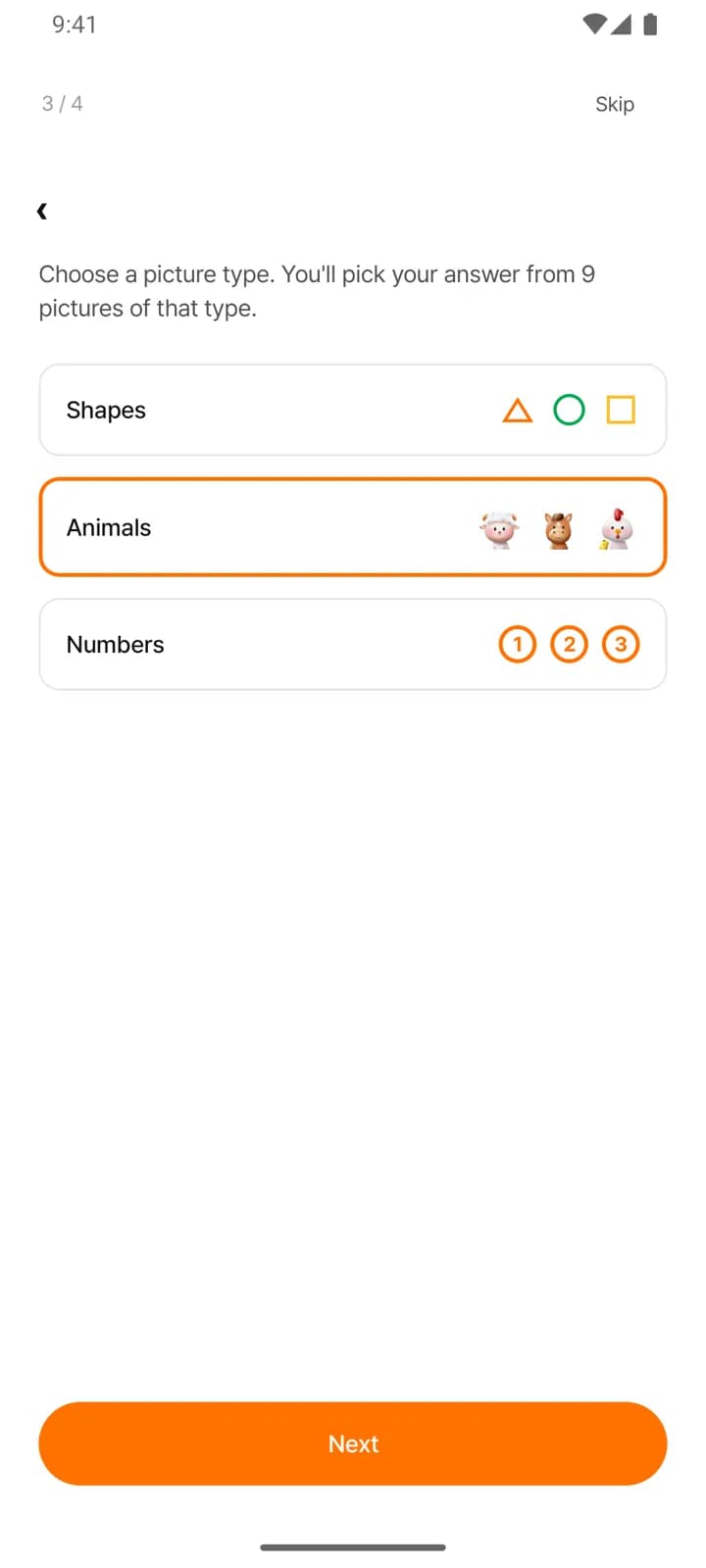
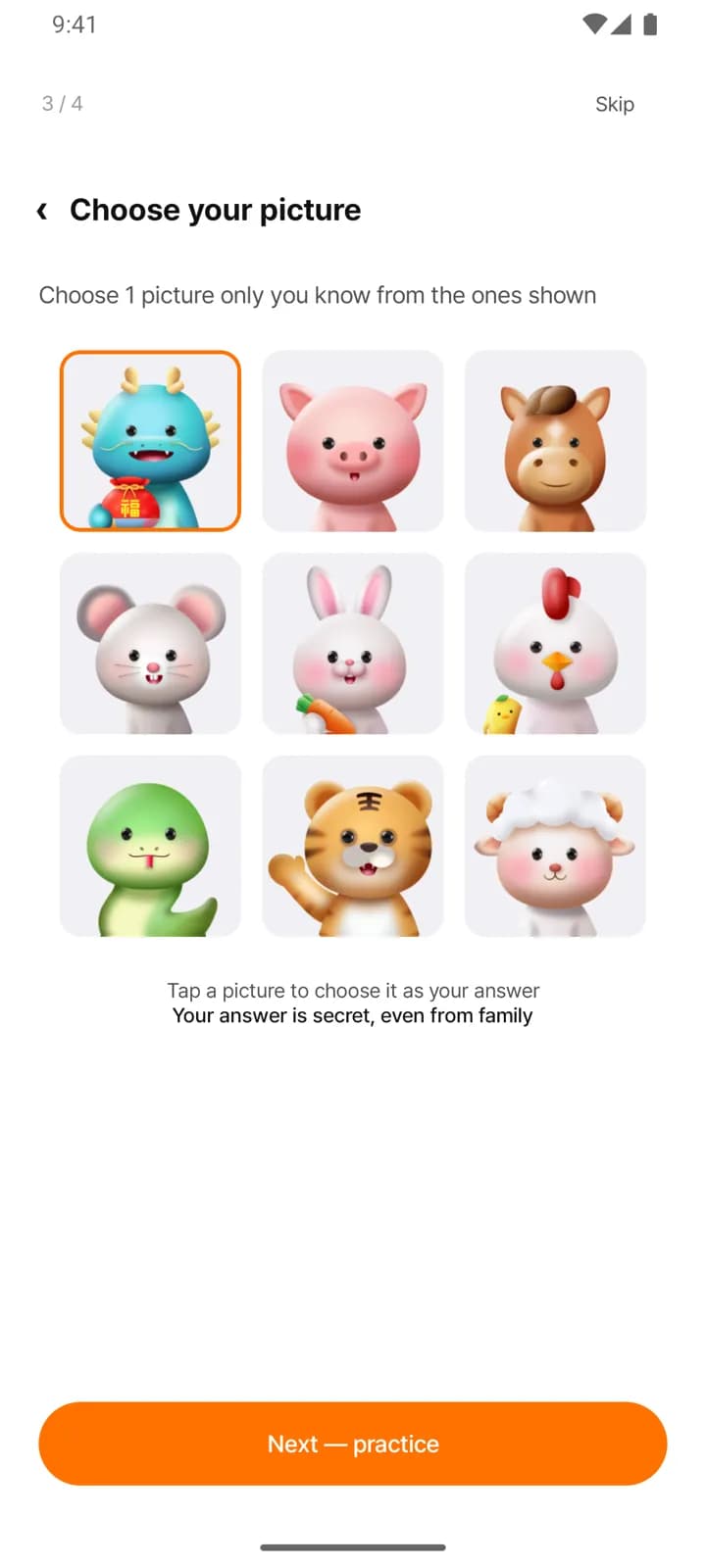
Unlock picture for protection mode Pick a picture type ([Shapes] [Animals] [Numbers]), then choose one picture only you know.
Step 16
Choose your picture
Step 17
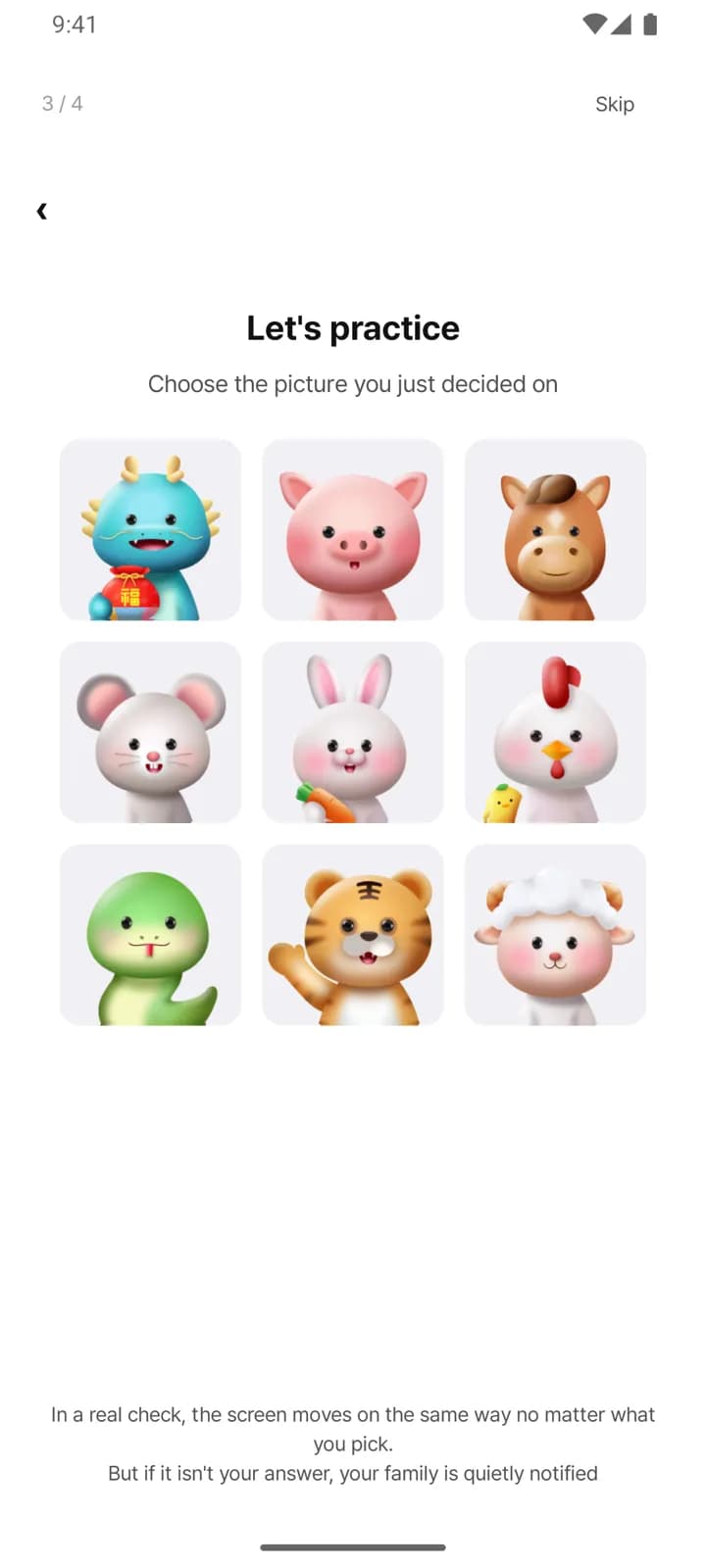
On "Let's practice", find and tap the picture you just chose.
Step 18
You'll use this picture to end protection mode and to answer check-ins. Don't share it with anyone.
Step 19
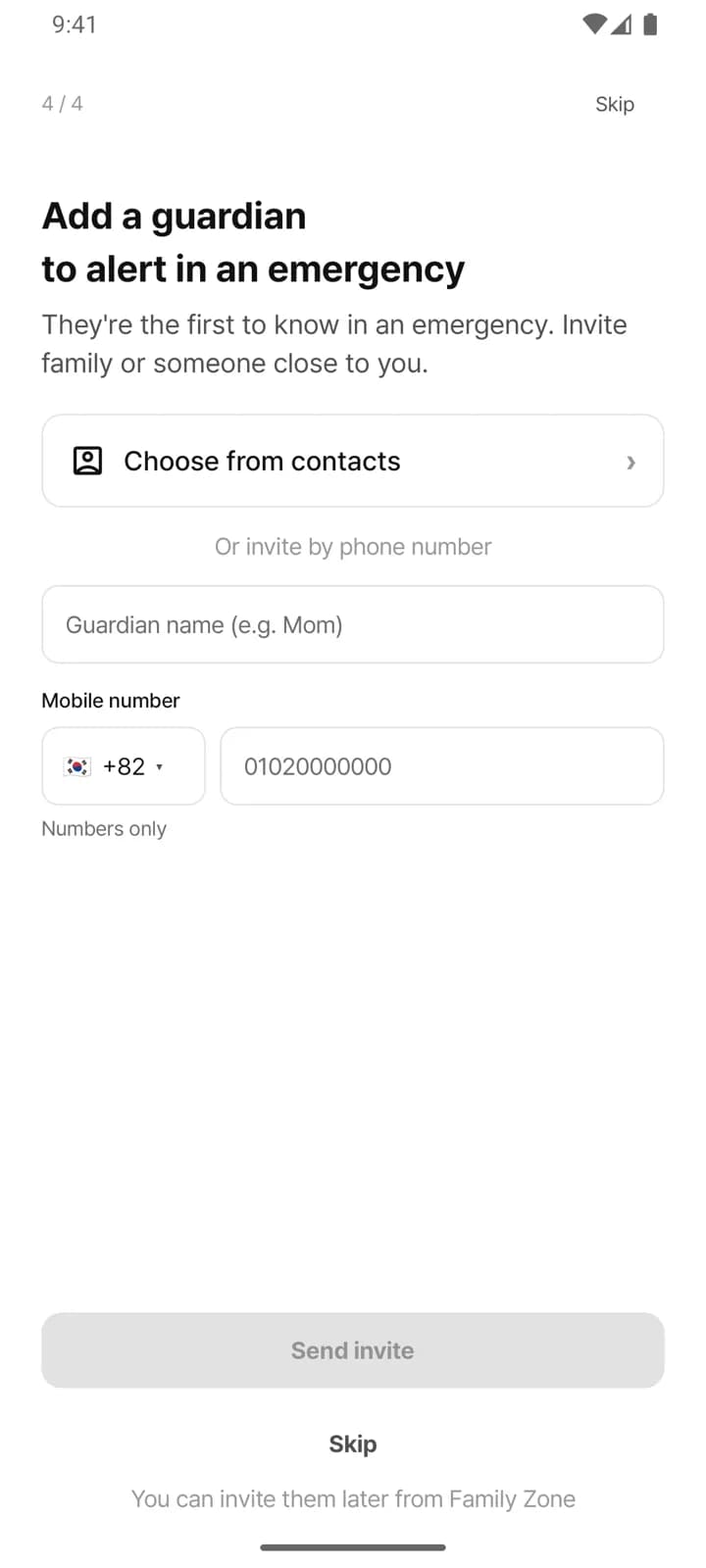
Add a guardian Choose a guardian from your contacts or invite them by phone number. To do this later, tap [Skip] — you can add guardians anytime in Family Zone.
Step 20
All set
Step 21
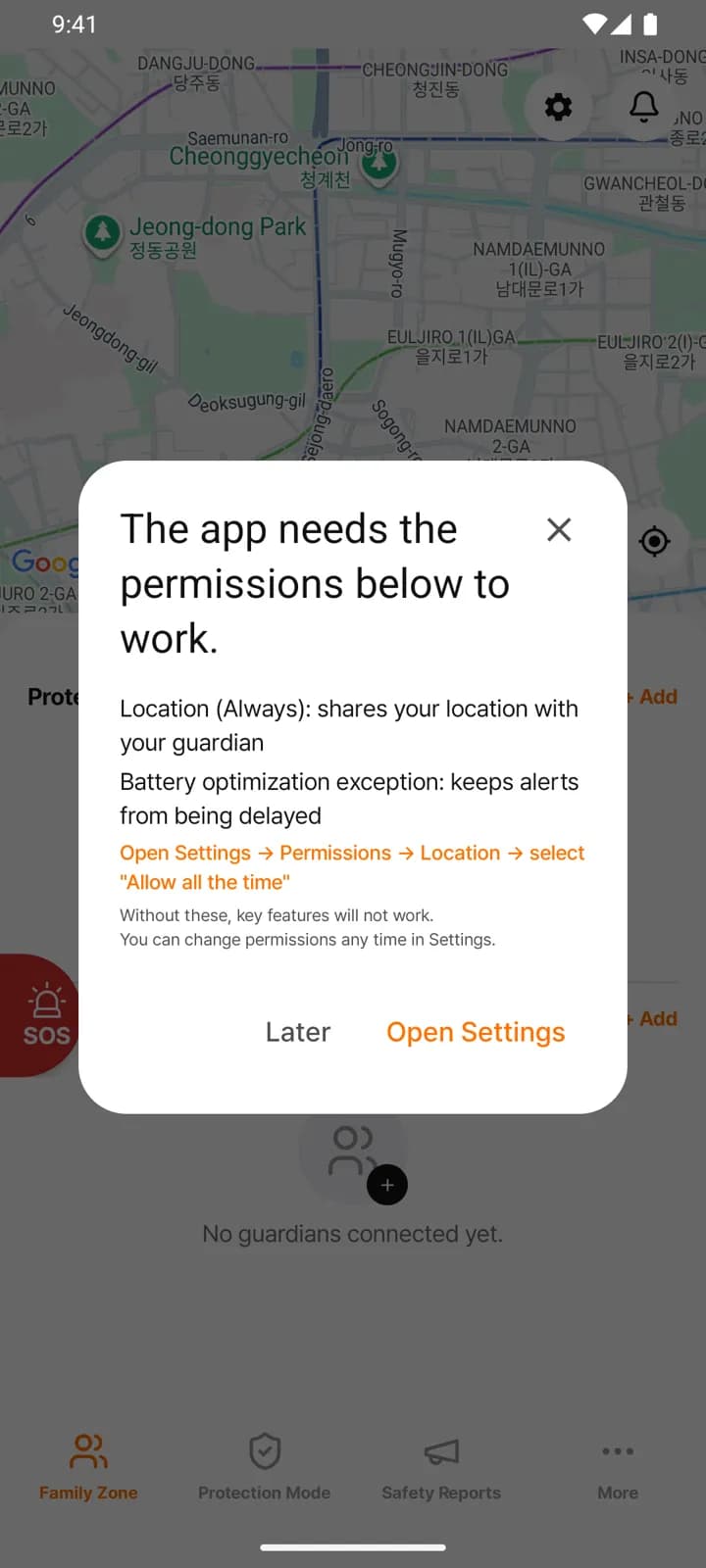
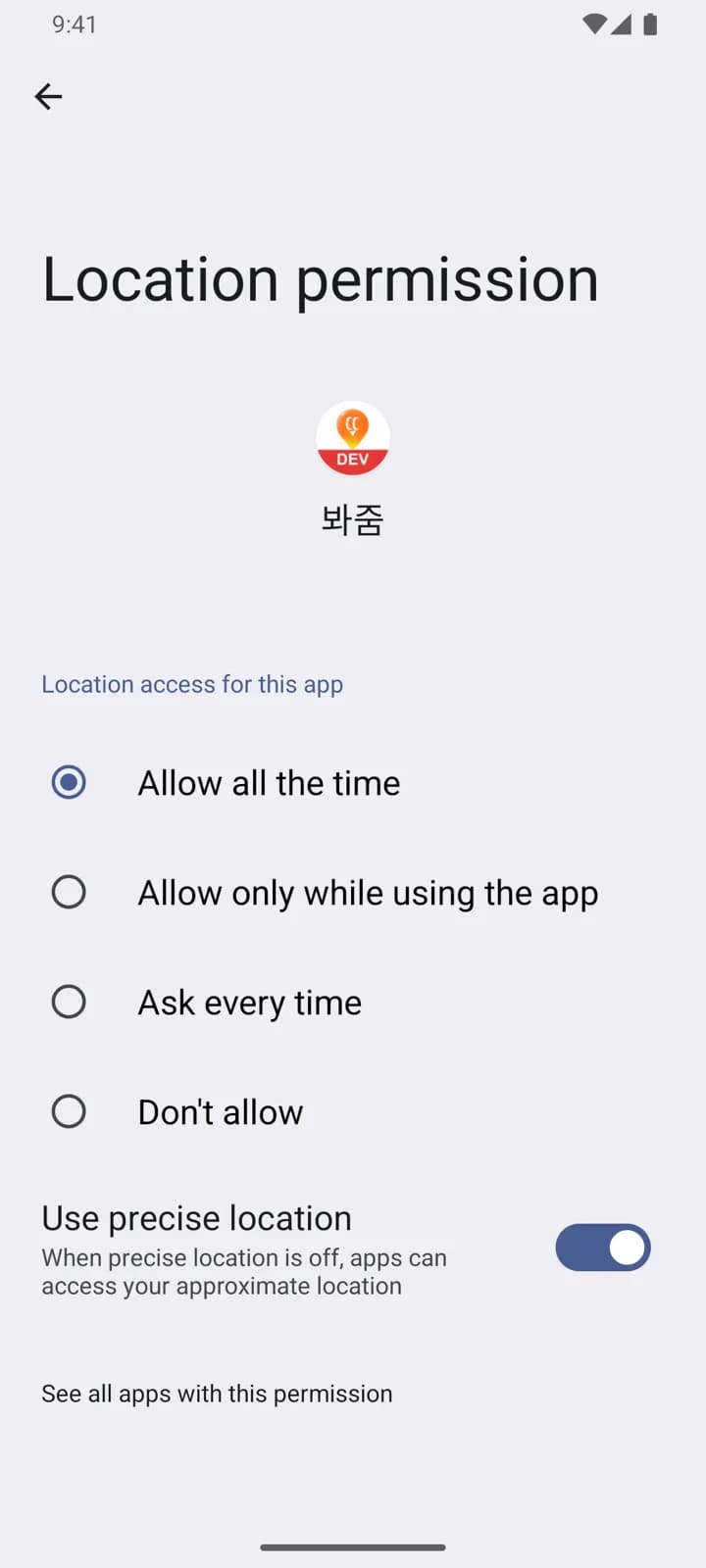
4. Set location access to "Allow all the time" For your guardians to see your location and receive safe-zone alerts while the app is closed, location access must be set to "Allow all the time". If you see "The app needs the permissions below to work." on the home screen, tap [Open Settings], then go to Permissions → Location and select "Allow all the time".
Step 22
"Allow all the time" in device settings
Step 23
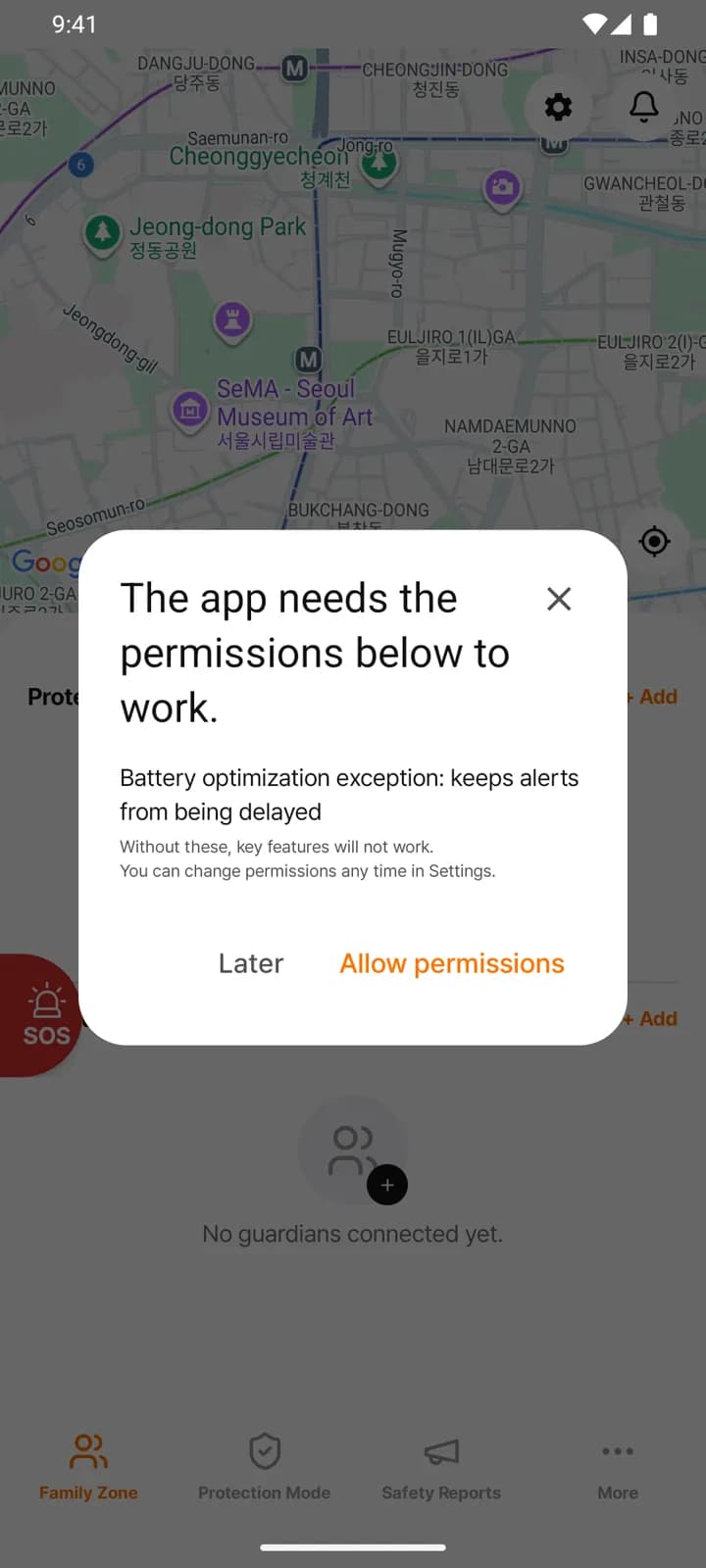
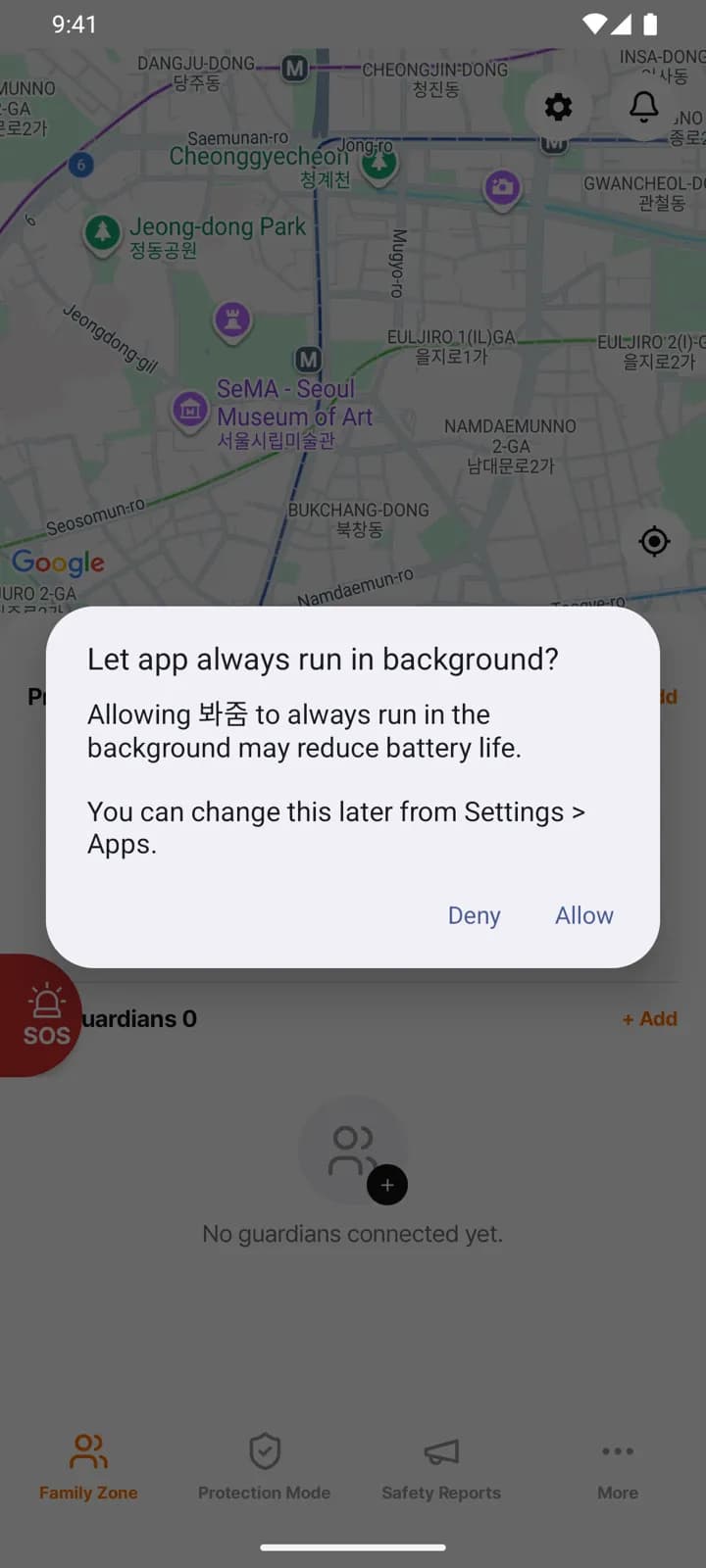
5. Exclude Vazoom from battery optimization Some Android phones pause apps to save battery. If Vazoom is paused, your location may stop updating or alerts may be delayed. When you see the "Battery optimization exception" notice, tap [Allow permissions], then tap [Allow] on "Let app always run in background?".
Step 24
Allow running in the background