Sign-up & invites for minors
iPhone
Step by step
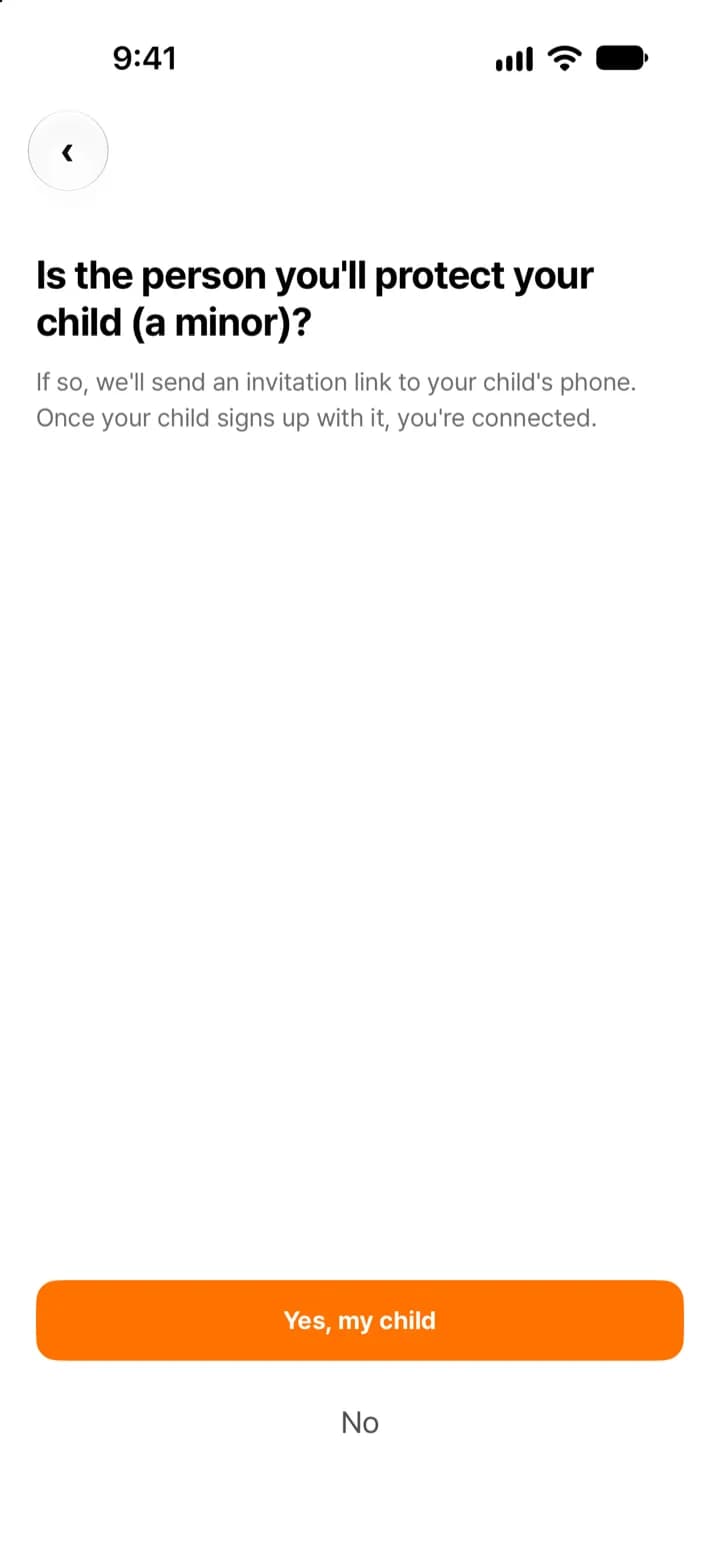
Step 1
Guardian In Family Zone, tap [+ Add] → [Add someone I look after]. When asked "Is the person you'll protect your child (a minor)?", tap [Yes, my child].
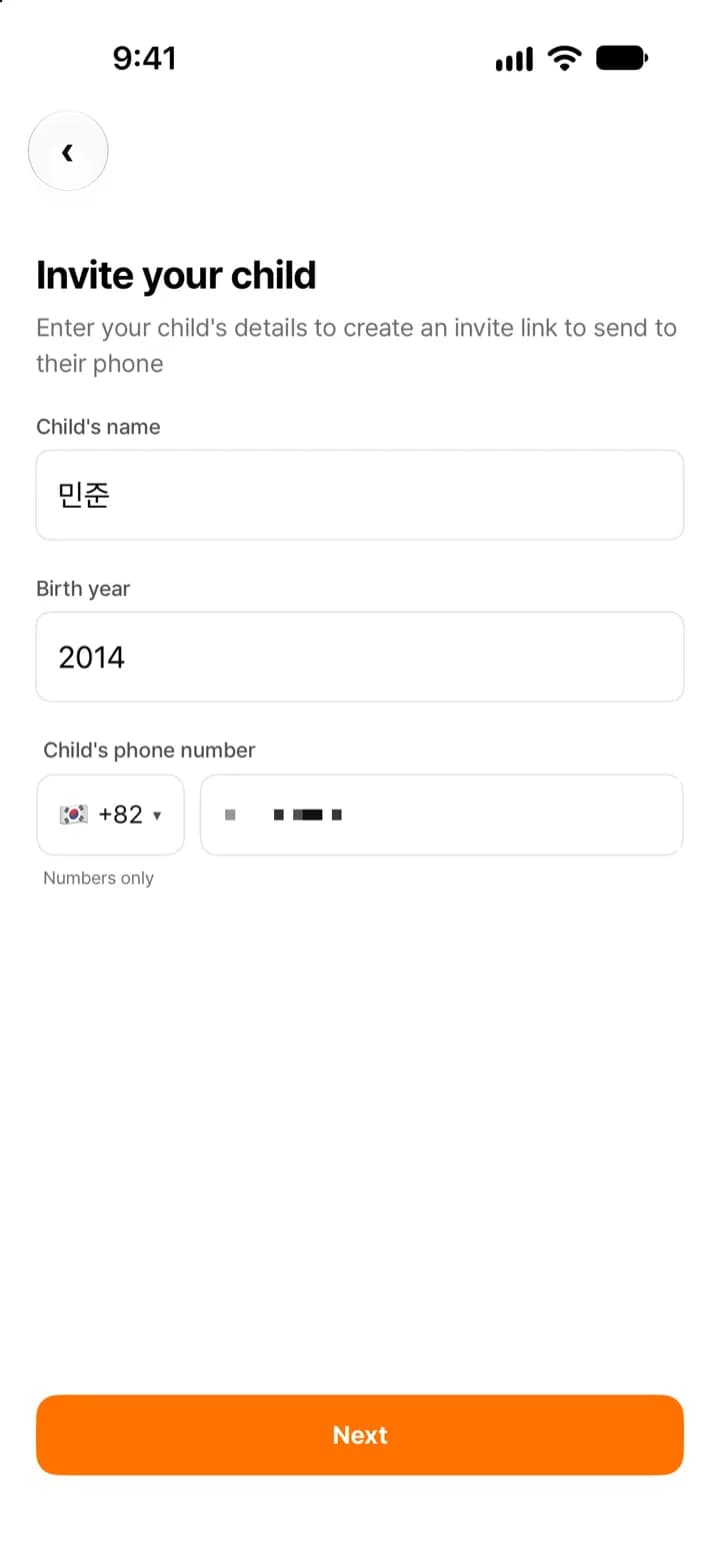
Step 2
Enter your child's name, birth year and mobile number, then tap [Next].
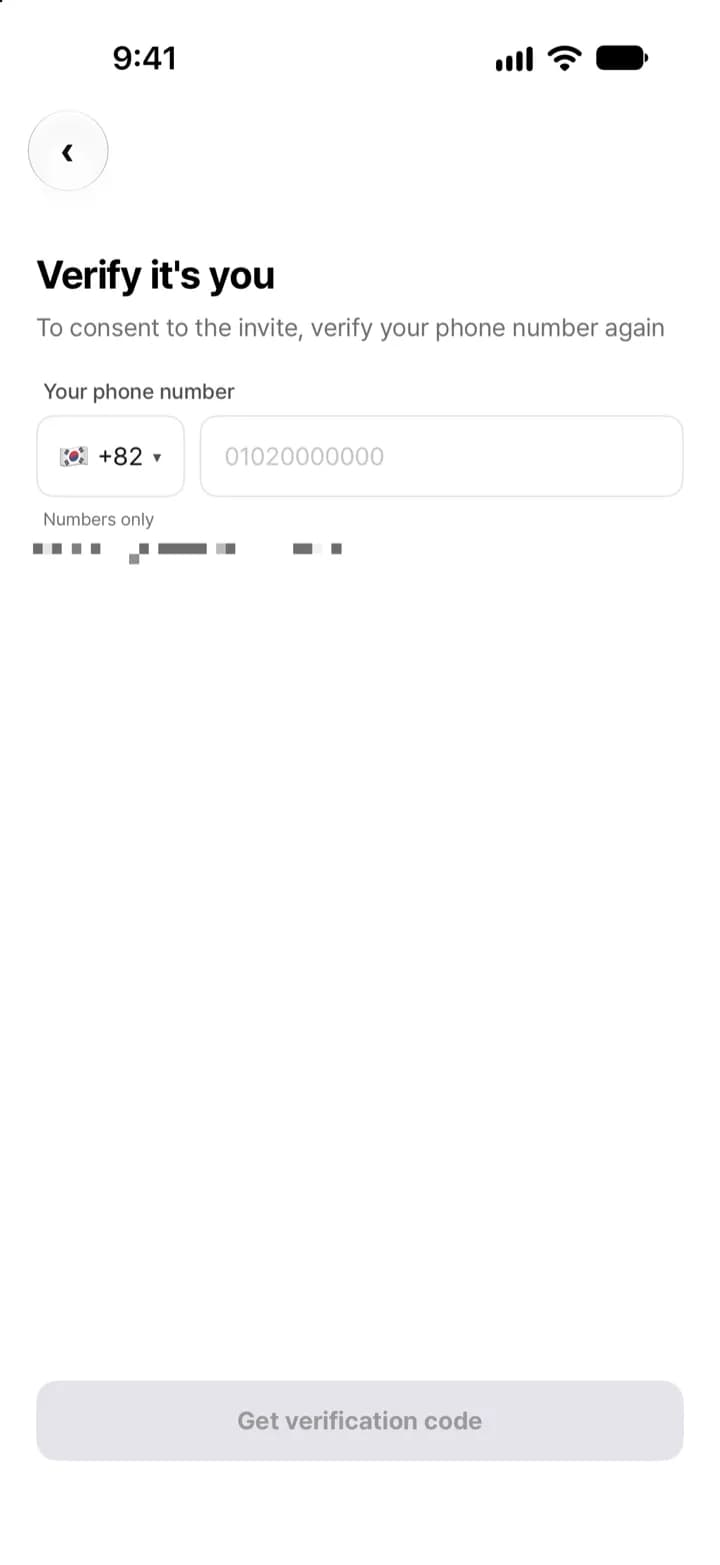
Step 3
Verify your identity with your own mobile number.
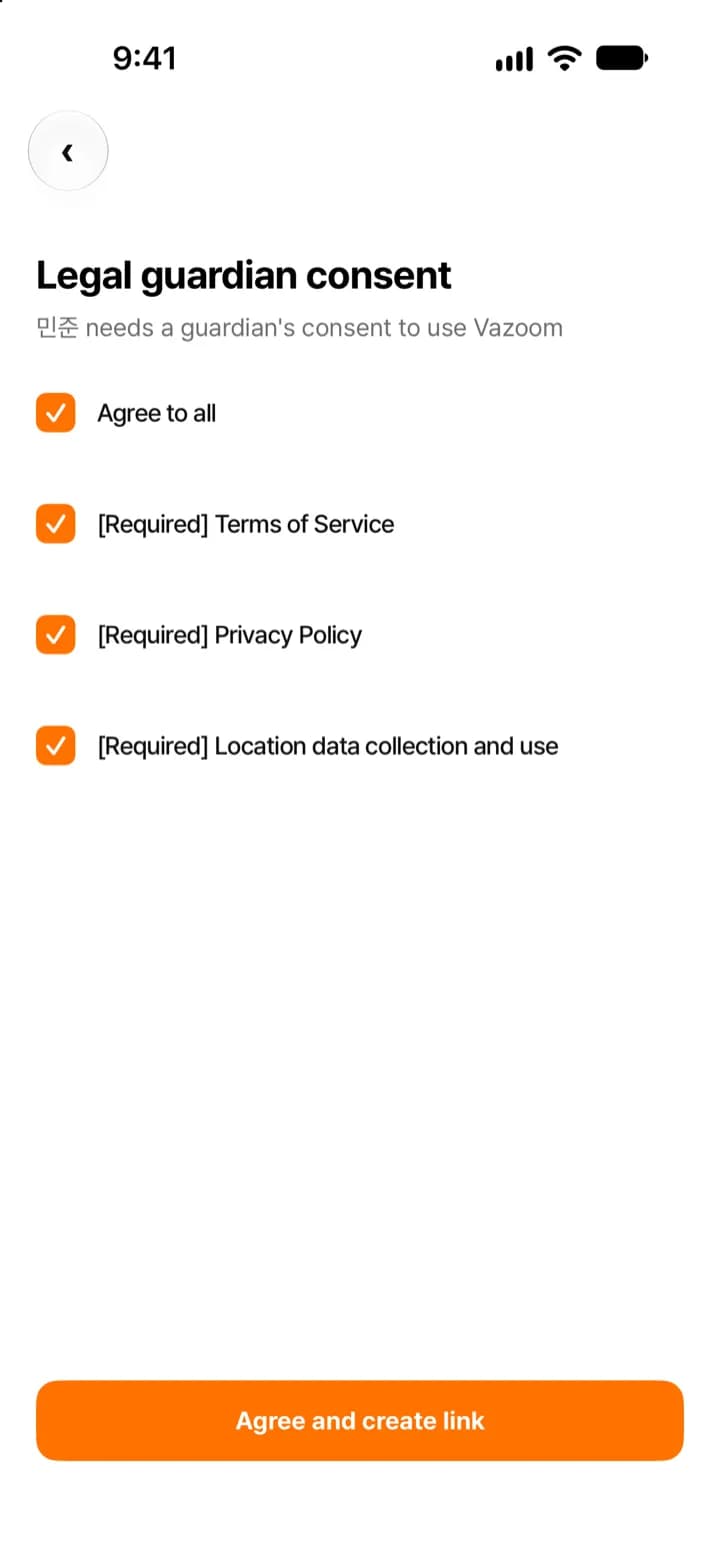
Step 4
Review the legal guardian consent items and tap [Agree and create link].
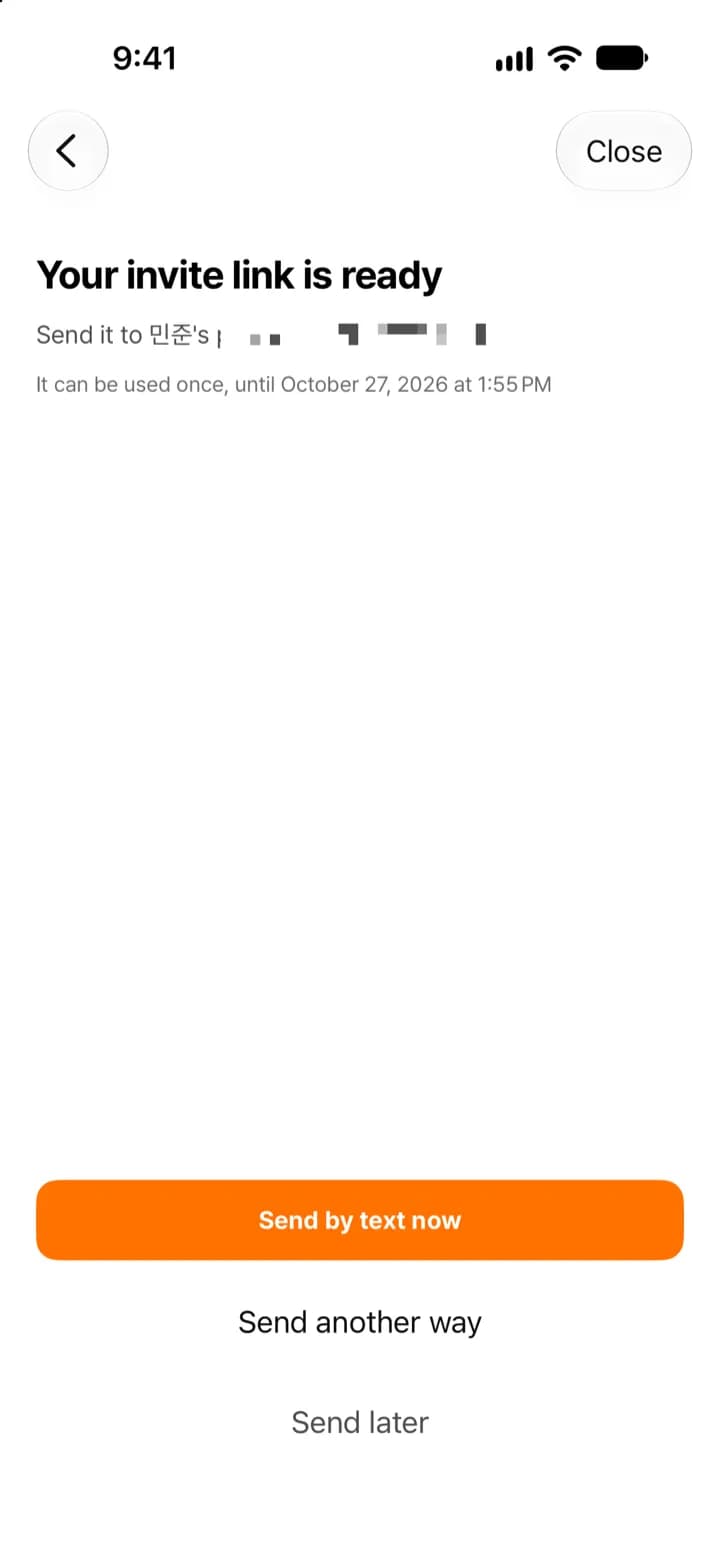
Step 5
Send the invite link to your child's phone. The link can be used once, before its expiry date.
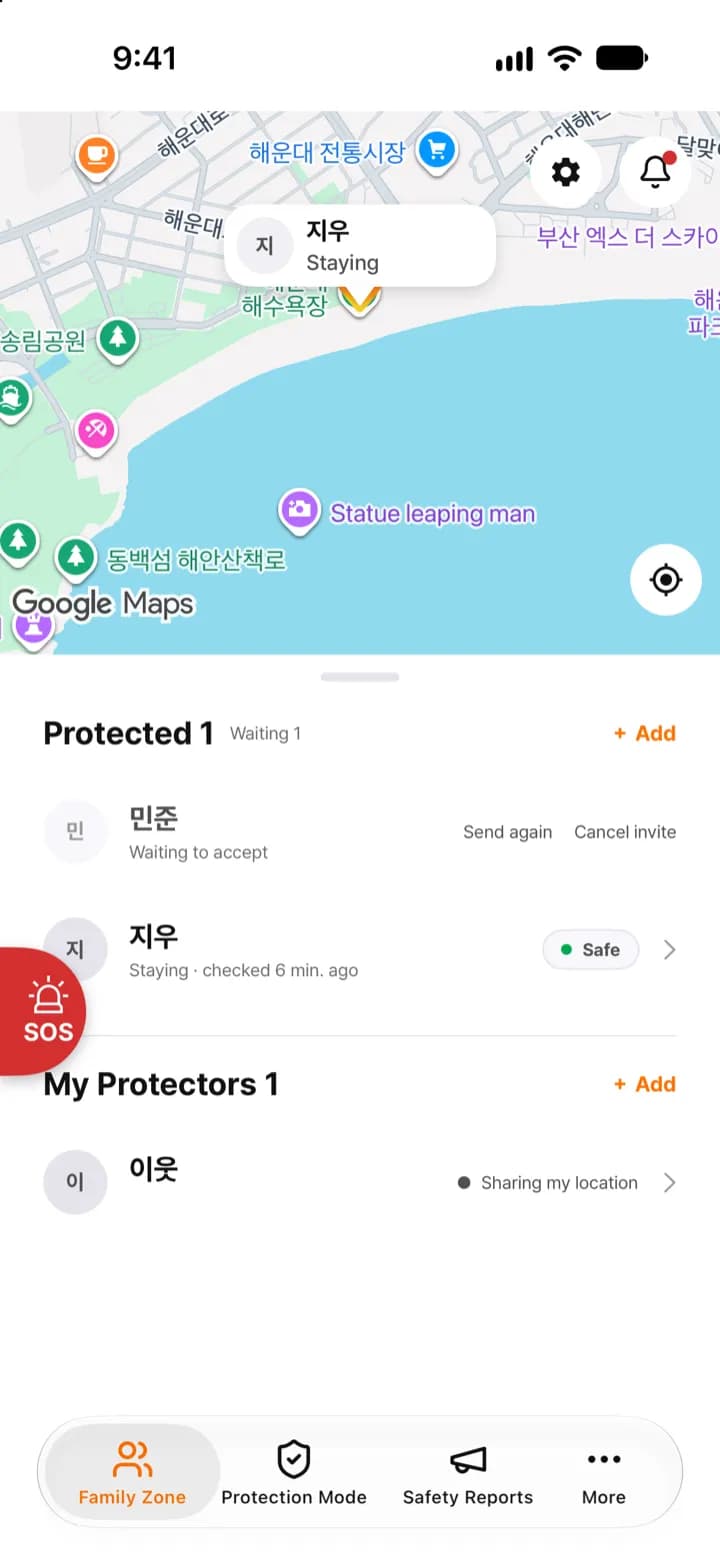
Step 6
Until your child finishes signing up, it shows as "Waiting to accept" on your home screen.
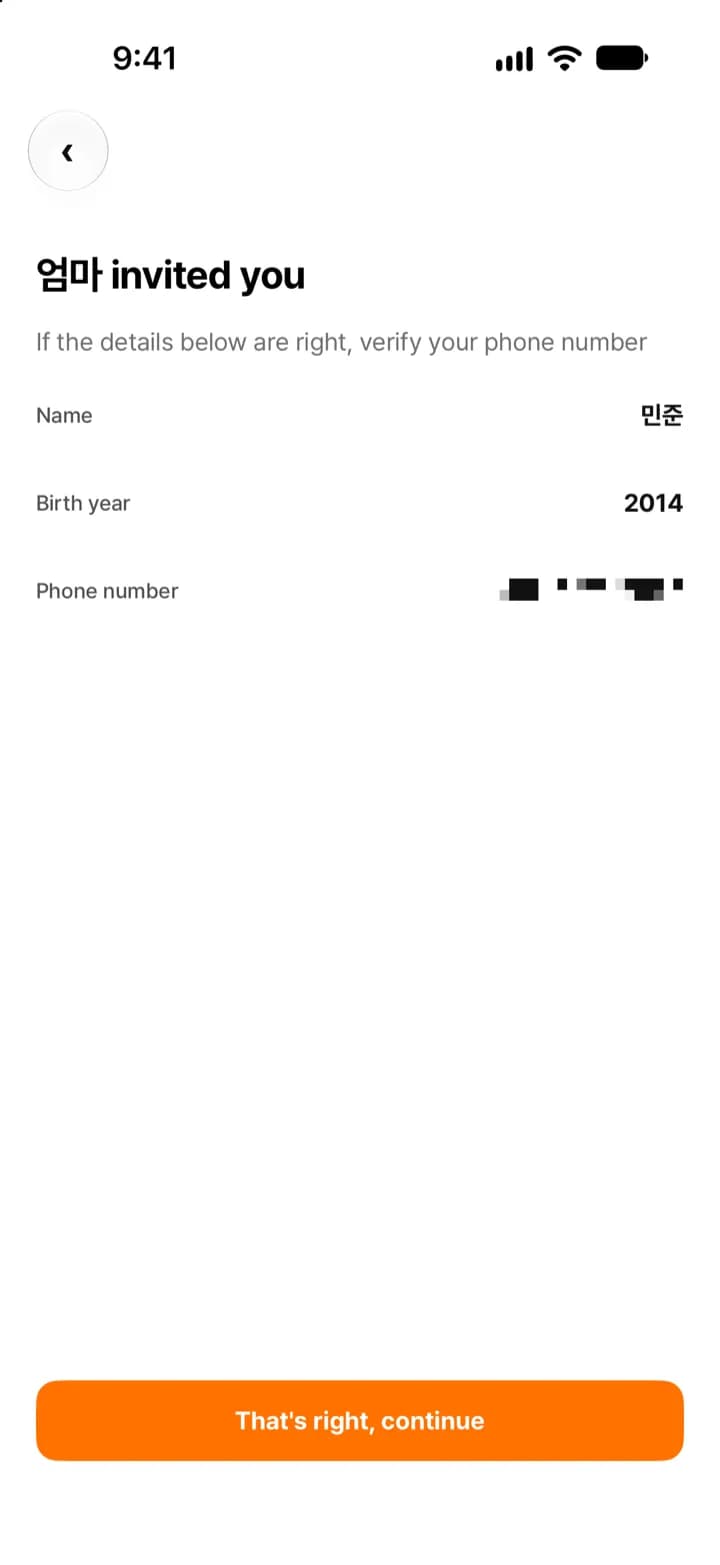
Step 7
Child Install Vazoom first, then tap the link you received. If the name, birth year and mobile number are correct, tap [That's right, continue].
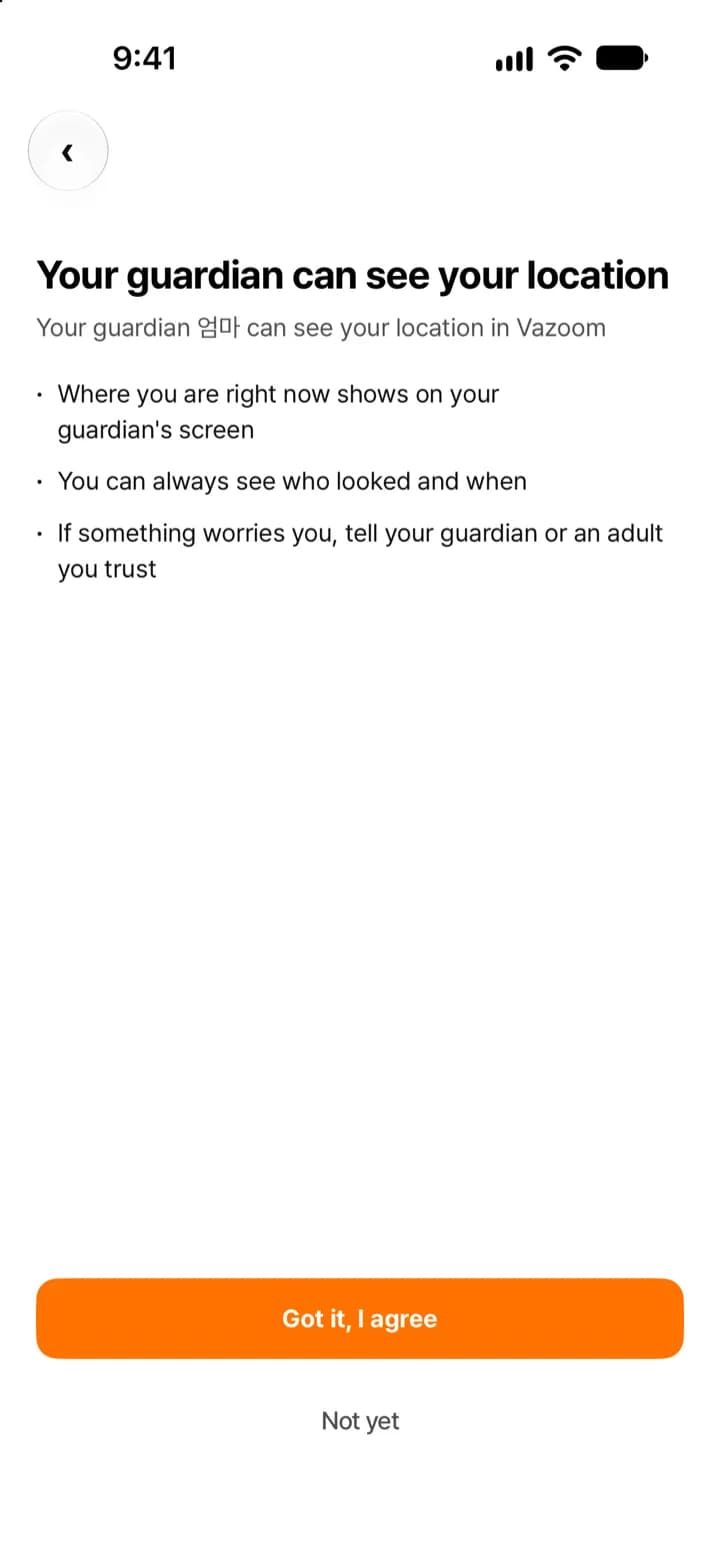
Step 8
Verify your mobile number, read "Your guardian can see your location", and tap [Got it, I agree].
Step 9
After agreeing to the terms, sign-up and the connection are completed together.
Step 10
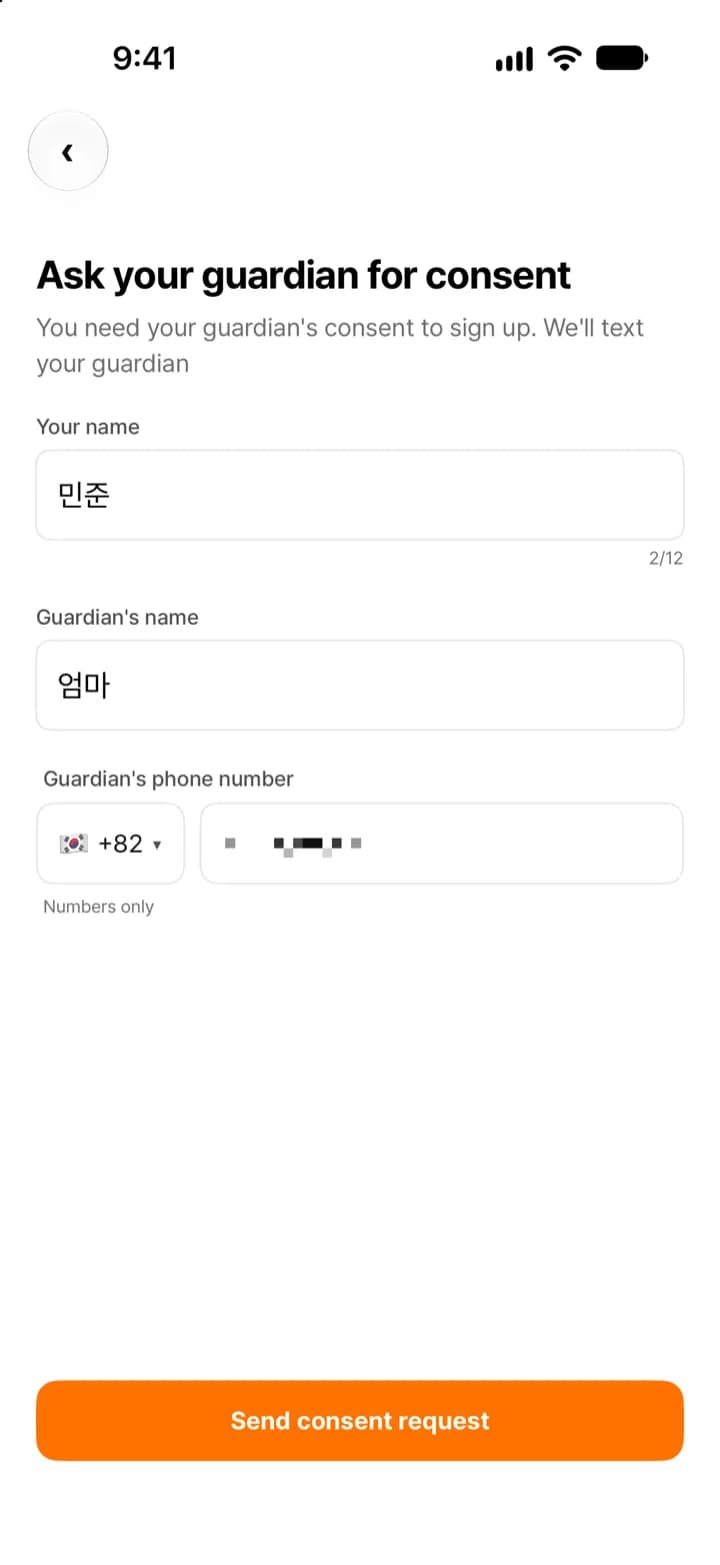
Option 2 — The child sends a request first When a child chooses their birth year during sign-up, "Ask your guardian for consent" appears. Enter your name, your guardian's name and their mobile number, then tap [Send consent request].
Step 11
Wait for your guardian to agree. If the text didn't arrive, tap [Send text again].
Step 12
The guardian taps the link in the text, checks "Your child's sign-up request" and taps [Review and agree]. Identity verification and legal guardian consent follow.
Step 13
When the child's screen shows "Your guardian agreed", tap [Continue signing up].
Step 14
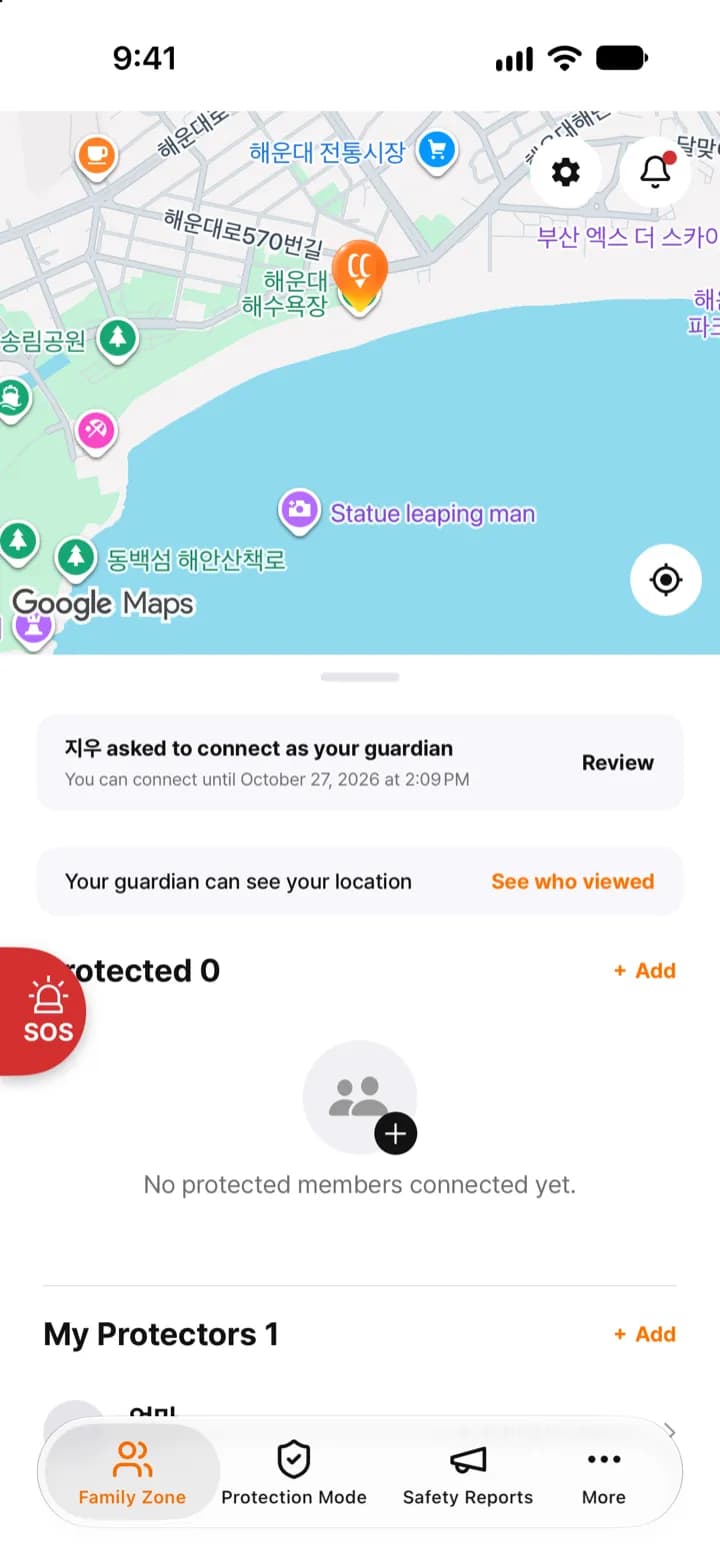
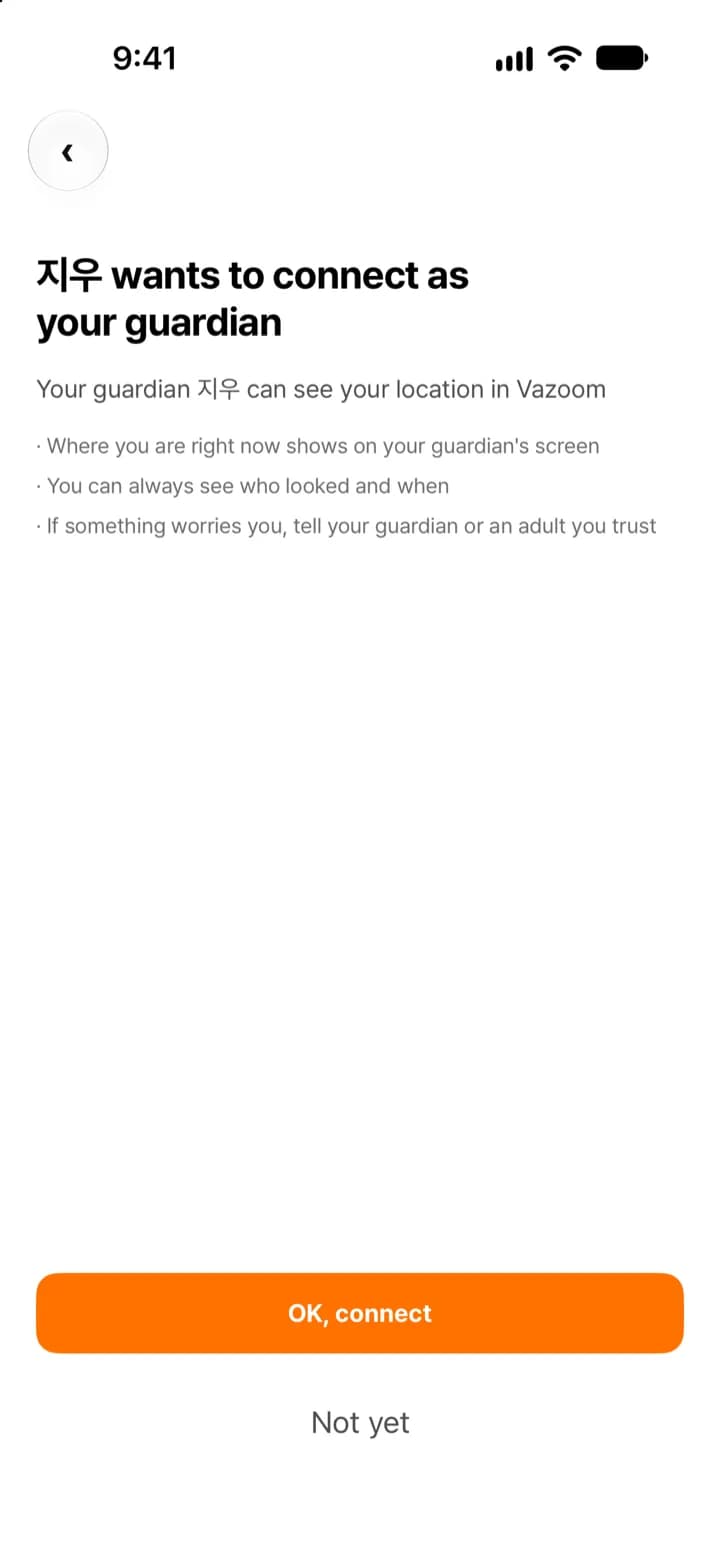
If another guardian asks to connect with a child who has already joined A card saying "○○ asked to connect as your guardian" appears on the child's home screen. Tap [Review], then [OK, connect]. It's also listed under "Invitations" in More.
Step 15
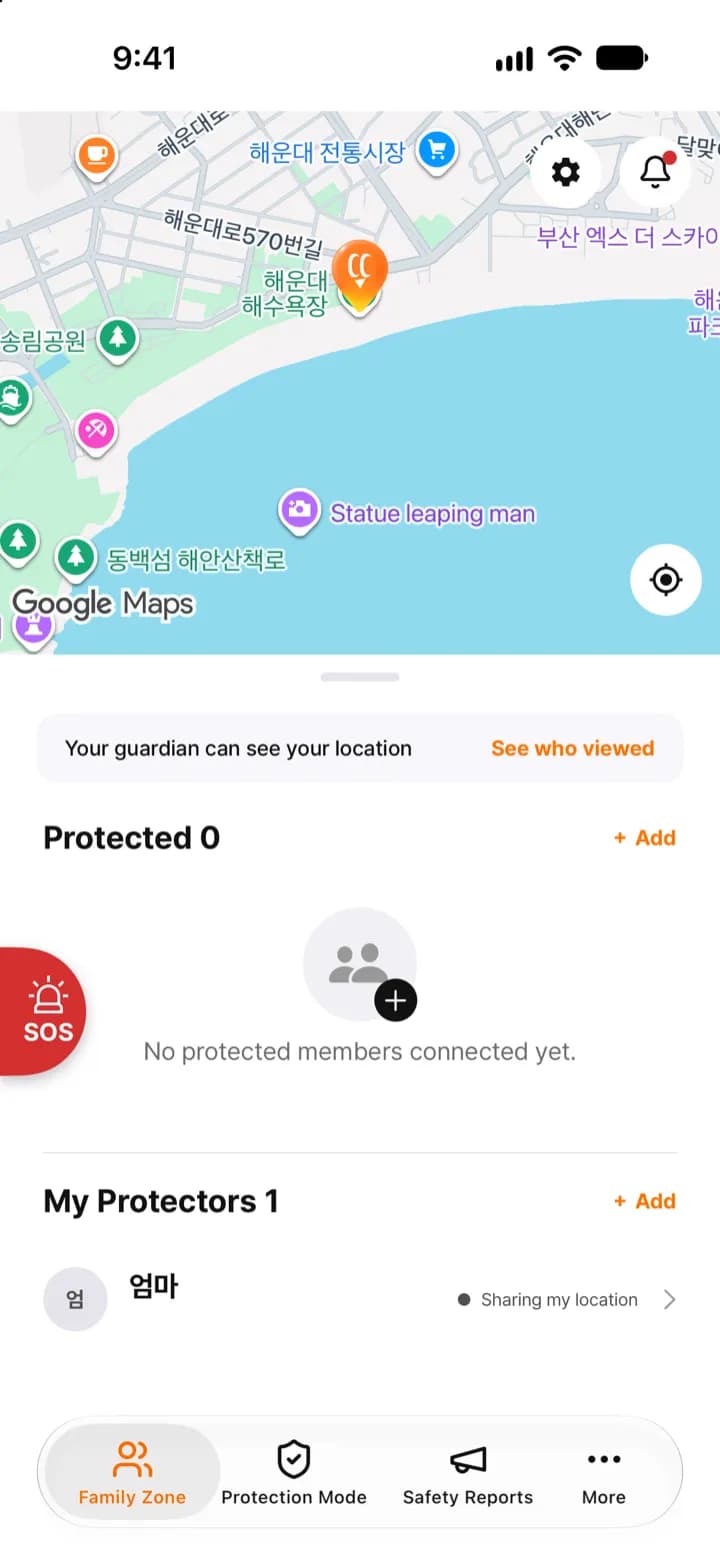
Confirming the connection
Step 16
Good to know for children Once connected, your home screen shows "Your guardian can see your location". Tap [See who viewed] to check when your guardian viewed your location.