Safety reports
iPhone
Step by step
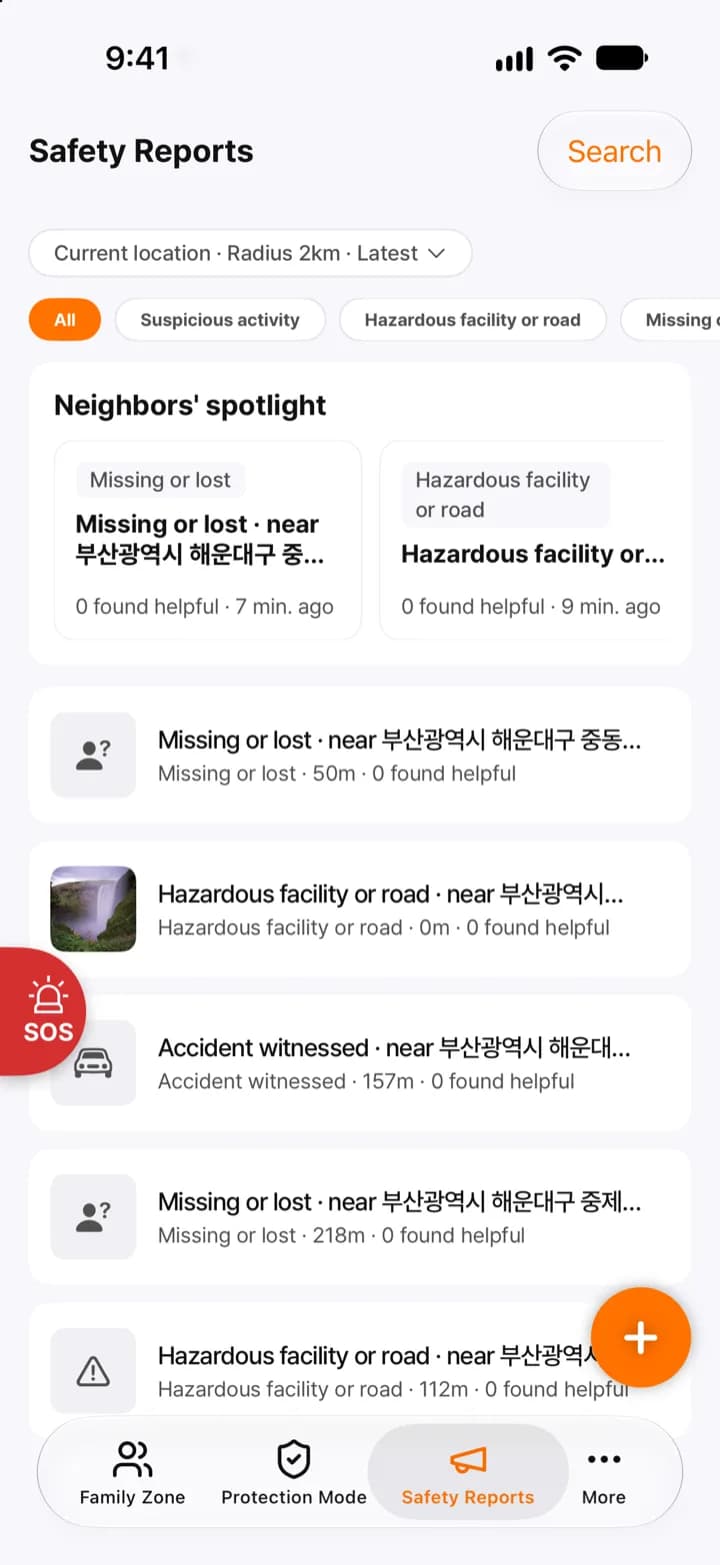
Step 1
Browsing nearby reports Tap "Safety reports" in the bottom tabs. Use the filter at the top to change the radius and the sort order (Latest · Nearest), and the chips below it to pick a category (Suspicious activity / Hazardous facility or road / Missing or lost / Crime witnessed / Accident witnessed).
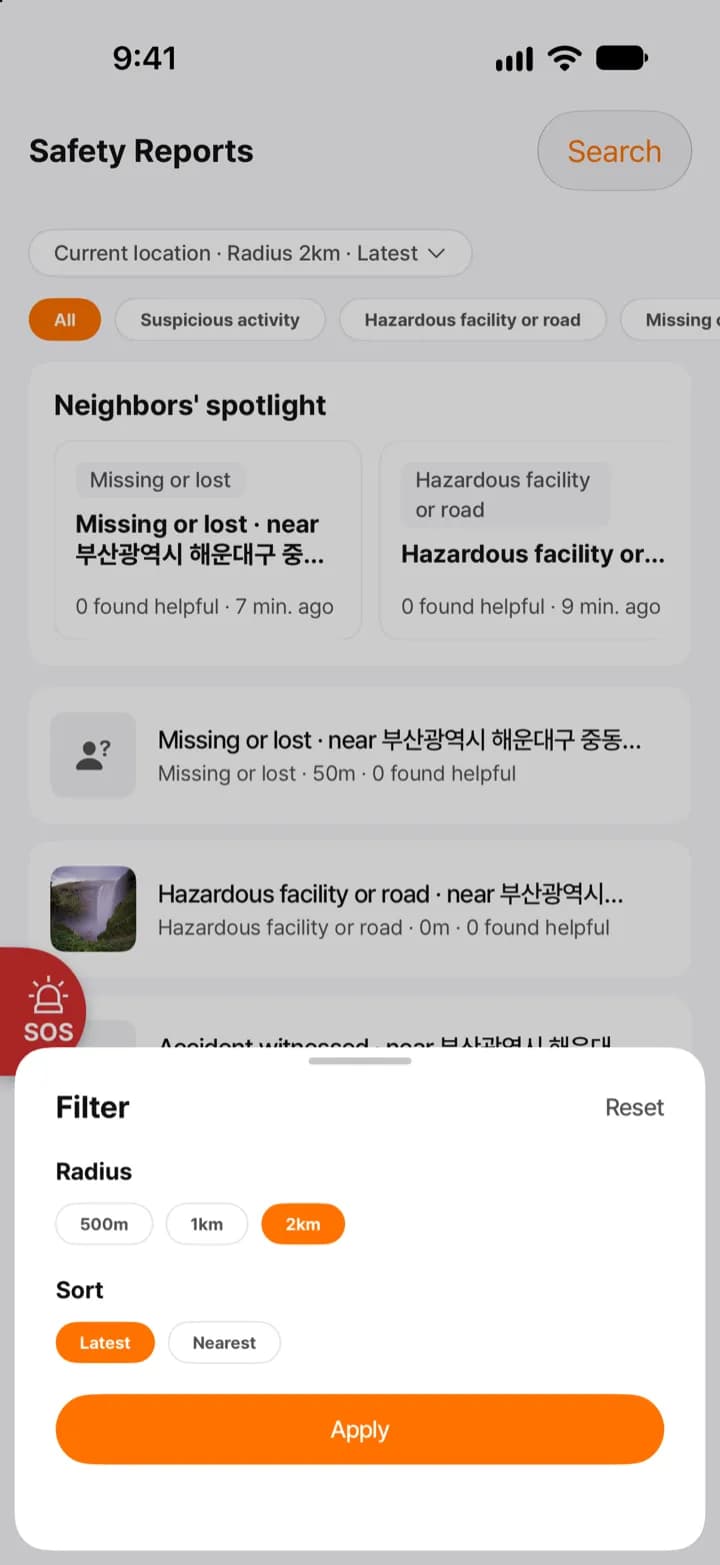
Step 2
Filter
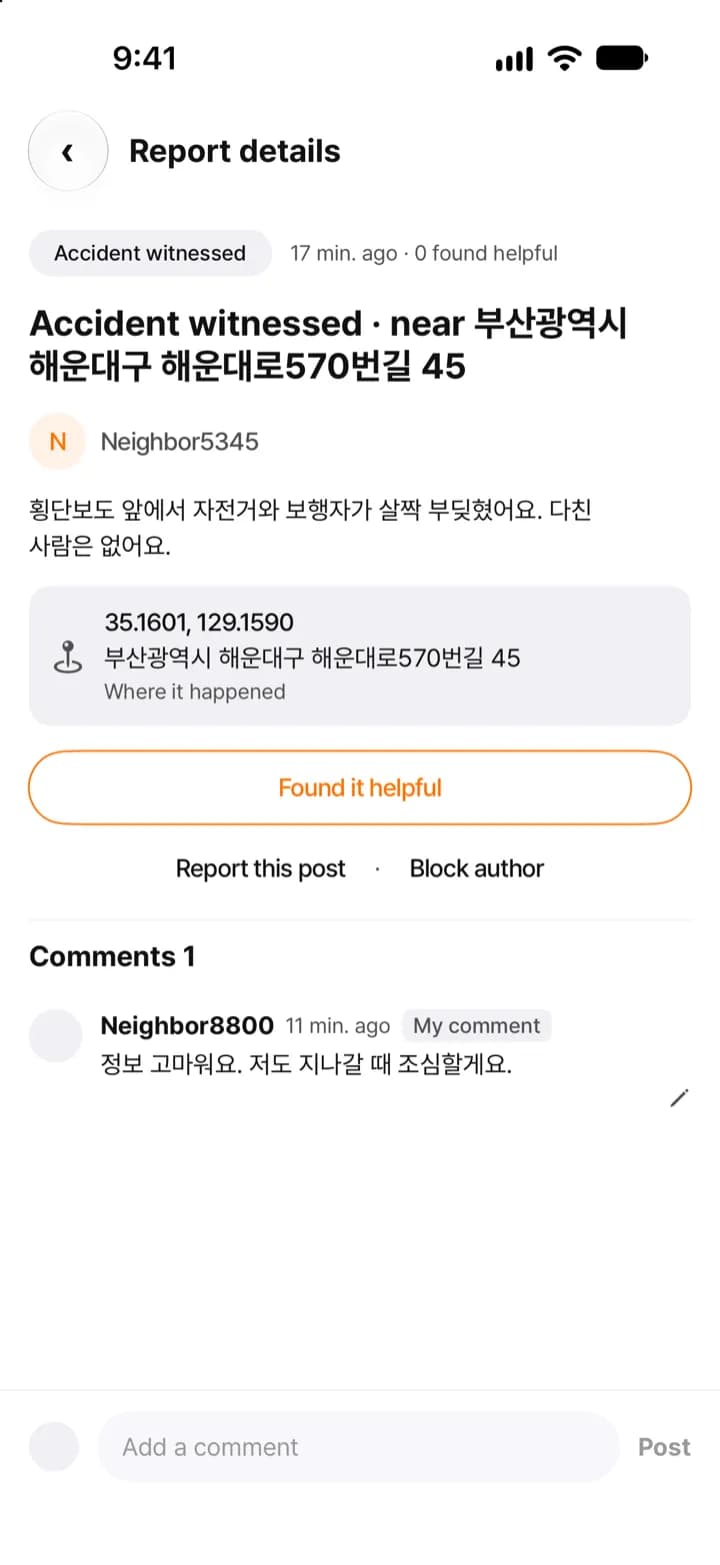
Step 3
Tap a report to see the details, location and comments. If it helped, tap [Found it helpful].
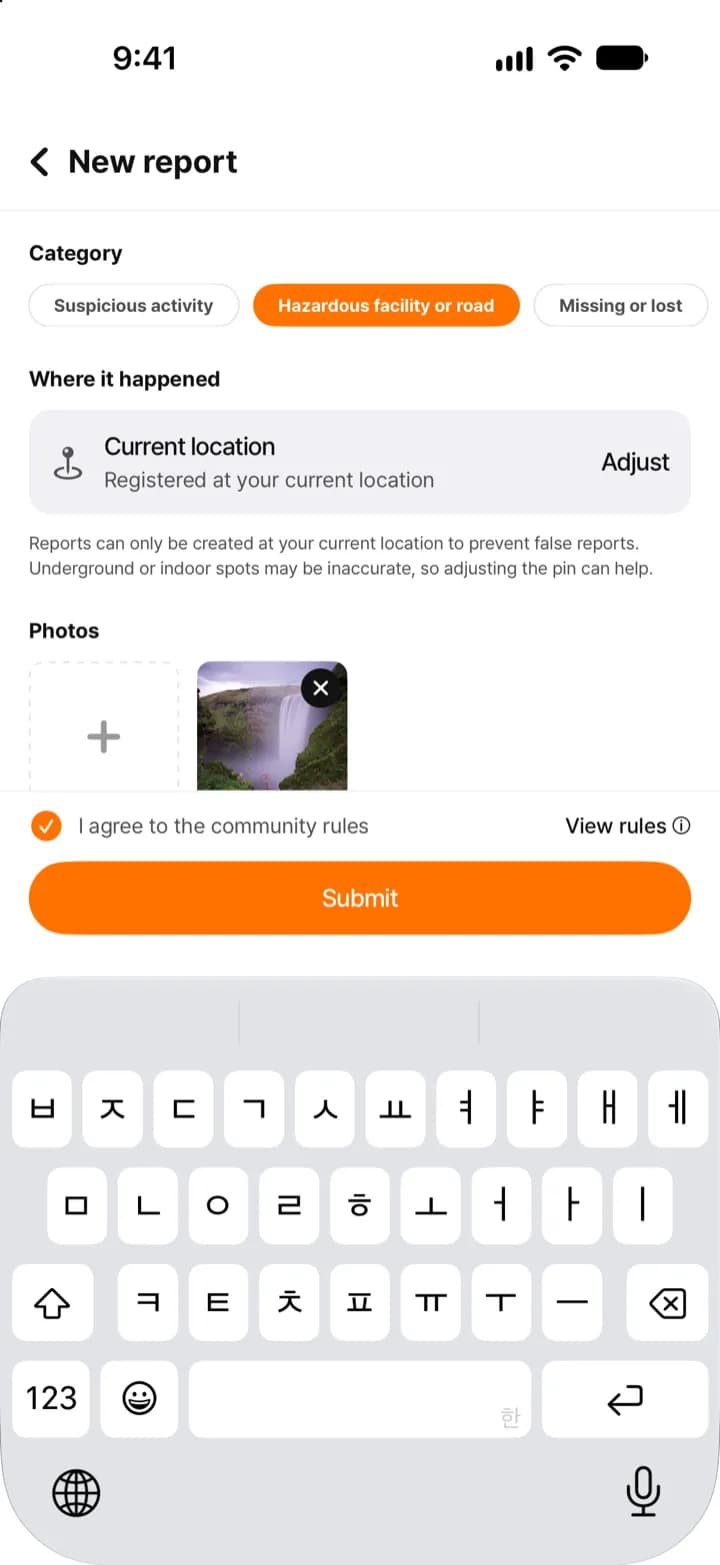
Step 4
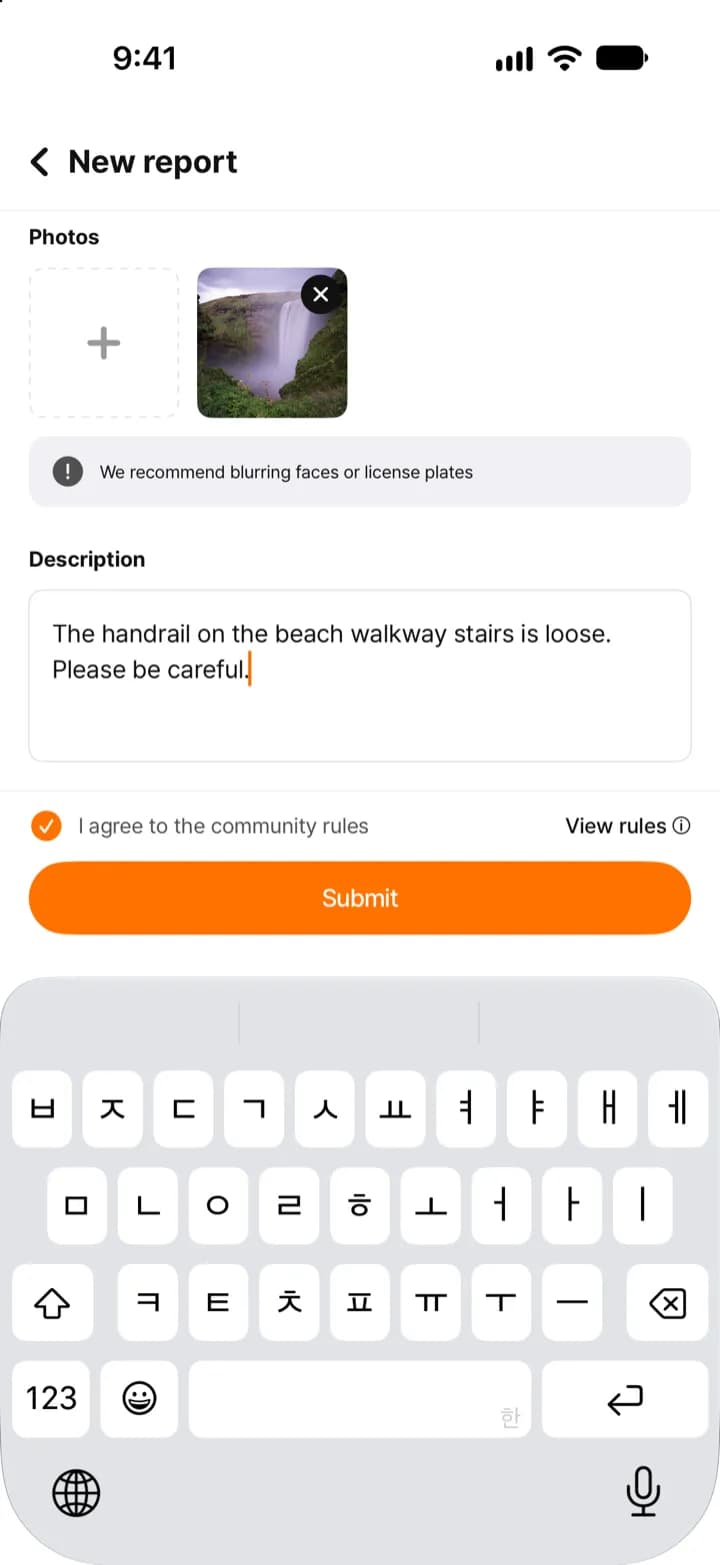
Posting a report Tap [New report] and choose a category. You can add up to 5 photos.
Step 5
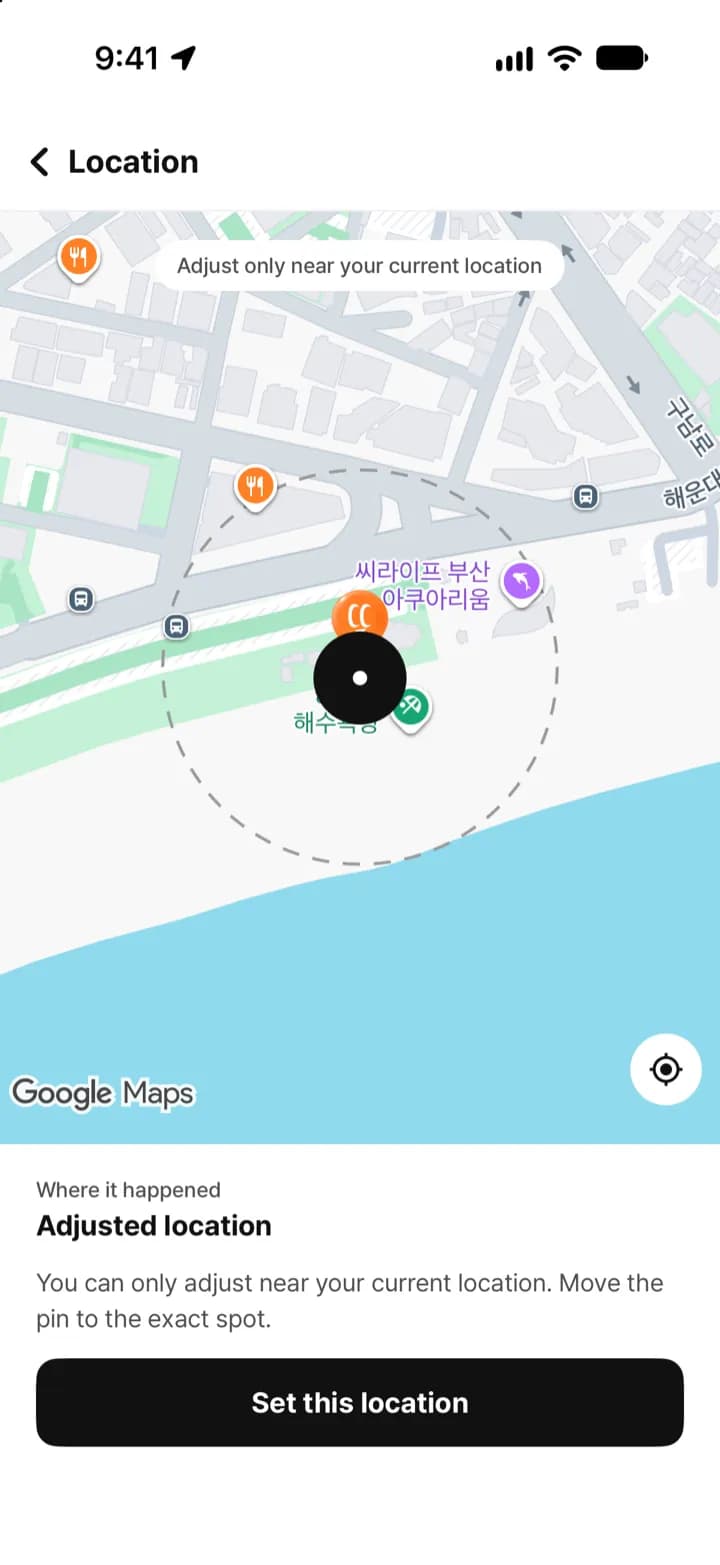
Describe what happened (time, appearance and so on). If the location is off, tap [Adjust] to move it.
Step 6
Adjusting the location
Step 7
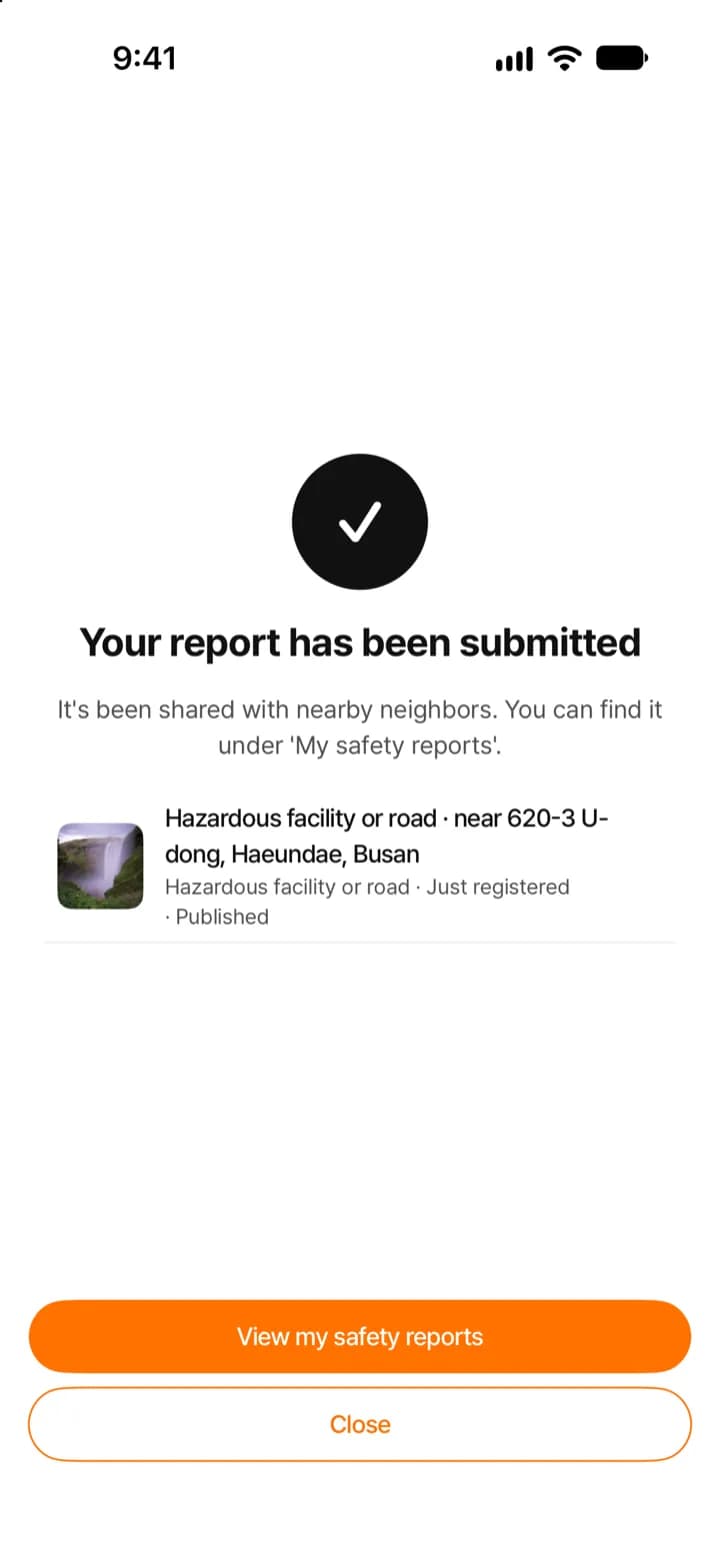
Review the community rules and tap [Submit].
Step 8
Submitted
Step 9
Please make sure other people's faces and license plates aren't visible in your photos.
Step 10
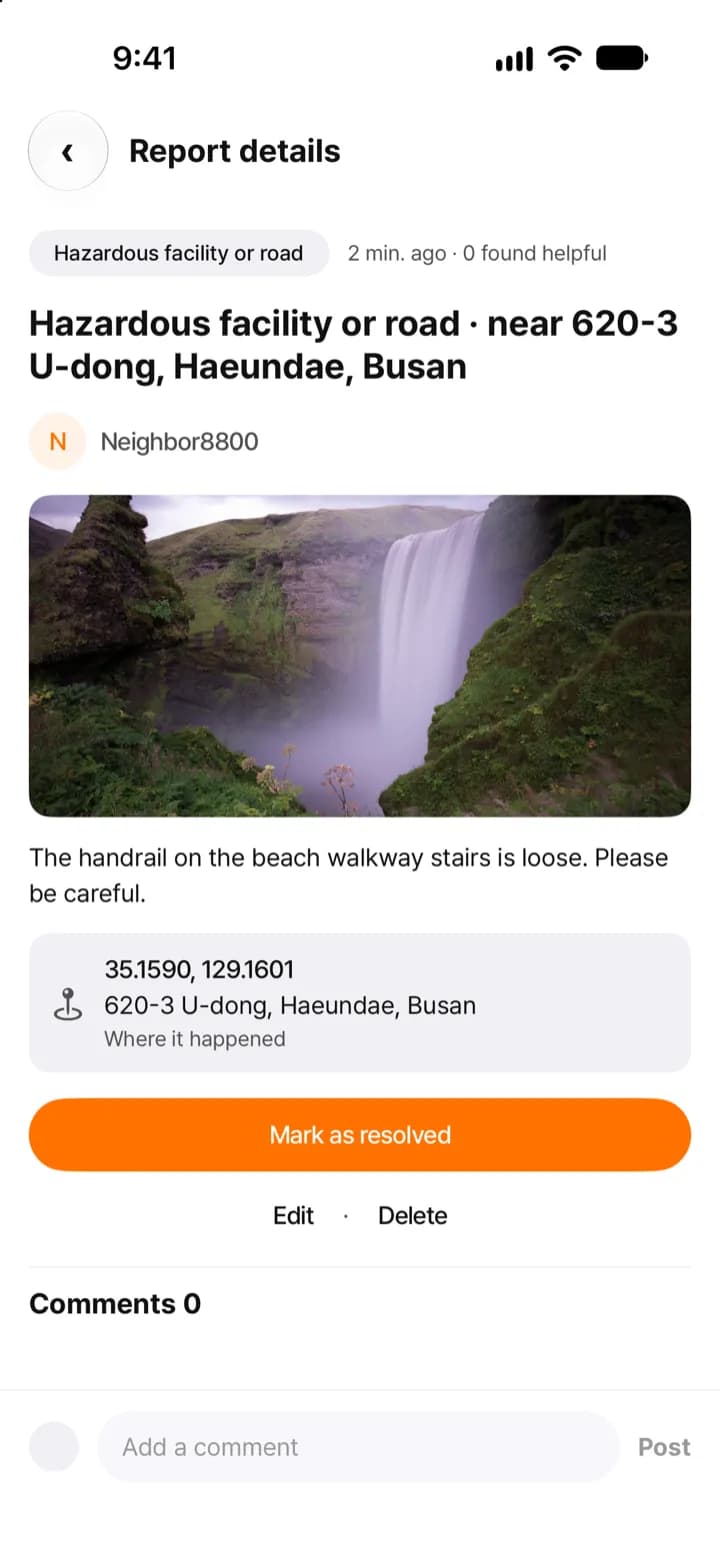
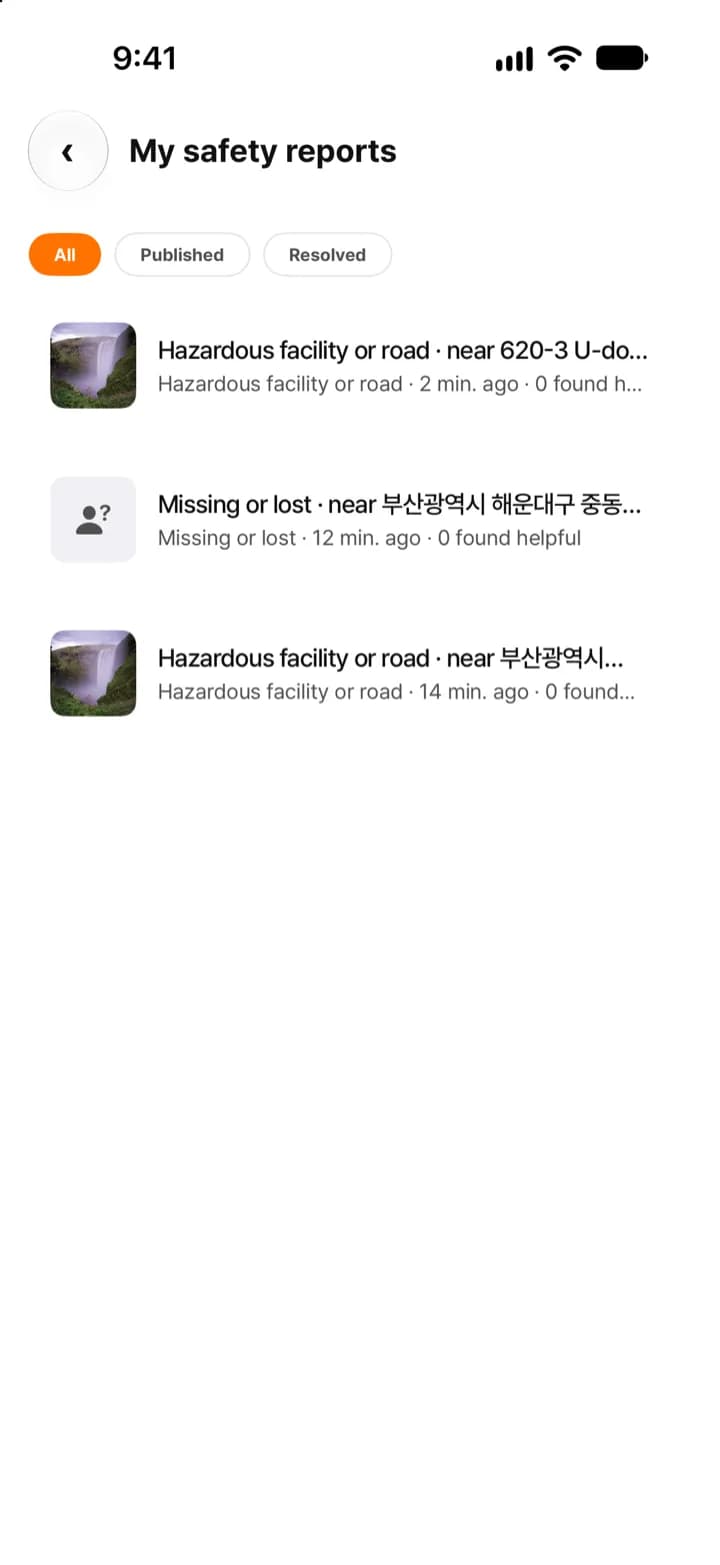
Managing your reports You can [Edit] your own report, or [Mark as resolved] when the situation is over. See them all under "My safety reports".
Step 11
My safety reports
Step 12
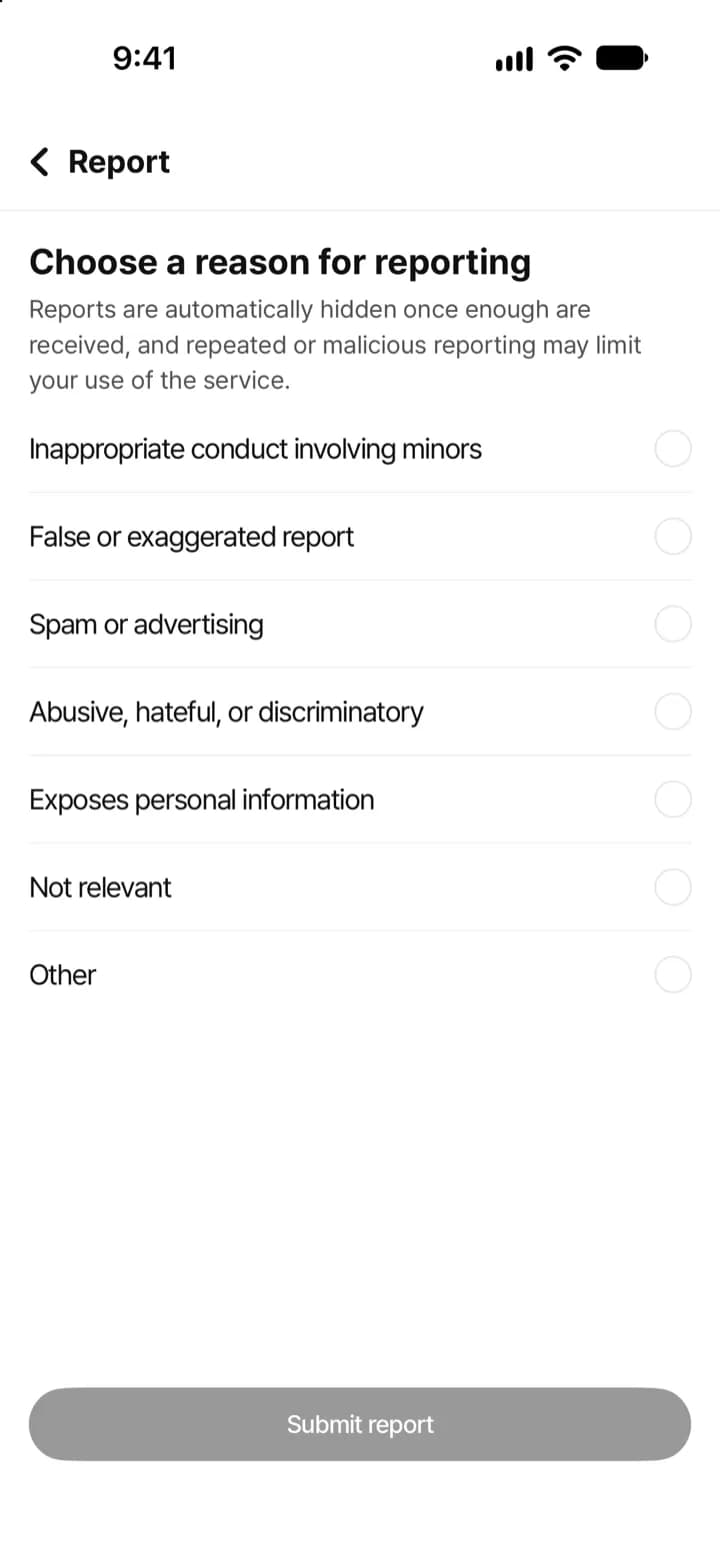
If you see an inappropriate report From the report details, tap [Report this post] or [Block author].
Step 13
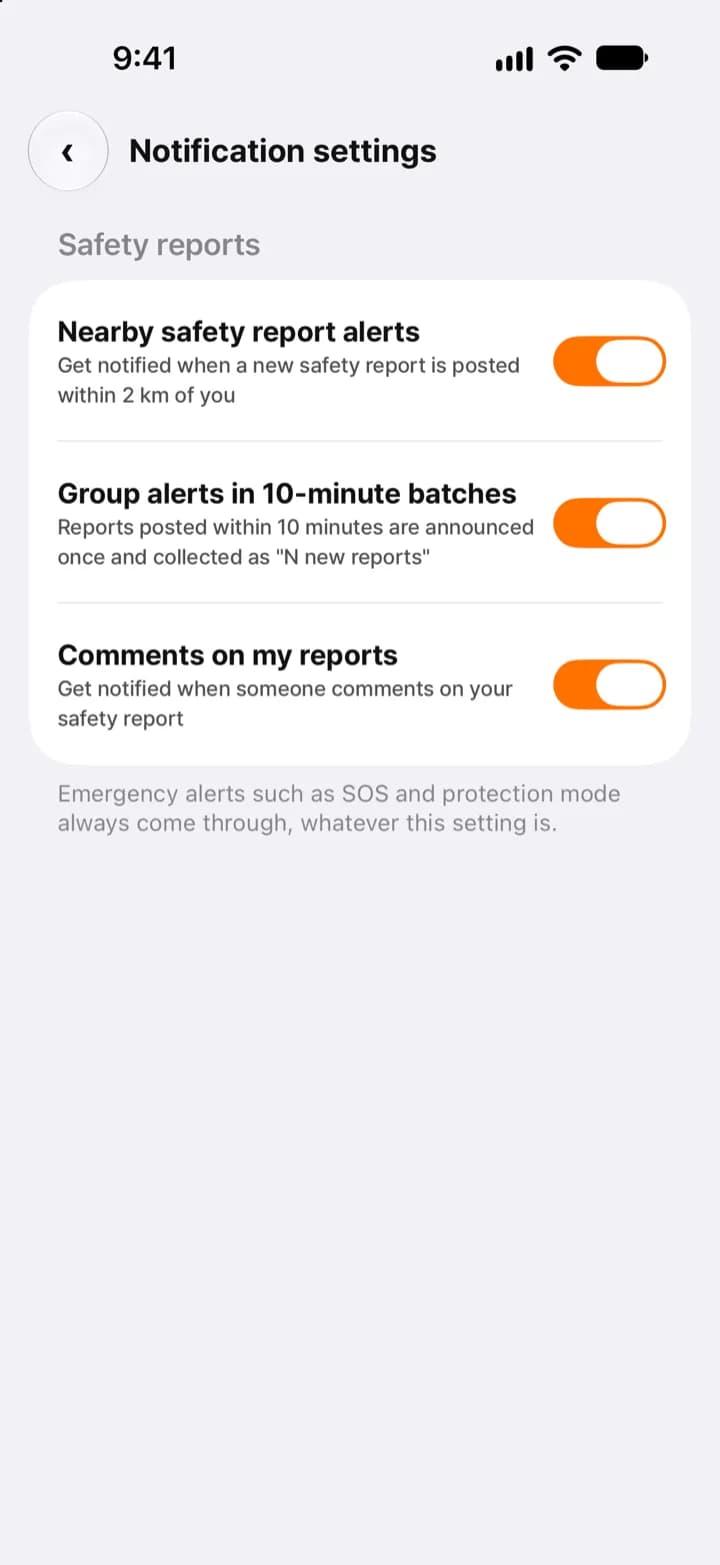
Notifications In More → "Notification settings", turn "Nearby safety report alerts", "Group alerts in 10-minute batches" and "Comments on my reports" on or off. Emergency alerts such as SOS and protection mode are always delivered regardless of these settings.
Step 14
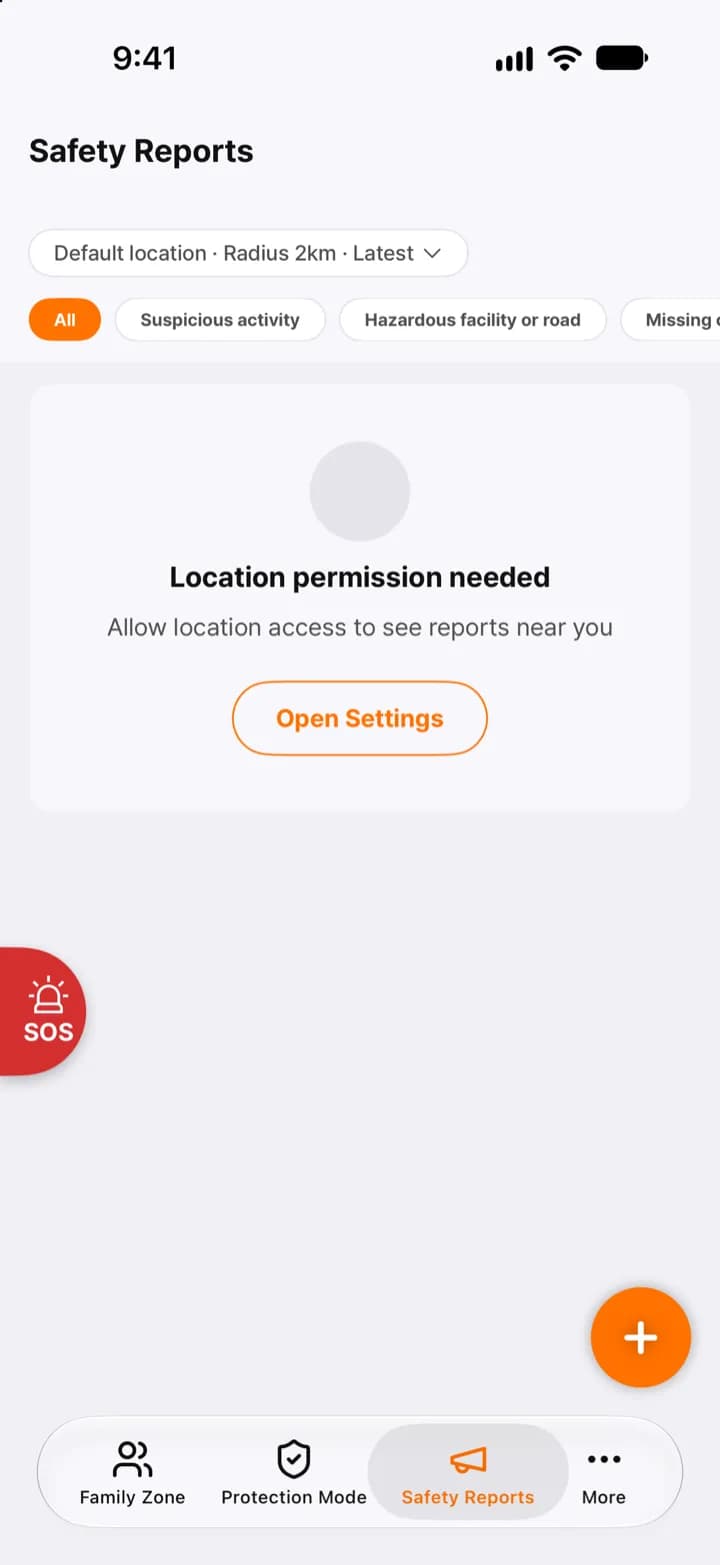
If no reports appear Nearby reports can't be found when location permission is off. Tap [Open Settings] and allow location access.
Step 15
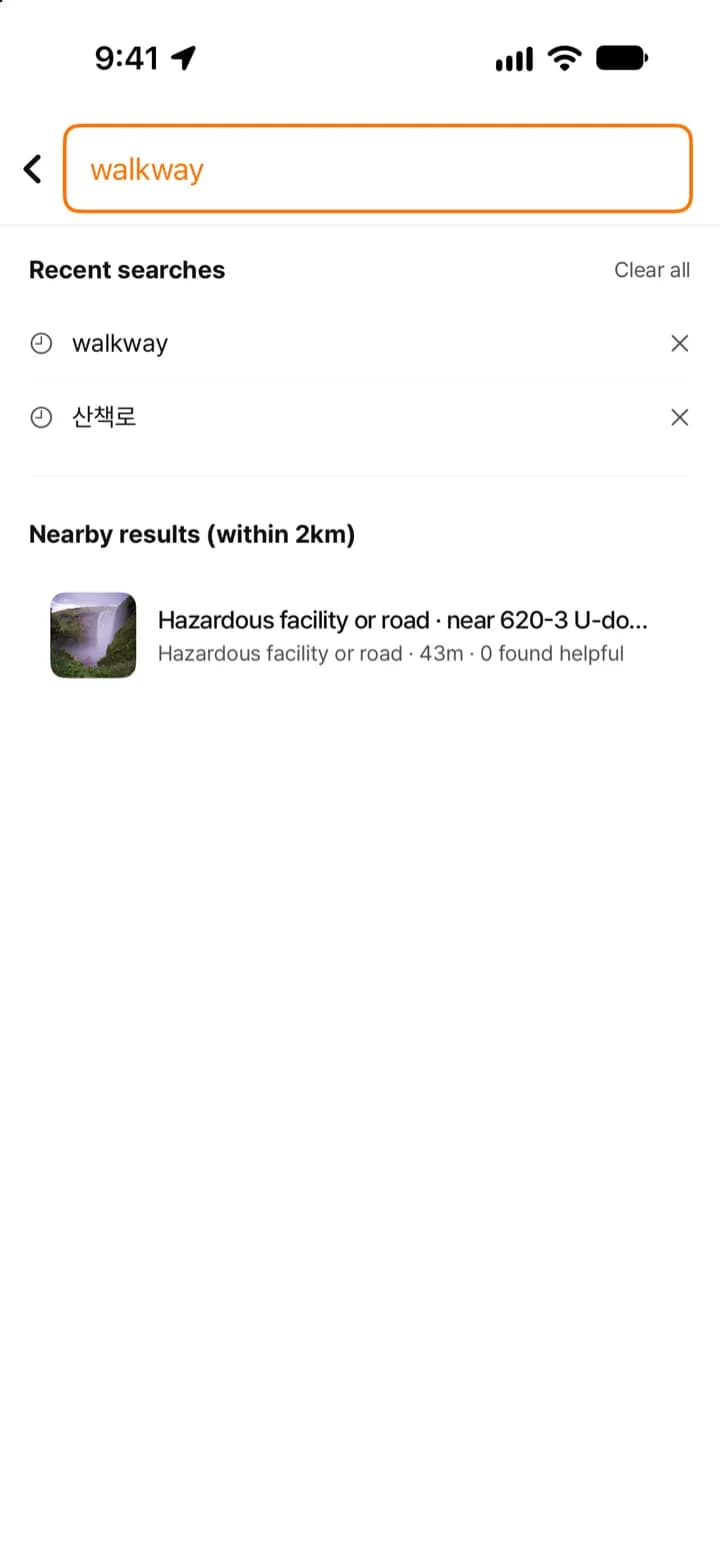
Search