Protection mode
Android
Step by step
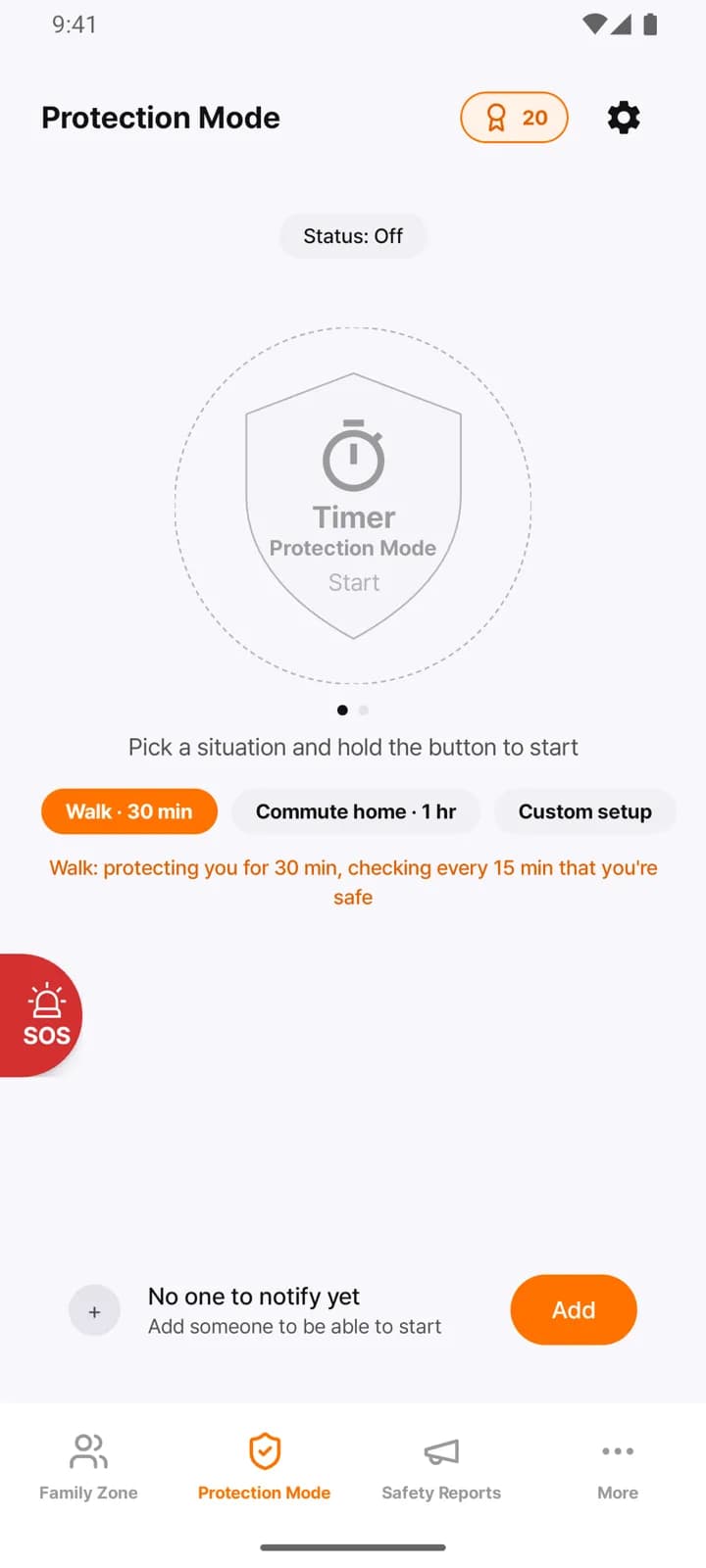
Step 1
Before you start You need at least one connected guardian to notify. If you see "You haven't added anyone to notify yet", tap [Add] to invite someone.
Step 2
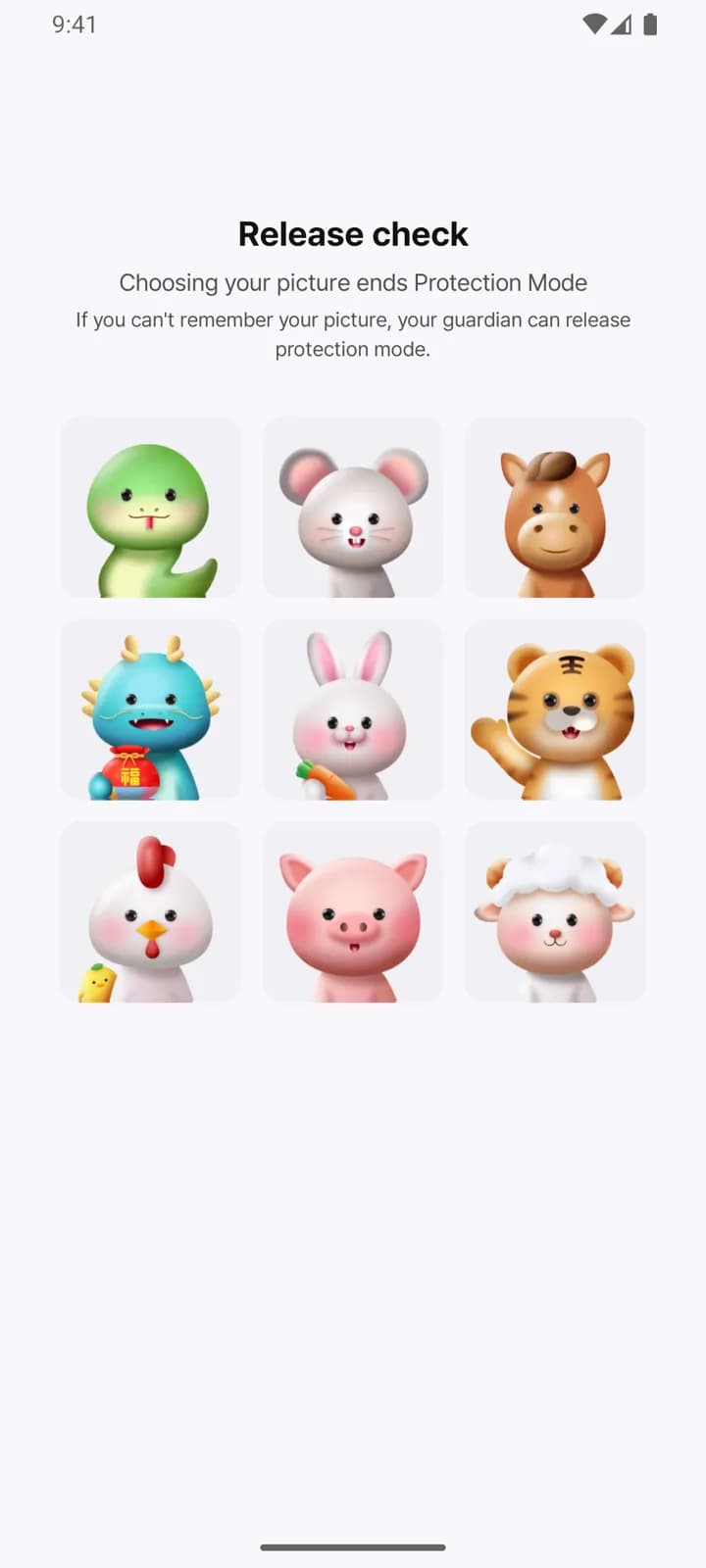
You need to have chosen your unlock picture.
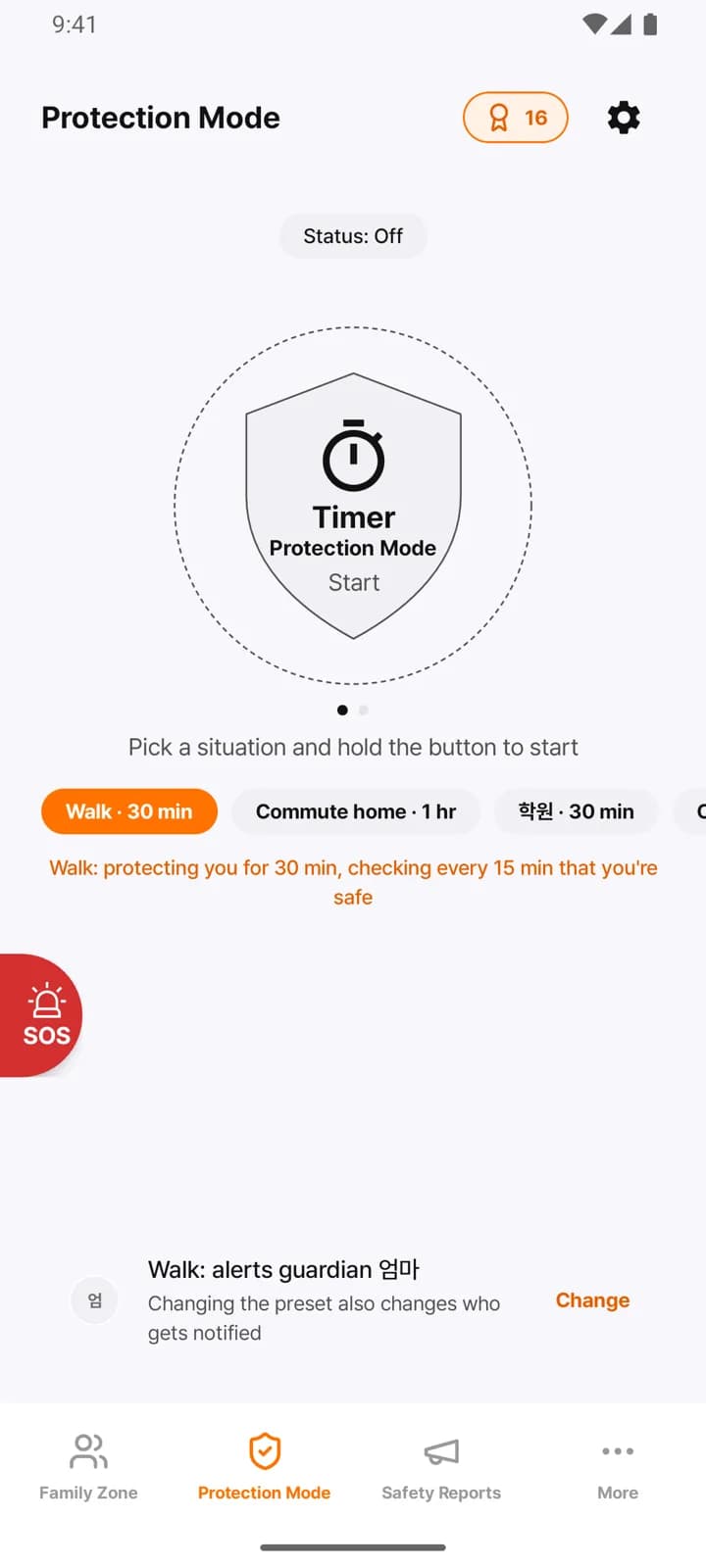
Step 3
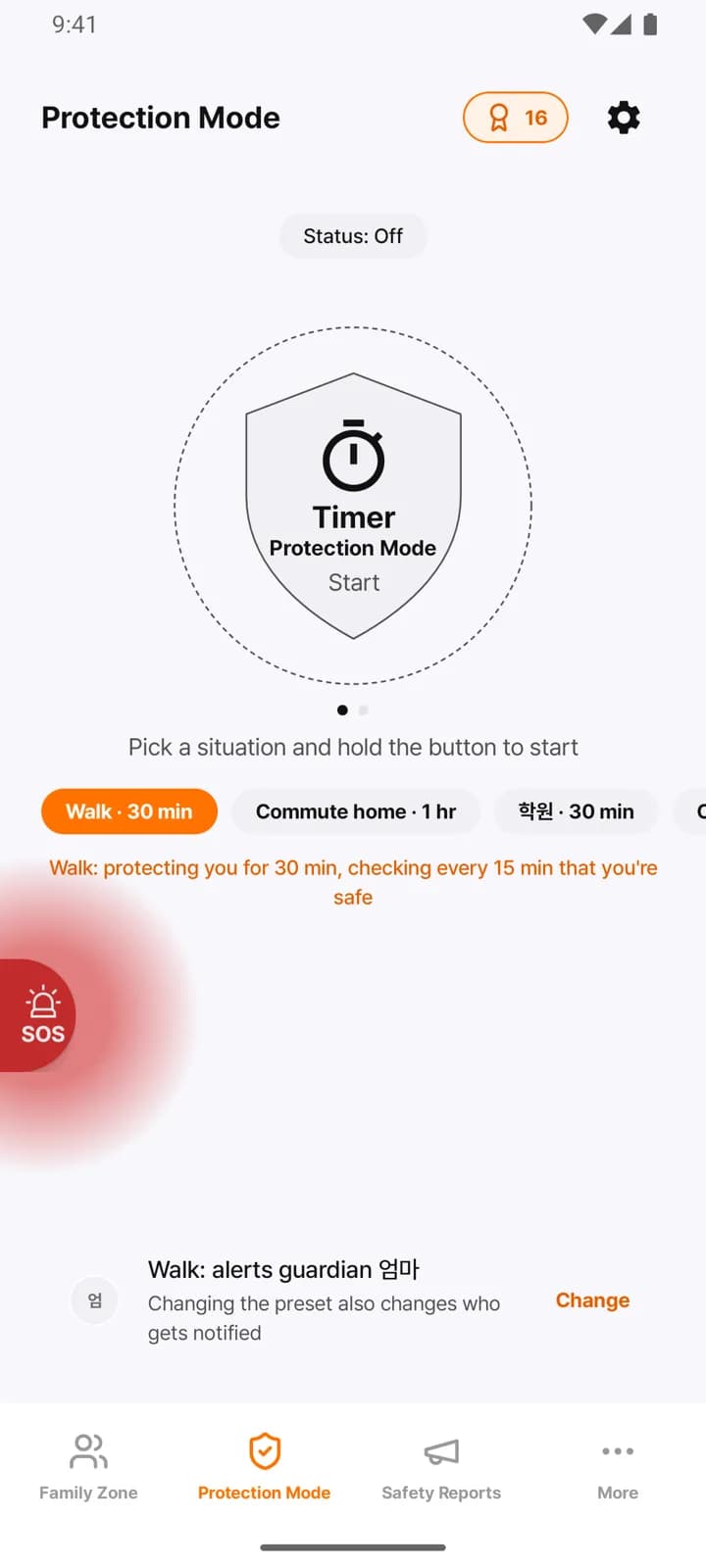
Turning protection mode on Tap "Protection mode" in the bottom tabs. Choose a preset such as "Walk" or "Commute home", or tap [Custom setup].
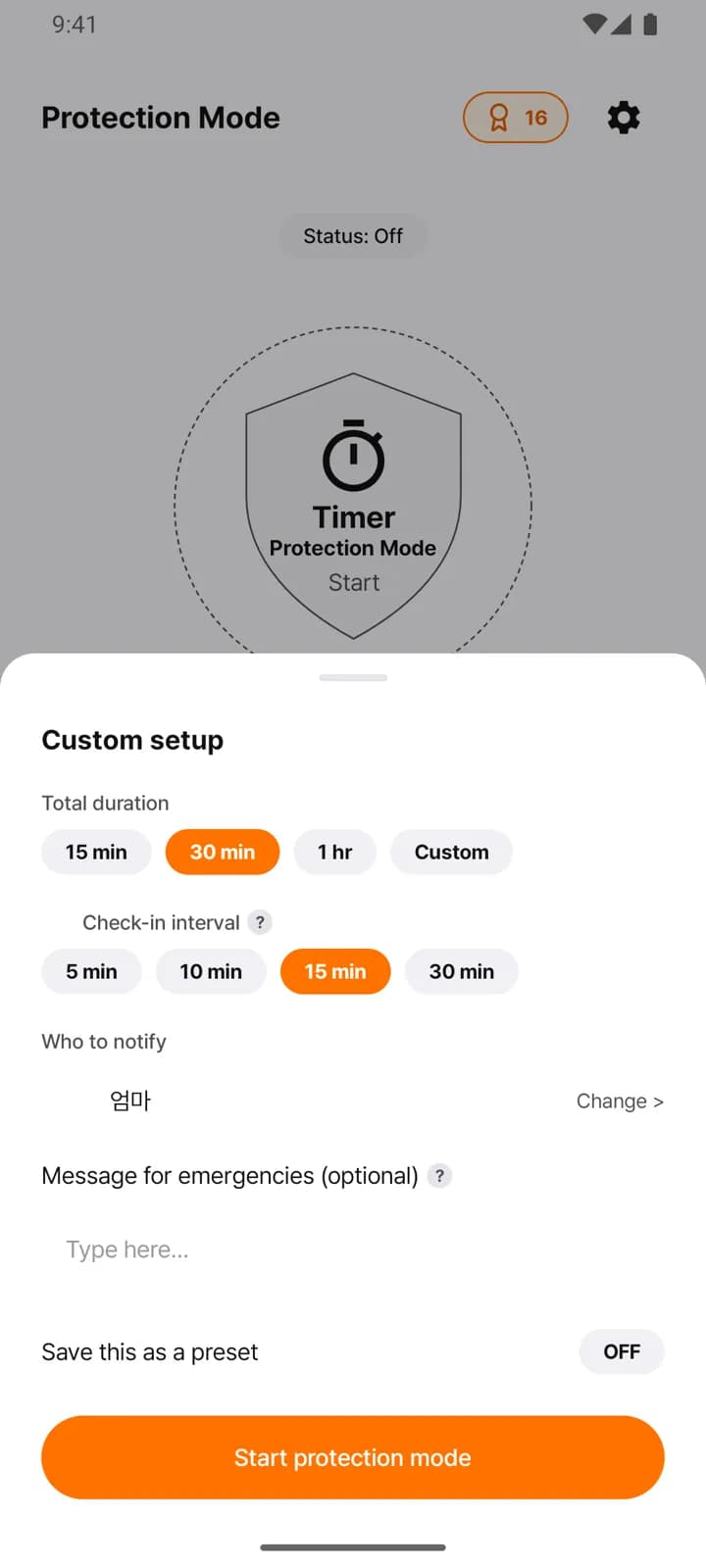
Step 4
In [Custom setup] you can set the total duration, check-in interval, who to notify, and a message for emergencies. Save settings you use often as a preset.
Step 5
Press and hold the round button in the middle to start.
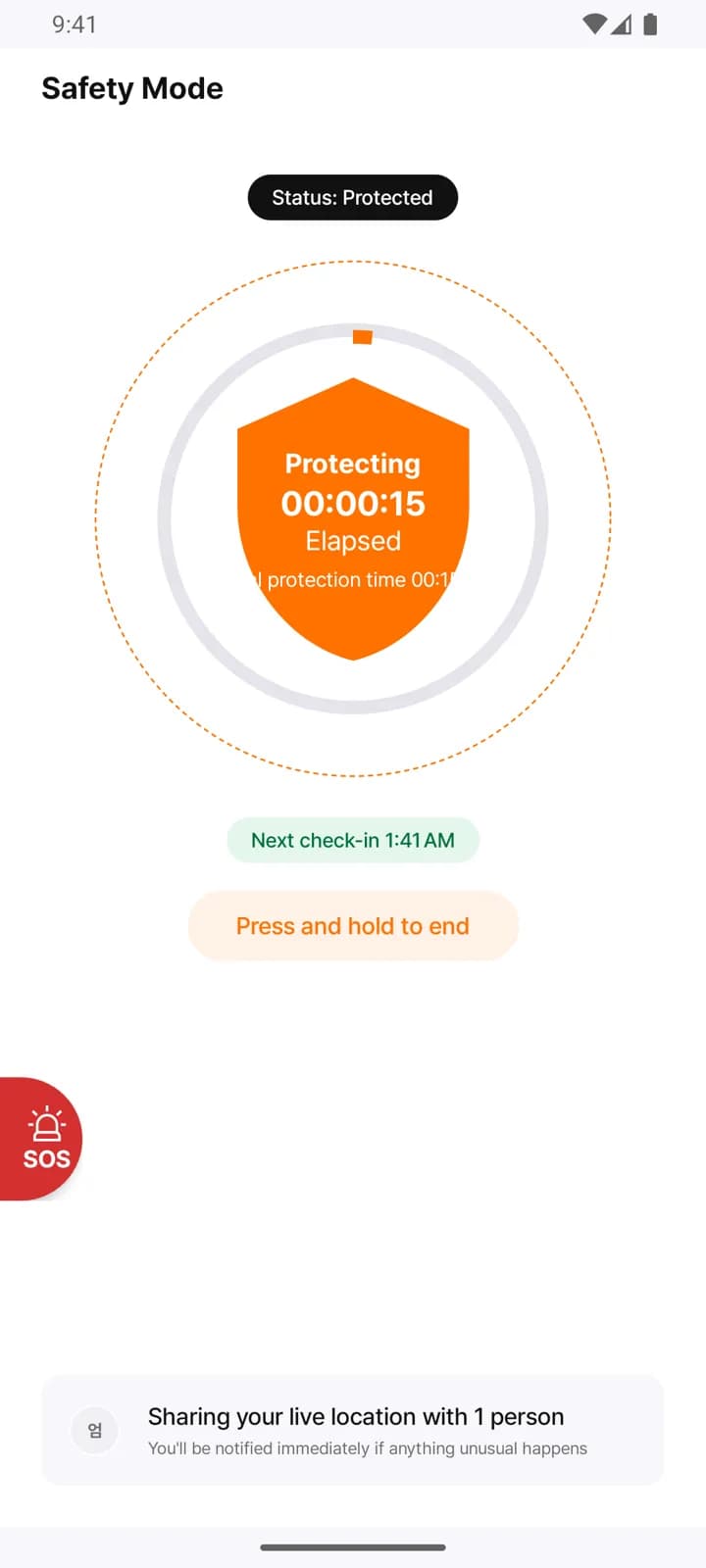
Step 6
While protection mode is on The status changes to "Status: Protected", and you'll see the elapsed time and the time until the next check-in. Your location is shared in real time with the people you chose to notify.
Step 7
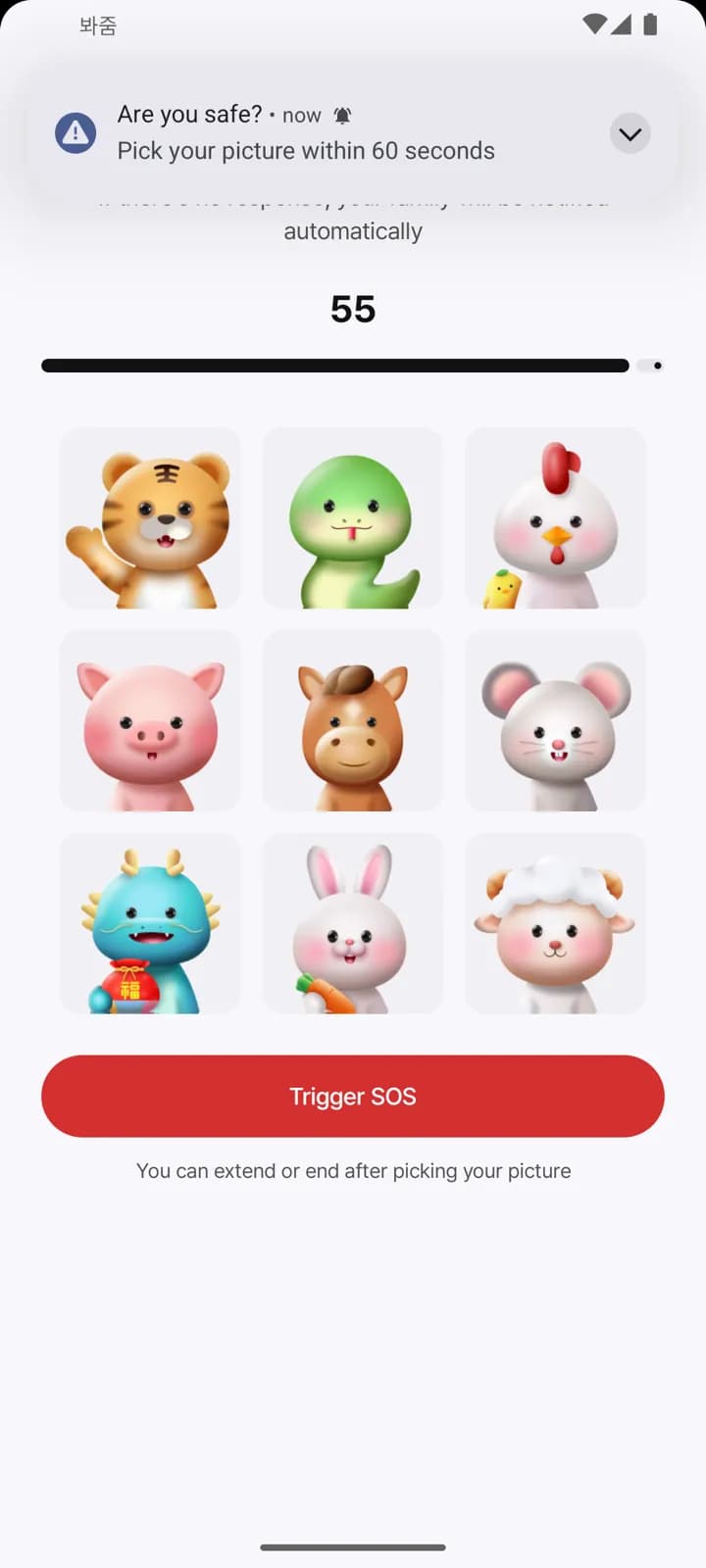
Answering a check-in When it's time, you'll get a notification.
Step 8
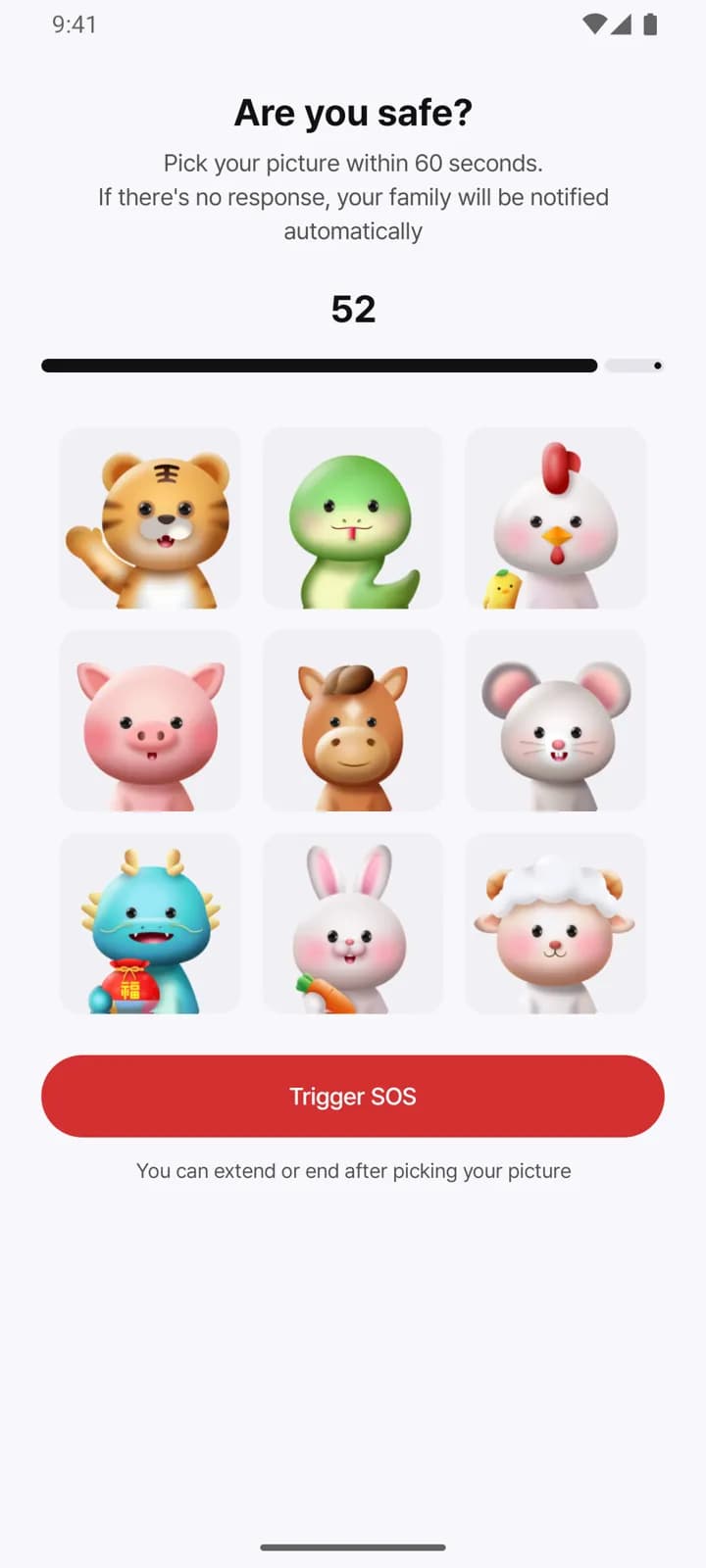
On "Are you safe?", tap your picture within 60 seconds.
Step 9
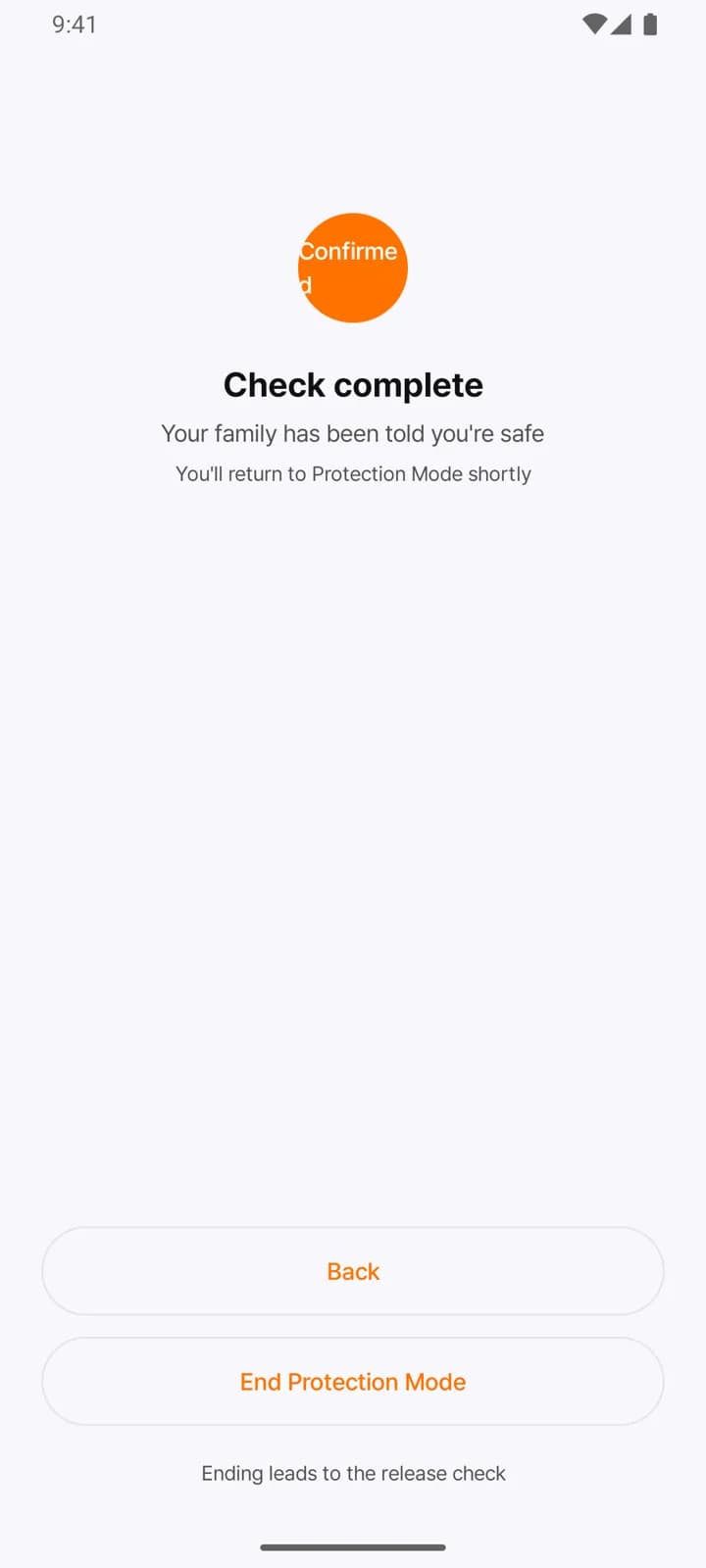
If you tap the right picture, your guardians are told you're safe.
Step 10
If you don't answer within 60 seconds, your guardians are alerted automatically. For more details, see the guidance inside the app.
Step 11
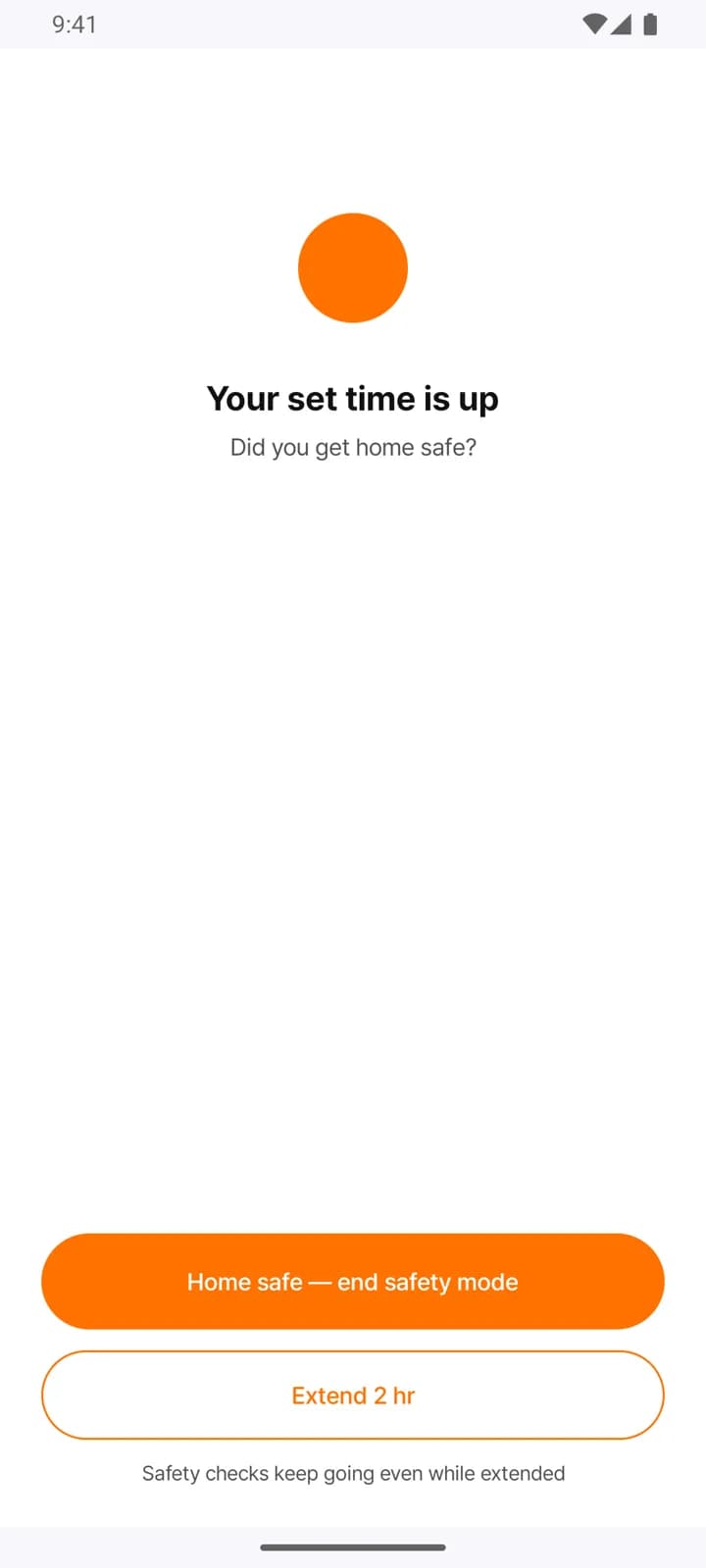
When the time is up When you see "Your set time is up", tap [I'm safe — end protection mode] on iPhone or [Home safe — end safety mode] on Android, or extend if you need more time. Check-ins continue during an extension.
Step 12
Turning protection mode off Press and hold [Press and hold to end], then tap your picture on "Confirm release". If you can't remember your picture, your guardian can release protection mode for you.
Step 13
Sending an SOS Press and hold the SOS button. A short tap won't trigger it.
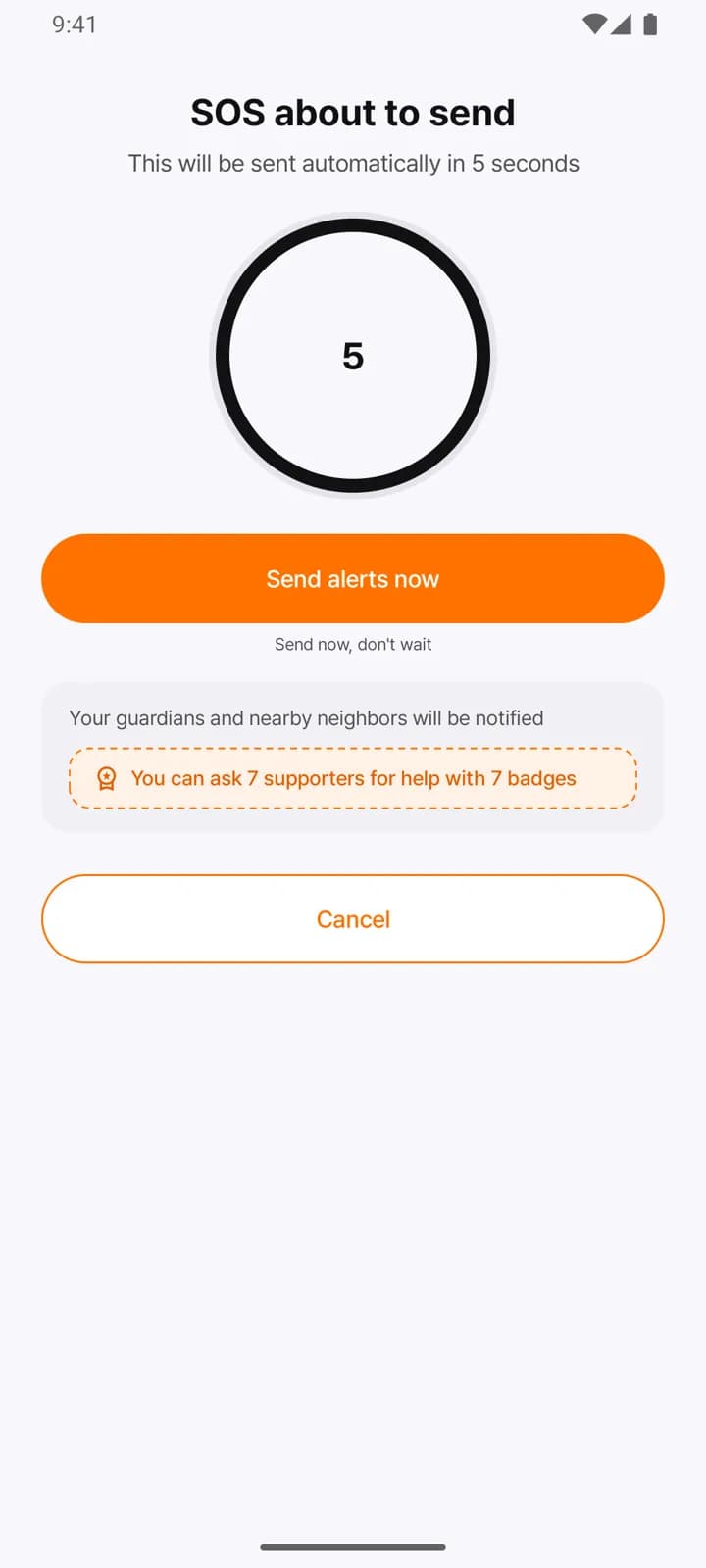
Step 14
Alerts are sent automatically after a few seconds. Tap [Send alerts now] to send right away, or [Cancel] if it was a mistake. With "Also alert supporters" on, nearby Vazoom users are asked for help too.
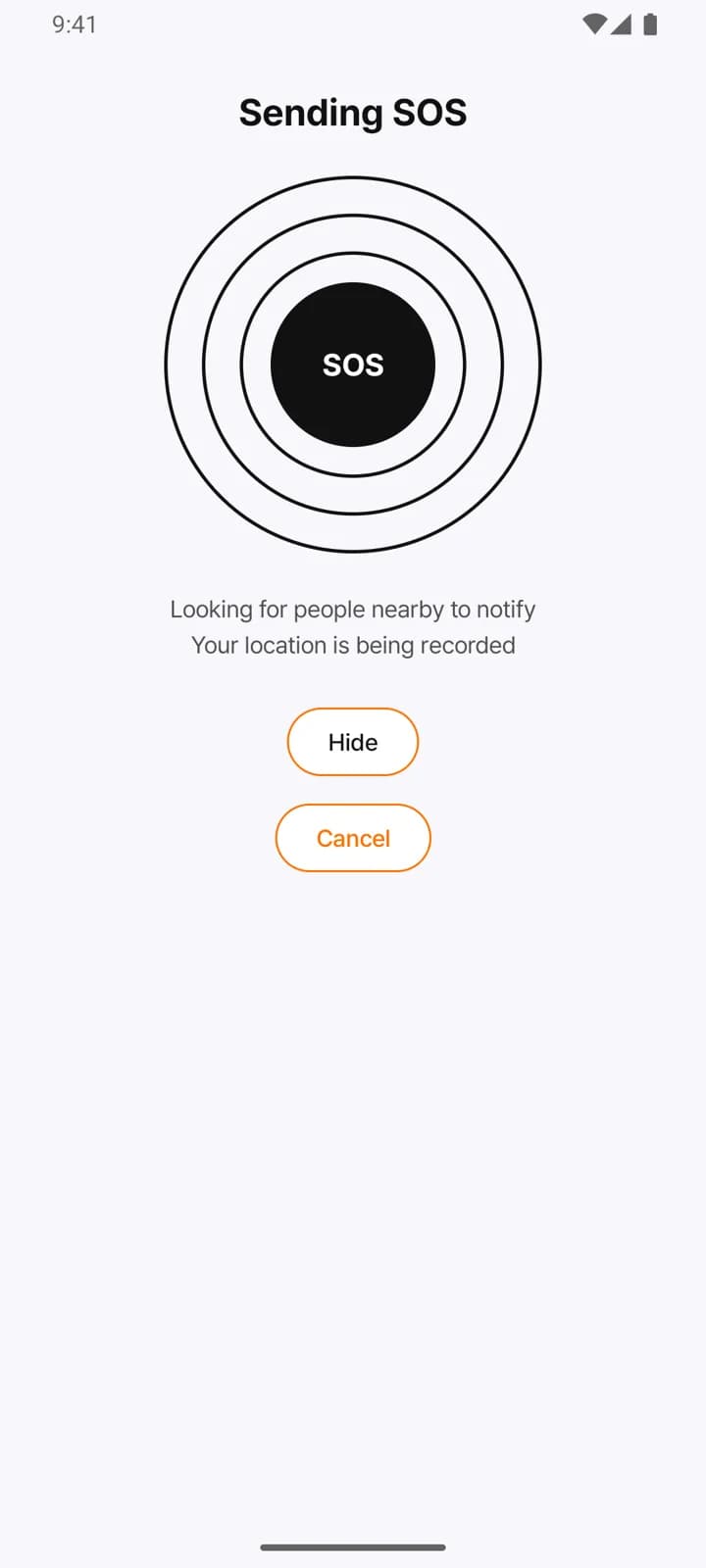
Step 15
Once sent, the "Sending SOS…" screen shows how many guardians and supporters were alerted, and your location is shared in real time. Tap [Hide] to hide this screen. If you tap [Cancel], people who were already alerted get a cancellation notice, and if you have no guardians, cancelling ends the situation.
Step 16
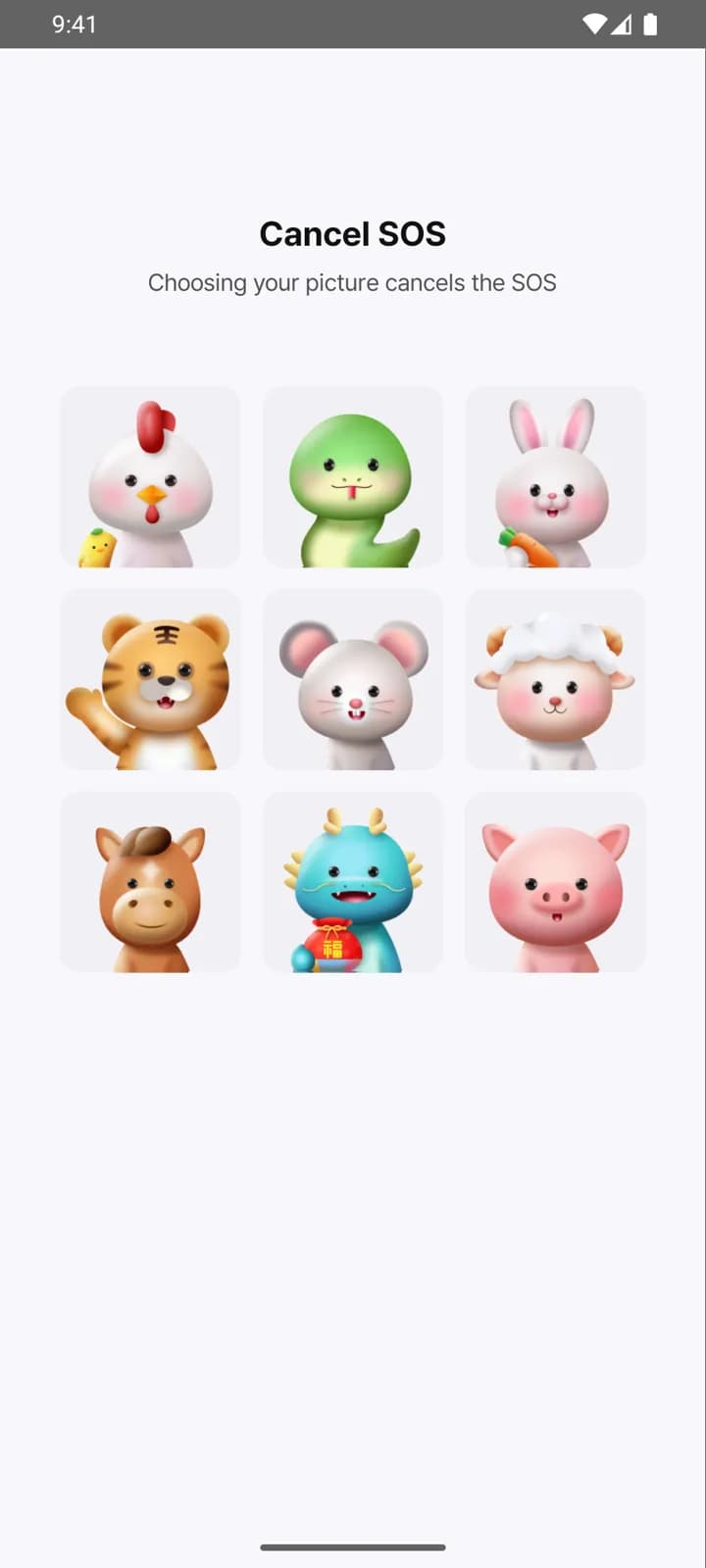
When the situation is over, tap [Cancel SOS] and choose your picture.
Step 17
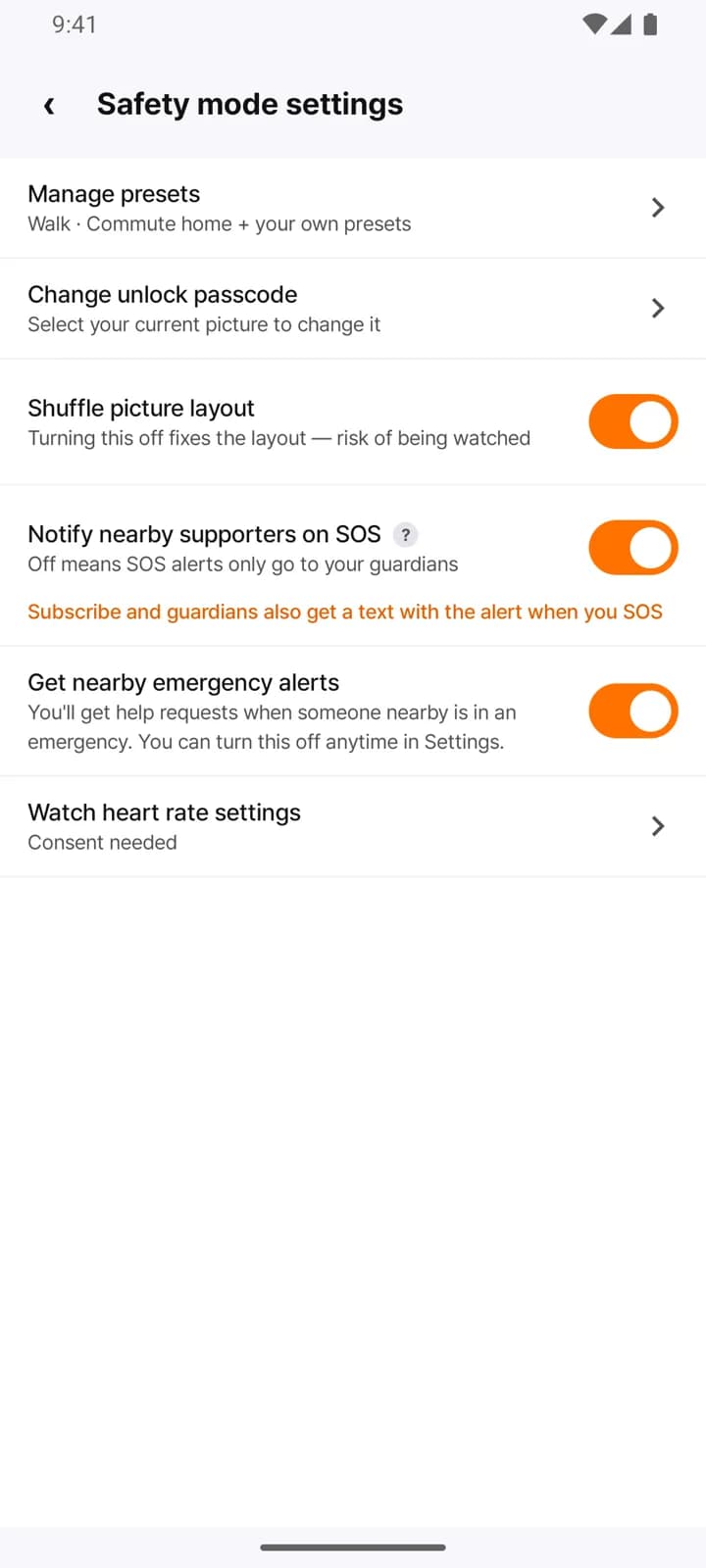
Protection settings Tap the gear at the top right of the Protection mode tab to manage presets, change your unlock picture, shuffle the picture layout, and turn "Get nearby emergency alerts" and "Also notify supporters for SOS" on or off.
Step 18
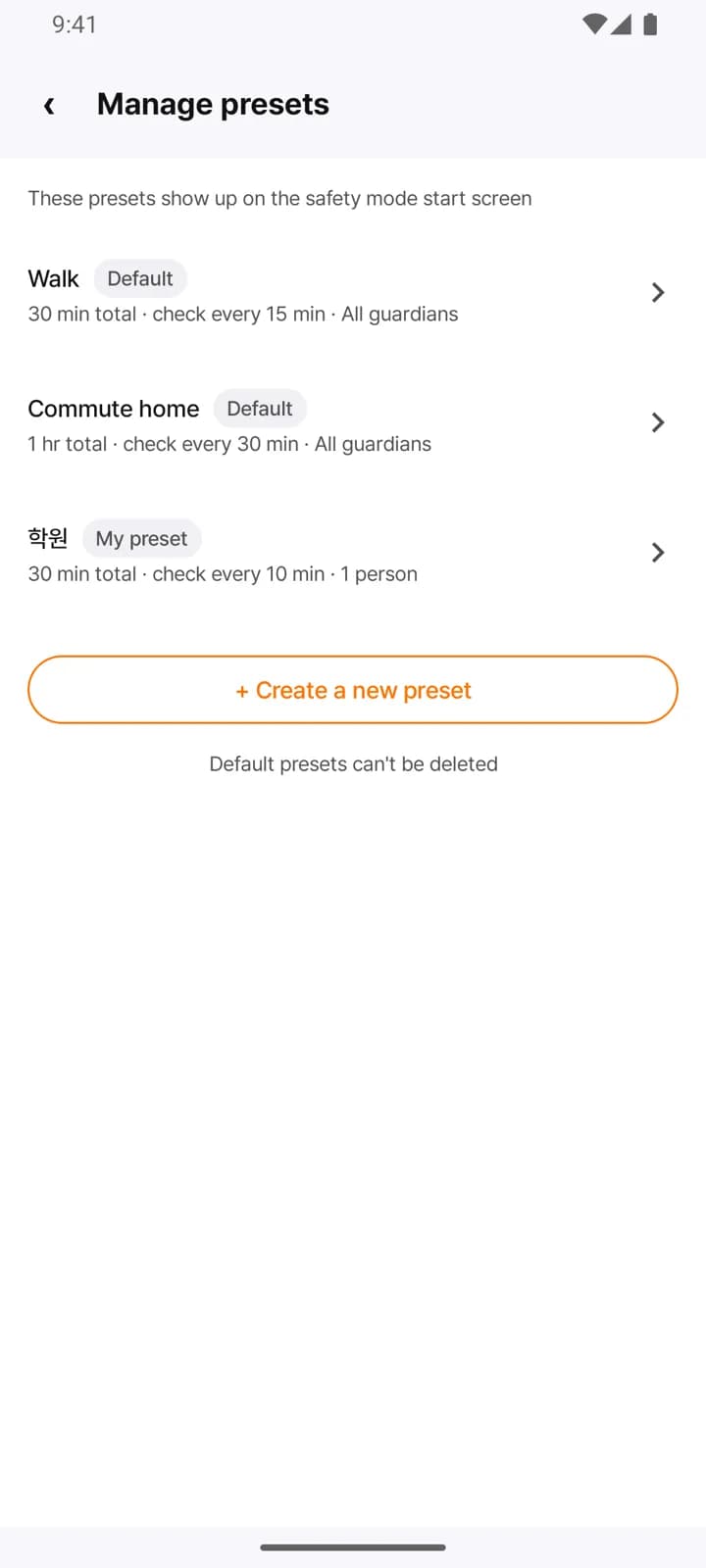
Manage presets
Step 19
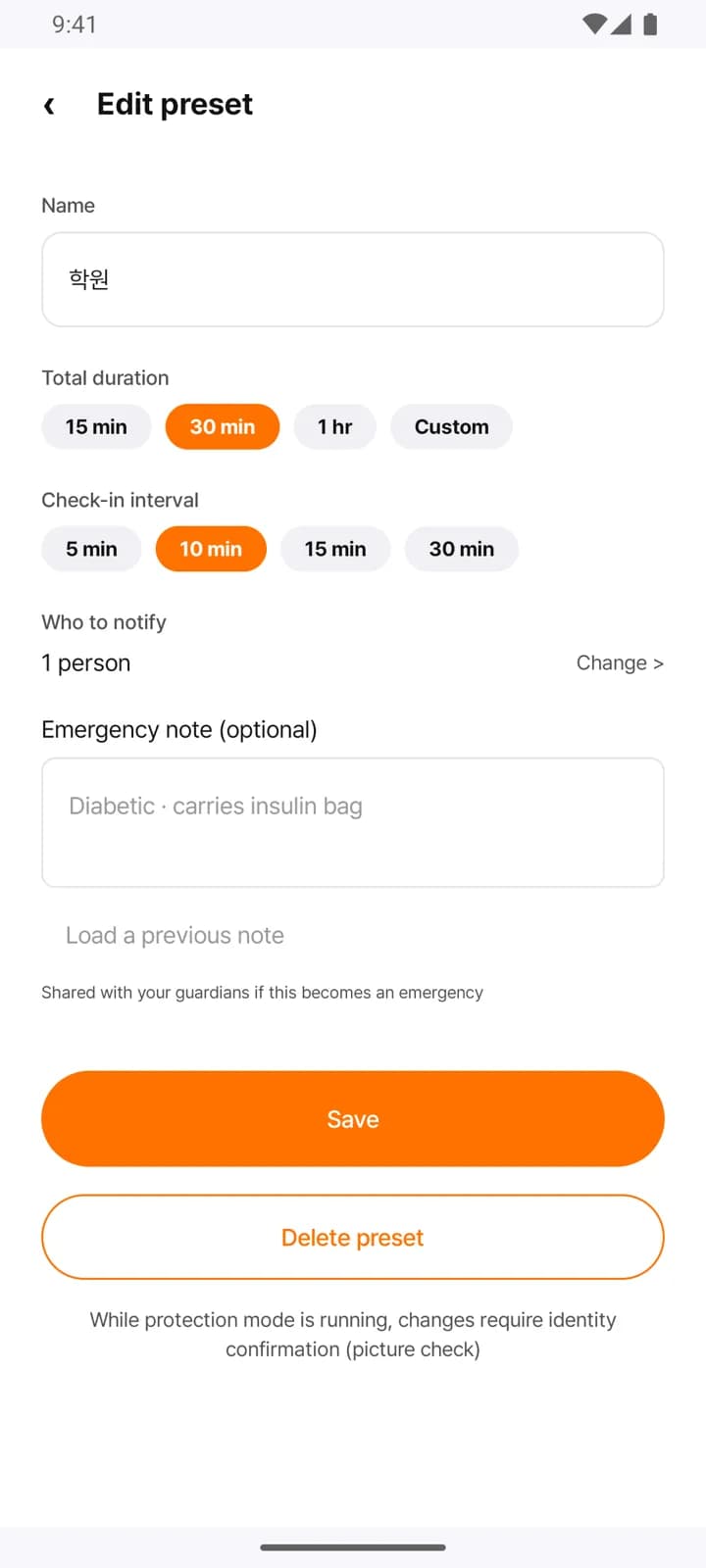
Tap a preset to change its name, total protection time, check-in interval, who to alert, and the memo sent in an emergency.